Signing & Acceptance
Send it, get a yes.
Quotes, offers, policy sign-offs and HR packs go out from your data and come back accepted with one click. Contracts go out the same way and come back signed. Every yes is logged, with a certificate on the PDF.








Key Benefits
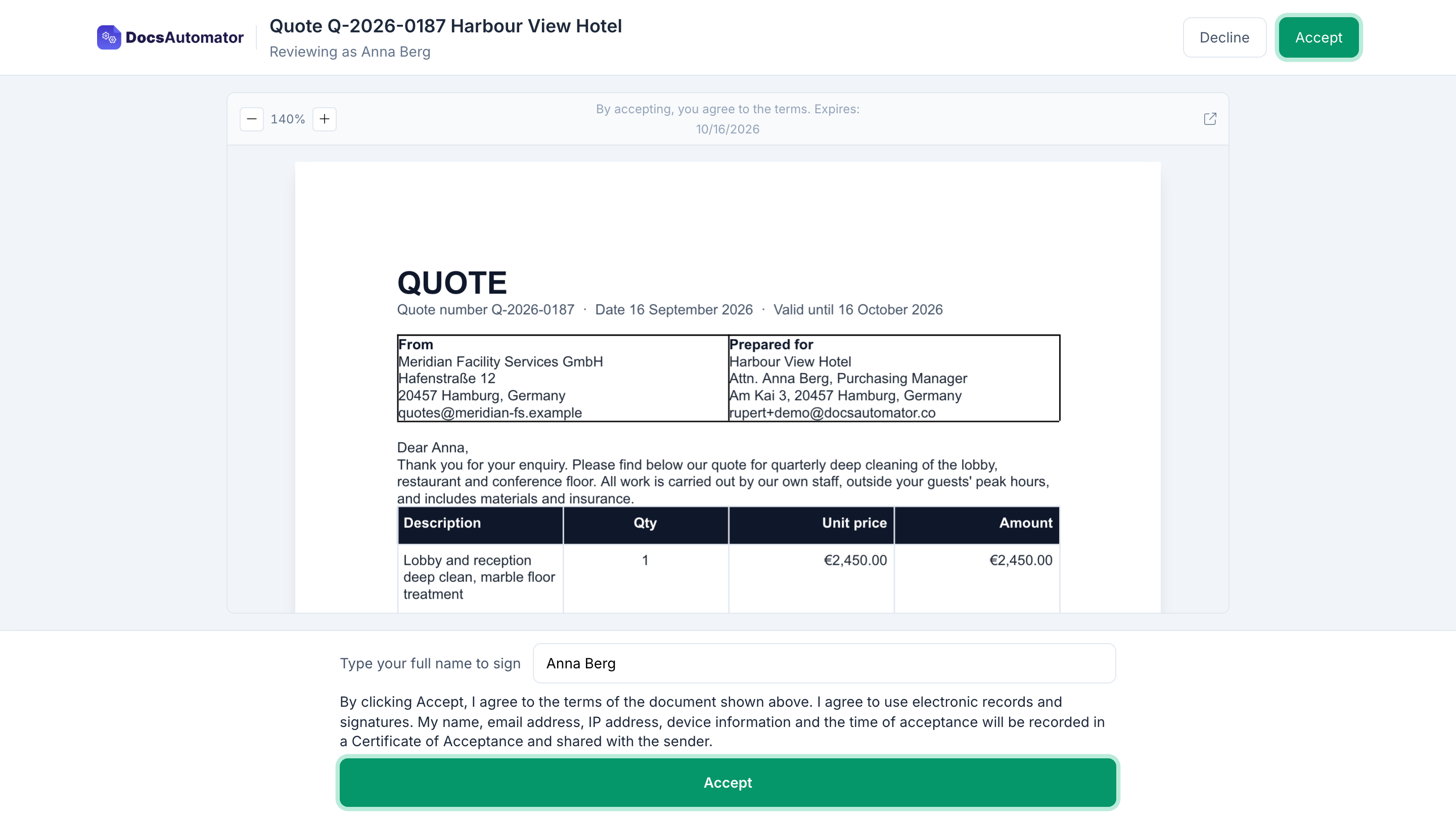
Accept a quote online in one click, without a signature field
A second way to close
Next to signing, every automation in DocsAutomator can now close a document with acceptance. Together they are Signing & Acceptance. Some documents need a signature. Most quotes, offers and sign-offs do not. They need a clear yes from the right person, on record.
One click, nothing to draw
With acceptance, DocsAutomator generates the document from your data, as it does today, and emails it to the recipient. The recipient opens it on a phone or a laptop, reads it and clicks Accept. There are no signature fields and nothing to draw.
A typed name, or a no with a reason
If you want more certainty, you can ask the recipient to type their name before they accept. If the answer is no, the recipient can decline and give a reason.
A Certificate of Acceptance on the PDF
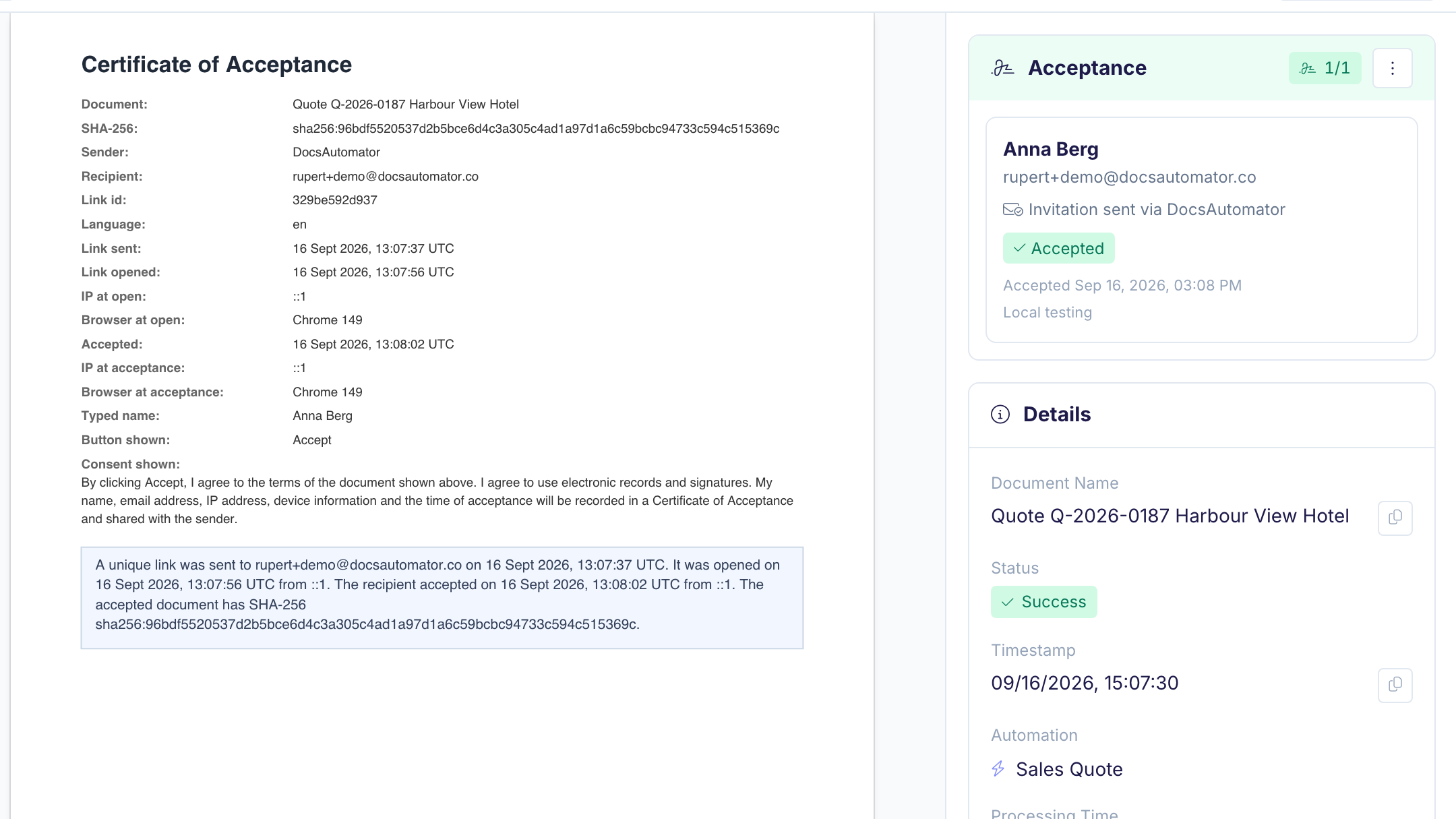
You and the recipient both get the accepted PDF with a Certificate of Acceptance on the last page. The certificate records the time, the email address, the IP address, the device, the typed name and a fingerprint of the exact document they saw. The PDF is sealed with a digital certificate and an independent timestamp, so it is tamper-evident: a PDF reader shows if the file changed after it was sealed. The accepted PDF is saved where your signed documents go today, for example your Google Drive folder or the record in your data source.
Click to accept vs. e-signature
If the other side expects to sign, use Signing. If a click on Accept is enough, use Acceptance.
Quotes, change orders, order confirmations and sign-offs
Send quotes and contracts from AirtableQuotes and offers
A customer does not sign a quote. They read the price and say yes. Send the quote from your Airtable, Google Sheets or other data source, and the customer accepts it from the email in a few seconds. You see the yes in DocsAutomator and in your record, with the time and the name.
Change orders
When the scope or the price of a job changes, send the change order from the same record as the quote. Your client reads what changed and clicks Accept, and you have a sealed PDF of the new terms before the extra work starts.
Order confirmations
Send the order confirmation from your order table and let the customer confirm it with one click. The accepted PDF goes into the order record, with the time, the email address and the typed name on its certificate.
SOPs and policy sign-offs
When a procedure or a policy changes, each person who must follow it opens it and clicks Accept. You keep one sealed PDF per person, with the date they accepted. When an auditor asks who confirmed version 4 of the procedure, the answer is a folder, not a spreadsheet of emails.
HR packs
Handbooks, safety briefings, equipment policies and onboarding documents need an acknowledgment, not a contract signature. Send one document per new starter from your HR table, ask them to type their name, and file the certificate with their record. The employment contract itself still goes out for signing.
Start automating & signing in minutes!
How it works
Get started in minutes
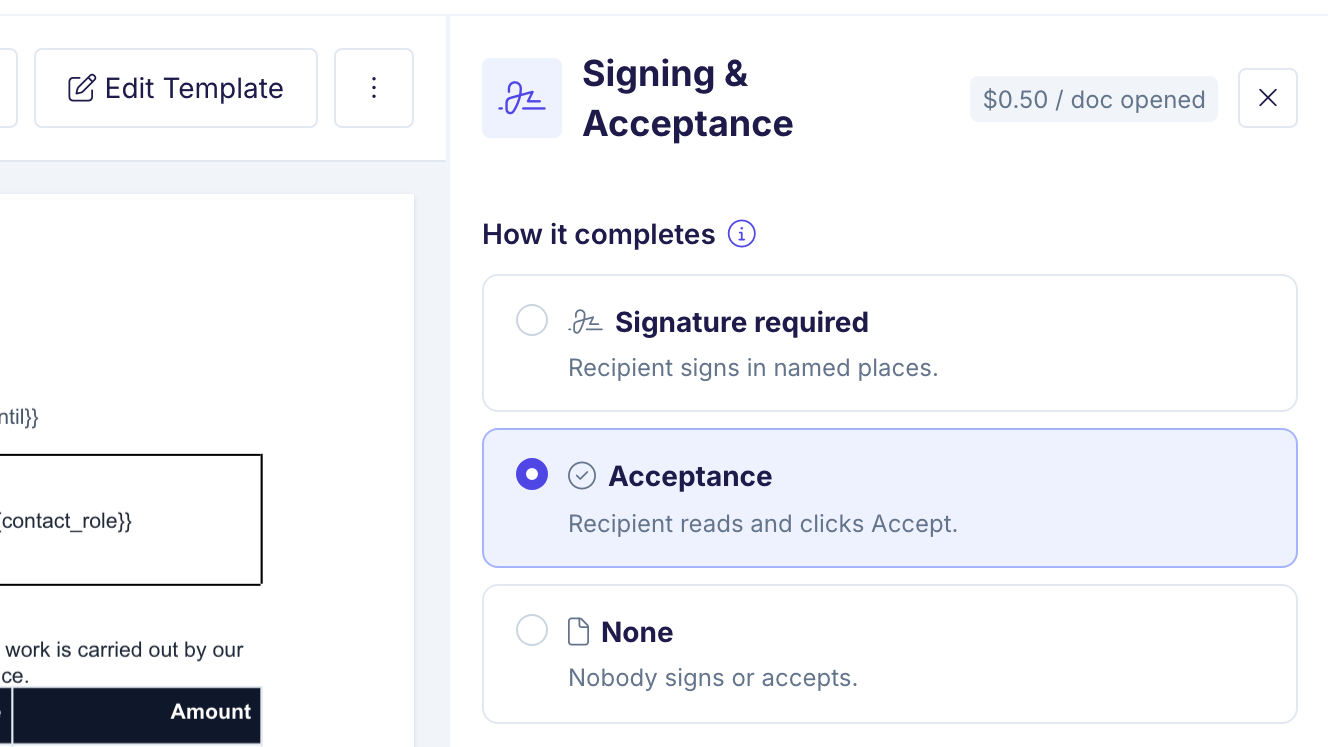
Choose Acceptance under How it completes
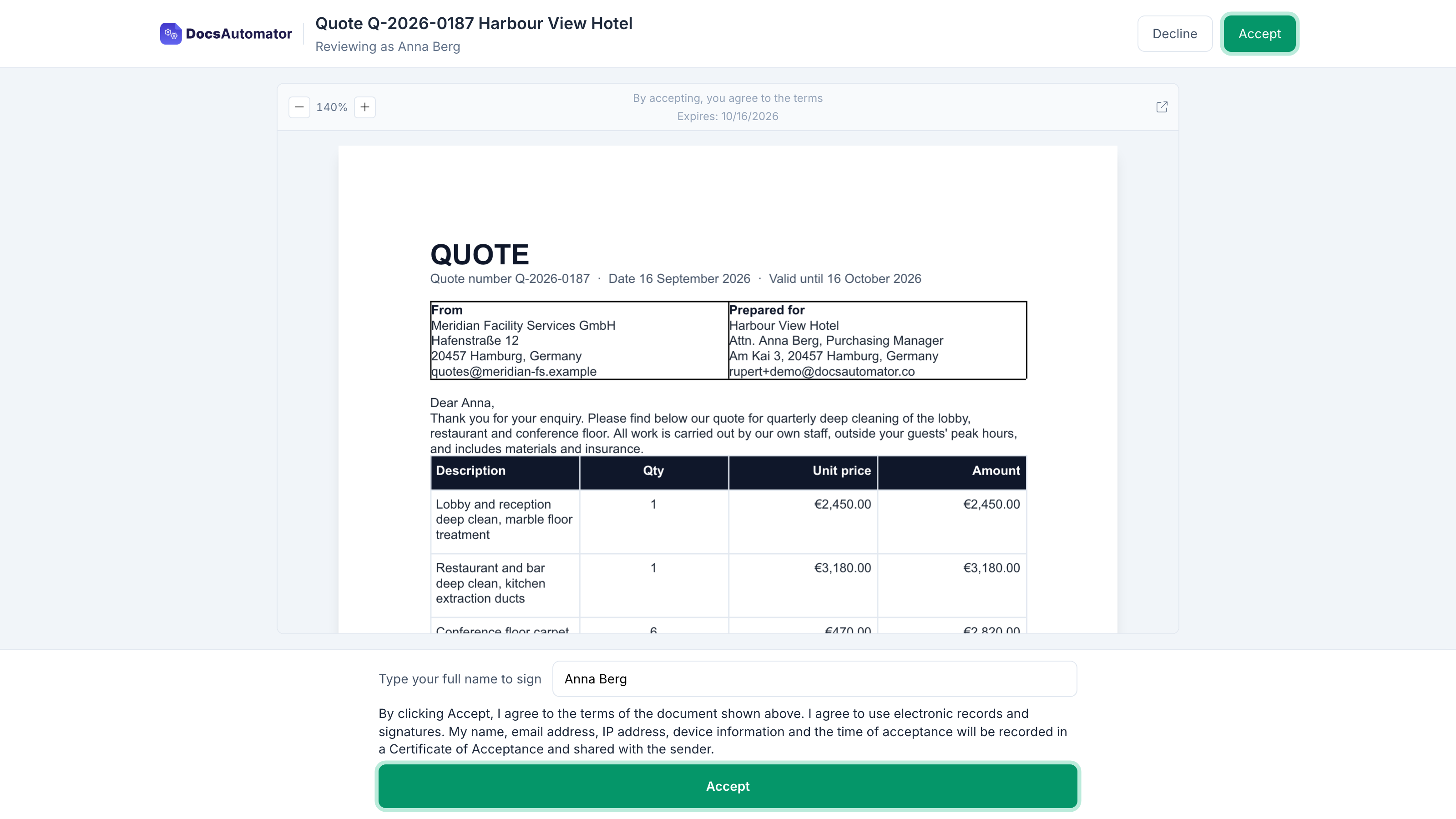
The recipient reads and clicks Accept
The sealed PDF comes back with its certificate
Learn more in our Knowledge Base
Start automating & signing in minutes!
Track when the customer accepts the quote
Every request has a status, and the accepted PDF goes back to the record it came from.
A status for every request
The Documents page and the Needs attention list on your home page show where each request stands: Not opened yet; Read, not accepted; Partly accepted; Accepted; or Declined. When a customer opened the quote and went quiet, send a reminder with one click. When nobody opened it, copy the link and send it another way.
The accepted PDF on the record
Once every recipient has accepted, the sealed PDF goes to a Google Drive folder, to the record in your data source, or both: an Airtable attachment field, a Notion files property, a link in a Google Sheets cell, a SmartSuite file field or a ClickUp task. You also get an email saying who accepted.
A webhook when the customer accepts
Webhooks fire for acceptance as they do for signing, and the payload says closeType "acceptance", so one endpoint can tell an accepted quote from a signed contract. Use it to move the deal in your CRM or start the next step. The API reads the same data.
Start automating & signing in minutes!
How billing works
E-signing and acceptance are included in every plan.
Any number of recipients
Signing and acceptance come with your plan, however many people the document goes to.
Test before you go live
Send test requests and preview the full flow while you set up an automation. Test documents do not count toward your plan.
Reminders by default
New automations send reminders by default, and you get an email two days before a request expires.
Start automating & signing in minutes!
Frequently Asked Questions
Start automating & signing in minutes!
Explore more features
Everything you need for document automation
AI Template Generator
Describe a document and let AI create a professionally designed Word (.docx) template for you.
Google Docs Templates
Build templates in Google Docs, one of the most intuitive document tools on the web.
Word Templates
Upload a Microsoft Word .docx template and generate Word or PDF documents from your data.
E-Signatures
Send documents from your data for signature or one-click acceptance.
Email Automation
Generate documents and email them as PDF attachments automatically.
Dynamic Line Items
Handle invoices, reports, and itemized lists with dynamic line items including nested data.
Conditional Logic
Show, hide, or style content conditionally based on your data.
AI Field Mapping
Map or generate sample data in seconds with the help of AI.
PDF Generation & Delivery
Generate PDFs, save to Google Drive, OneDrive or Dropbox, send via email, or trigger webhooks.
Batch Processing
Generate dozens of documents in parallel with queue-based batch processing.
REST API
Generate documents programmatically with sync/async modes and webhooks.
AI & Agents
Give AI assistants the power to generate documents via MCP server.
Teams closing documents with DocsAutomator:







Send it, get a yes.
Quotes, offers and sign-offs from your data, back with a certificate on the PDF.
Unlimited testing, no credit card required