 Official connector in the Claude directory
Just ask Claude. The document gets made, sent and signed.
Claude takes the request, and DocsAutomator turns it into a real business document: your template, formatted correctly, signed or accepted, and filed back to your records.
Works in claude.ai, the desktop and mobile apps, and Claude Code.
What DocsAutomator adds to Claude
Three things a chat alone cannot give you.
- 1
Your template, formatted correctly
Your approved template, filled with exact values and printed in your country's format.
Quote for Jonas from my templateYour template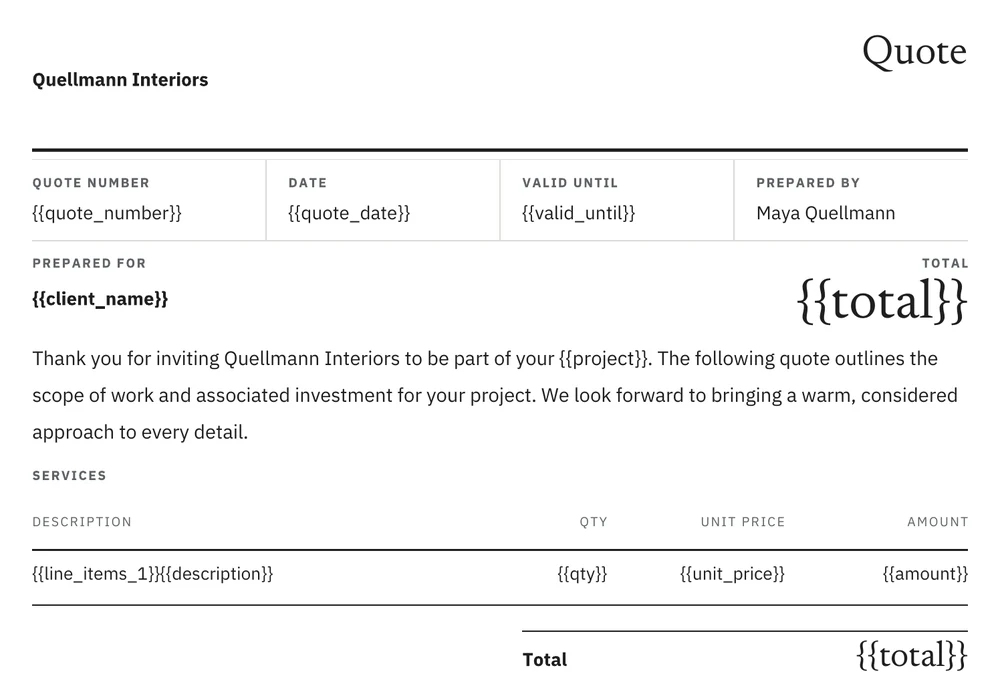 Filled by DocsAutomator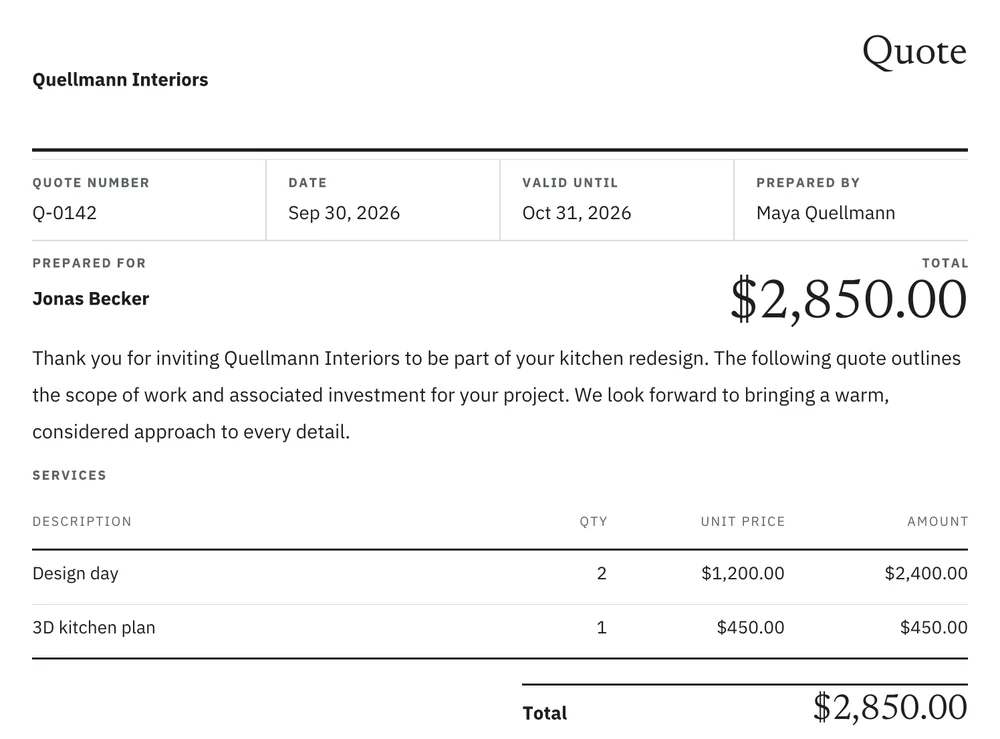
- 2
Signed or accepted
Legally binding e-signatures or one-click acceptance, with the reminders sent for you.
Jonas accepted. Send him the contract.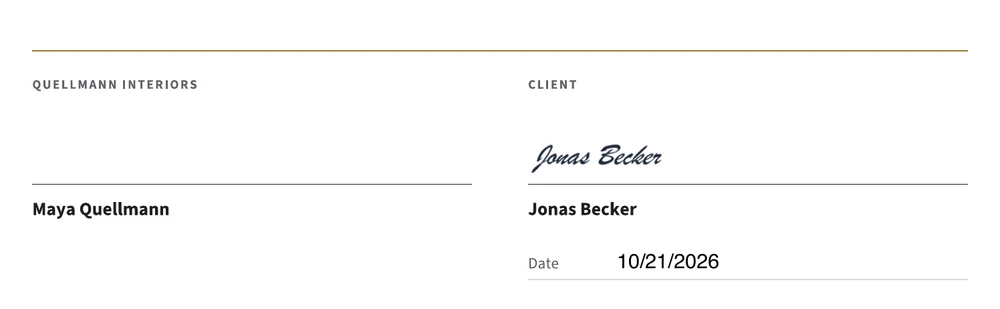
Signed by Jonas Becker on Oct 21, 2026 at 9:19 PM UTC. The certificate records the consent, the time and the document hash (SHA-256 bd4d5986…). - 3
Filed wherever you work
The signed PDF goes back to your records, or anywhere else through Claude, Zapier, Make, n8n or a webhook. A new record can also create the document on its own.
File it in Jonas's project folder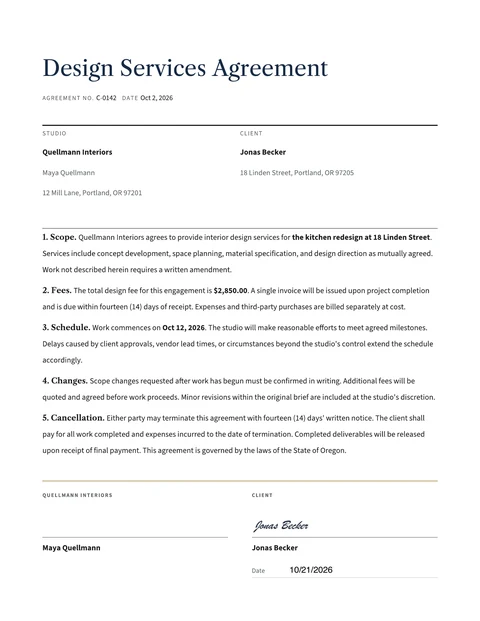
 Projects / Jonas BeckerContract C-0142 Jonas Becker signed.pdf
What you see in Claude
Your template as a preview, the signing status as a card, and the finished PDF filed in your records.
AcceptedGoogle Drive · Projects / Jonas BeckerAdd DocsAutomator to Claude
You connect once with your Claude account. It then works in every Claude app.
- 1
Open DocsAutomator in the Claude directory. In Claude you can also go to Customize, Connectors, Discover and search for DocsAutomator.
- 2
Click "Connect to Claude".
- 3
Sign in to DocsAutomator, choose your workspace if you have more than one, and click "Authorize".
- 4
Back in Claude, DocsAutomator shows as "Connected" under "Your connectors".
Team and Enterprise plans: an owner adds DocsAutomator for the organization first with "Connect for your team". Members then click "Connect to Claude" and sign in with their own DocsAutomator account.
Claude Code: sign in to Claude Code with the same Claude account (/login). DocsAutomator shows in /mcp as "claude.ai DocsAutomator", with no extra setup.
Security and your data
Claude reaches only what you allow when you sign in.
Sign in with OAuth
You sign in on the DocsAutomator page and click "Authorize". You need no server URL and no API key.
One workspace per connection
If your account belongs to several workspaces, you pick one when you sign in. Claude reaches only the automations of that workspace. To switch, disconnect and connect again.
You confirm every send
Before an email goes out, DocsAutomator asks you to confirm the document and every recipient. A preview is a watermarked PDF and sends nothing.
What Claude can access
Your automations, templates, documents and signing requests in that workspace. Record sources such as Airtable stay connected in the DocsAutomator app, and the tools cannot search your records.
Prompts for your first documents
One prompt per document type, starting with the templates you already have. Each one shows a pillar at work.
Use my DocsAutomator automation "Consulting agreement" for Airtable record rec123. Send it to the client email in the record for signature and save the signed PDF to the "Signed contract" field.
Claude passes the record, DocsAutomator fills your existing template and sends the signing request after you confirm. Once signed, the PDF goes into the "Signed contract" field.
Set up an invoice from the DocsAutomator template gallery. Print amounts in US dollars with two decimals and dates as Sep 30, 2026, then show me a preview for Jonas Becker: 2 design days at $1,200 each.
Claude picks the gallery template and stores the format of each placeholder. The preview shows $2,400.00 and Sep 30, 2026, and it is a watermarked PDF, so nothing is sent.
Design a quote template in the style of my studio's website, then send Jonas Becker at jonas@becker.example the quote for his kitchen redesign for acceptance. Use DocsAutomator and test mode.
With your website address, Claude designs a quote template in your brand, creates the automation and makes a preview. DocsAutomator asks you to confirm Jonas as the recipient and then sends the quote for acceptance in test mode.
Questions about DocsAutomator in Claude
Using Cursor, VS Code or another AI tool? Connect it to the DocsAutomator MCP server
Let Claude build your next quote
Add the connector, describe the document, and send the first one in test mode.