Almost nobody arrives at a document automation tool unsure of what they want. They want the invoice that goes out every Monday. The inspection report with the site photos. The client agreement that needs two signatures. The document is clear in their head before they ever open the app.
The gap has always been everything between that idea and the first finished PDF. Connect a data source. Build a template. Type placeholders in the right places. Map each one to the right field. Work out how line items repeat. Run a test, spot the wrong date format, run it again. None of that work is about the document. It is scaffolding, and for a first-time user it is the difference between a tool that works and a tab that stays open for a week.
Today we're launching the DocsAutomator AI Agent. Describe the document you need in plain language, and the AI Agent does the setup: it reads your data, designs the template, maps every field, and generates a first document from a real record so you can check the result before anything goes live. The rest of the app has been rebuilt around it.
See It in Action
Here's the full run, from a single sentence to a finished PDF:
What "Describe It" Actually Means
You open DocsAutomator and type something like:
Turn each record in the Invoices table of my CRM base into a PDF invoice
with its line items, and save it to Drive.
The AI Agent asks the two or three questions it genuinely needs answered. Where does the data live? Do you want it to design a template or will you bring your own? Any brand details it should use? Then it starts working, and you watch it happen: connecting to your base, listing the tables it found, sampling a few records to see what the fields actually contain.
In our own runs, one sentence to a finished, correct PDF takes a few minutes. Most of that is the template design step, and you can watch the pages take shape while it runs.
The important part is what you're left with at the end. It is not a black box or a special "AI automation" that behaves differently from everything else. It is an ordinary DocsAutomator automation: the same template, the same field mapping screen, the same output actions. You can open any part of it and change it by hand, and the AI Agent has not touched anything you didn't ask about.
What the AI Agent Does
It reads your data
The AI Agent works with the data sources you can map field by field inside DocsAutomator: Airtable, Google Sheets, Notion, SmartSuite, and ClickUp. If you have already connected one, it uses that connection. If not, it walks you through connecting a new one and then picks up where it left off.
Once it is in, it browses. It lists your tables, reads the field names, and samples records to see the shape of the data: which fields are currencies, which are dates, which are links to a second table that should become line items. That sampling step is why the mapping it produces tends to be right the first time rather than a guess based on field names alone.
It designs the template
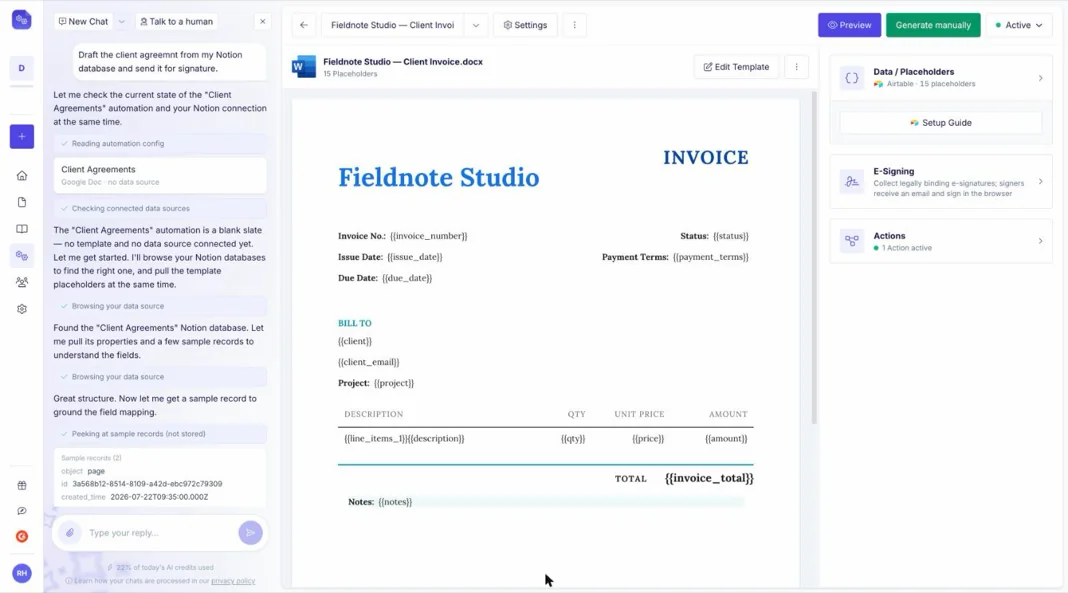
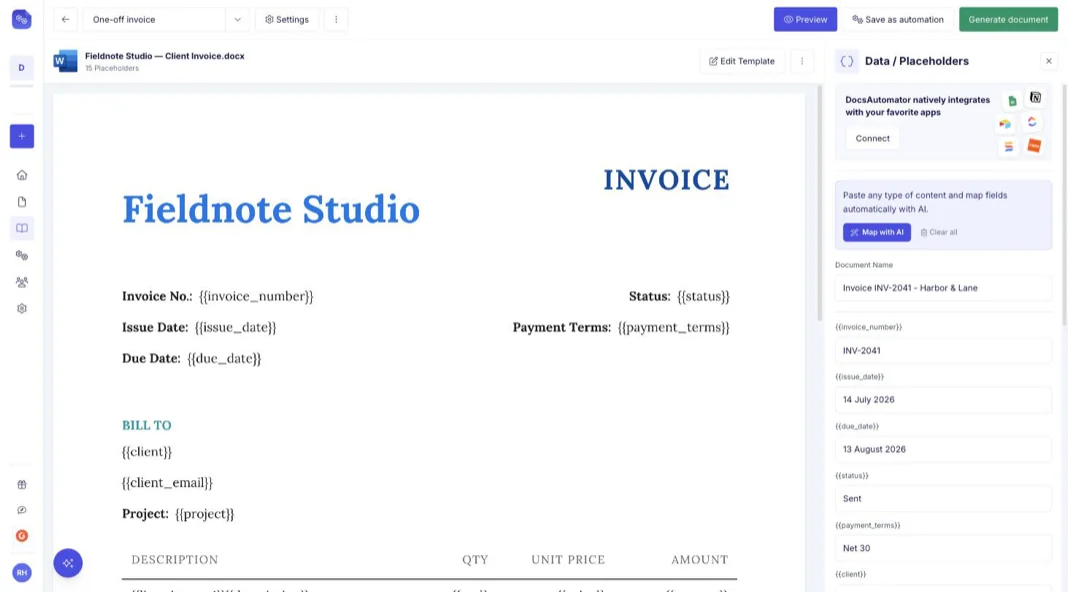
If you don't already have a template, the AI Agent designs one. It offers a gallery of design presets, recommends one that fits the document type, and then writes a native Word template around your actual fields: header, the blocks of information in a sensible order, a line item table, totals, footer.
The placeholders come out already placed. A typical invoice lands with fifteen or so, each one sitting exactly where that piece of data belongs, including the repeating {{line_items_1}} row inside the table. Template design is the slowest step in the flow and it still runs in about a minute.
You are not locked into what it produces. Ask for changes in words ("make the header darker, move the payment terms above the total") and it rewrites the template. Or open the template in the editor and change it yourself.
It maps the fields
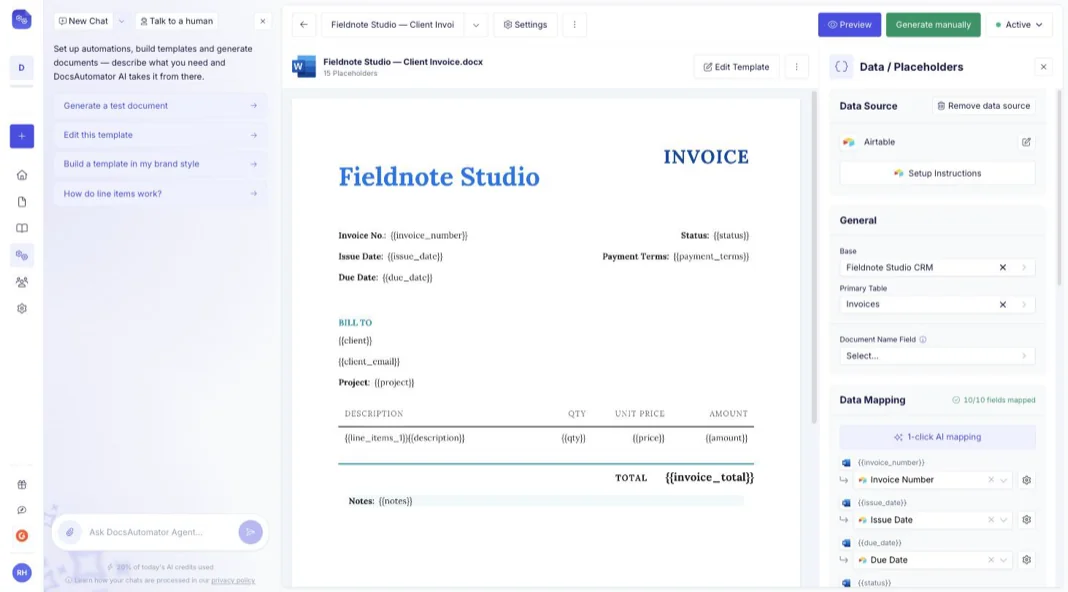
Field mapping is the step people most often get wrong on their own, particularly line items, where a single misrouted field means every row in the table comes out empty. The AI Agent fills the mapping table for you, line item sub-fields included, and shows you the result as a plain table you approve before it applies anything.
Mapping in DocsAutomator has always been free-form: any placeholder can point at any field, whatever the two are called. That has not changed. The AI Agent is doing the same job AI field mapping already did for individual fields, with the whole document in view.
It generates a real document
This is the part that matters most. Rather than telling you the automation is ready, the AI Agent picks a real record from your data, generates the document, and opens the PDF. Real client name, real amounts, real dates, real number of line item rows.
Test generations are unlimited and free while you build, so you can go around this loop as often as you like. Ask for a change, regenerate, look again. When the document is right, you switch the automation live and your plan's document quota starts counting.
It sets up everything after the document
Generating the file is rarely the end of the job. The AI Agent configures the rest from the same conversation: which Drive folder documents land in, who gets an email and what it says, and e-signature fields with the signer order when the document needs signing. It can write the invitation and reminder email copy too.
It knows the product
The AI Agent has our documentation in front of it, so setup questions get an answer with a link rather than a support ticket and a wait. When it cannot help, it hands the conversation to a human with the context already attached, so you are not repeating yourself.
The Workspace Was Rebuilt Around It
An assistant bolted onto the side of the old interface would not have been worth much. So the app has been rebuilt around the thing you are actually making.
The AI Agent is a column, not a popup. It sits beside your work for as long as you want it there, and it can see and act on the automation you have open. Ask it to change the template you are looking at and the template changes.
The tabs are gone. Your template is the center of the screen at all times. Data and placeholders, e-signing, and output actions live in a rail beside it and expand in place. Configuring an automation no longer means clicking between three tabs to remember what you set where.
One way to add a template. There used to be a fork in the road: Google Docs, Word, or PDF, decided before you had a template in hand. Now there is a single starting point. Drop in a file, pick one from Drive or OneDrive, choose from the gallery, or have the AI Agent design one. The format is worked out from what you give it.
Word templates edit in the app. Formatting, dynamic fields, and signature fields, without downloading the file and re-uploading it. This builds on the native Word template support we launched in June.
Previews start on their own. The preview picks a sensible record and renders immediately, rather than asking you to choose one before you have any idea which records are representative.
Templates have their own page. Templates are no longer trapped inside the automation that created them. Keep them in folders, and reuse one template across several automations.
What This Does Not Change
If you already run DocsAutomator in production, the honest summary is that this is additive.
- Your automations keep running. There is no migration and nothing to change on your side. Existing automations behave exactly as they did yesterday.
- The placeholder syntax is the same.
{{field_name}},{{line_items_1}}, section tags for conditional logic, and e-signature tags all work as before. Templates you built by hand are still perfectly good templates. - Every integration still works. Zapier, Make, n8n, Glide, Softr, Noloco, the REST API, and the MCP server continue to trigger documents the way they do today.
- Manual setup is still there. Every screen the AI Agent uses is a screen you can use yourself. If you would rather pick the table, upload the template, and map thirty fields by hand, nothing stops you. Plenty of people will, especially on a document they have built ten times before.
The AI Agent is a faster route through the same product, not a replacement for knowing how it works.
Where an AI Agent Genuinely Helps
Worth being straight about where this earns its keep, because it is not everywhere.
It helps most on the first document of a new kind. A document type you have not automated before, a data structure you have not mapped before, a template that does not exist yet. That is the work that used to take an afternoon, and it is where a system that can read your data and write a template is doing something you would otherwise do by hand.
It helps on the fiddly parts you only meet occasionally: line item tables with nested sub-fields, conditional sections, e-signature field placement. These are easy to get subtly wrong once every few months.
It helps less when you know exactly what you want and it is a five-field change. Open the automation and change it. That is still two clicks and it always will be.
Available Now, on Every Plan
The DocsAutomator AI Agent is live in every workspace today, on every plan, with no add-on and no extra charge for now. That is deliberate for this first phase: we would rather find out how people actually use it than meter it on day one. We may put pricing around it later once usage settles, and if we do we will say so in advance rather than changing your bill quietly. Documents you generate count toward your plan's quota exactly as they always have, test generations stay unlimited and free, and since October 2026, e-signing and acceptance are included in every plan, however many signers a document has.
If you are new: open the app and describe the document you need. If you have been with us a while: open any automation and the AI Agent is in the left column, already aware of what that automation does. Asking it to explain a mapping you inherited from a colleague is a reasonable first use.
We will keep sharpening this. The AI Agent gets better as it learns which questions actually need asking and which it can work out for itself, and the fastest way to shape that is to tell us where it got in your way. Reply to any of our emails or write to support@docsautomator.co, and if you want to see how the underlying pieces work in more detail, the Word templates launch covers the template engine the AI Agent writes into.