Walk into almost any legal, finance, or operations team and ask where their documents live. The answer is rarely a design tool, and it is not always Google Docs either. It is Microsoft Word. Contracts, statements of work, policy documents, client reports: for many teams, the master copy is a .docx file that has been refined over years.
Until today, automating those documents with DocsAutomator meant one of two things: rebuilding the template in Google Docs, or positioning placeholders on a static PDF. Both work well, and thousands of automations run on them every day. But if your team designs in Word, neither option lets you keep working in the editor you already know.
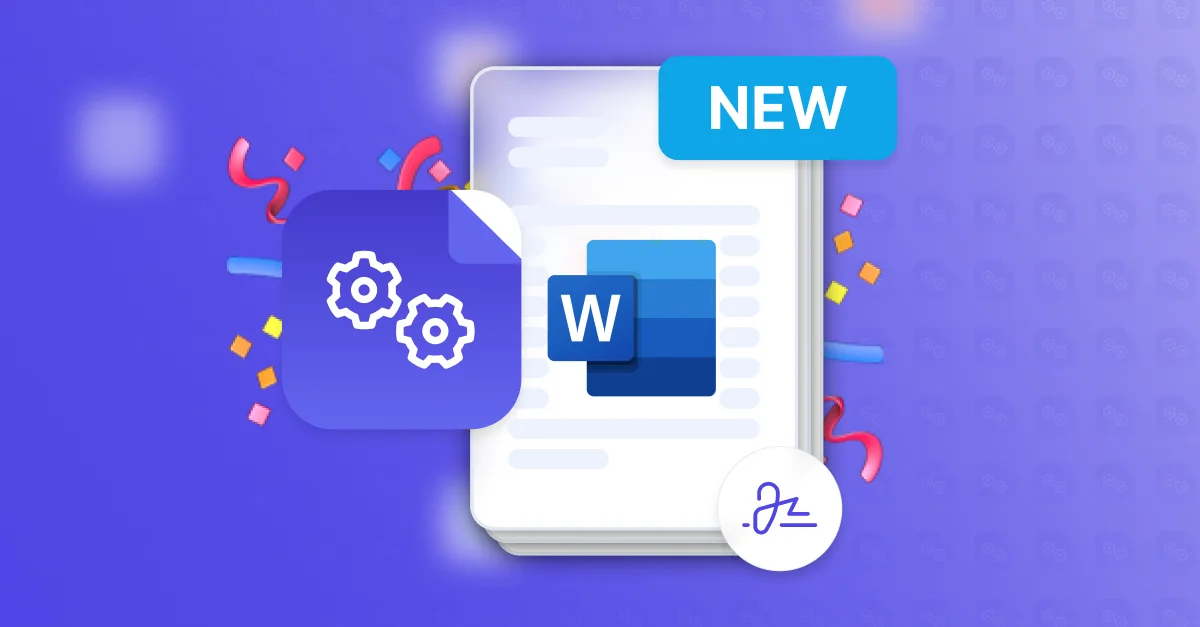
That changes now. Today we're launching native Microsoft Word (.docx) templates in DocsAutomator. Type the same {{placeholders}} you already use in Google Docs templates directly into a Word file, connect your data source, and DocsAutomator fills the template and renders a polished PDF. Your original file is never modified, and you don't need a Google account at any point in the process.
See It in Action
Here's a walkthrough of the full setup, from picking a Word template to generating your first document:
Why Word?
Word templates have been one of our most-requested features, and the requests usually share a story. A team already has a contract or report template in Word, often one that went through legal review or carries strict brand guidelines. Recreating it in Google Docs means a second copy to maintain, subtle formatting drift, and a tool switch nobody asked for.
There were also teams who couldn't use DocsAutomator at all because their organization doesn't run on Google Workspace. Native Word templates remove that barrier entirely: no Google account is required to build templates, generate documents, or collect signatures.
With native .docx support, the file you already have becomes the automation template:
- Keep editing in Word. Fonts, styles, headers and footers, tables, page numbering: everything stays exactly as your team designed it, in the editor they use every day.
- Reuse what legal already approved. No rebuild, no "is this the same as the Word version?" review cycle. Add placeholders to the approved file and connect your data.
- One syntax across formats. If you know how to build a Google Docs template, you already know how to build a Word template. The placeholder syntax is identical.
Same Syntax as Your Google Docs Templates
This is not a stripped-down "mail merge" mode. Word templates use the exact same tags as Google Docs templates:
{{client_name}}                          Simple placeholders
{{line_items_1}}{{description}}          Line item tables
{{section_terms}} ... {{/section_terms}} Conditional sections
{{esign.signature_1}}                    E-signature fields
{{image_company_logo}}                   Dynamic images
Here's what works in a native Word template today:
- Line items with up to nine separate tables per document, including automatic row numbers and grouping with calculations. Add
{{line_items_1}}to a table row and it expands to one row per record. - Conditional sections and logic. Show or hide entire sections with
{{section_name}}tags, hide individual placeholders based on your data, and apply conditional styling (bold, italic, color) per placeholder. - Dynamic images. Any placeholder with
imagein its name pulls an image from your data source, resized to fit your layout. - Date and number formatting, configured per placeholder in the field mapping, plus Markdown rendering for rich text values.
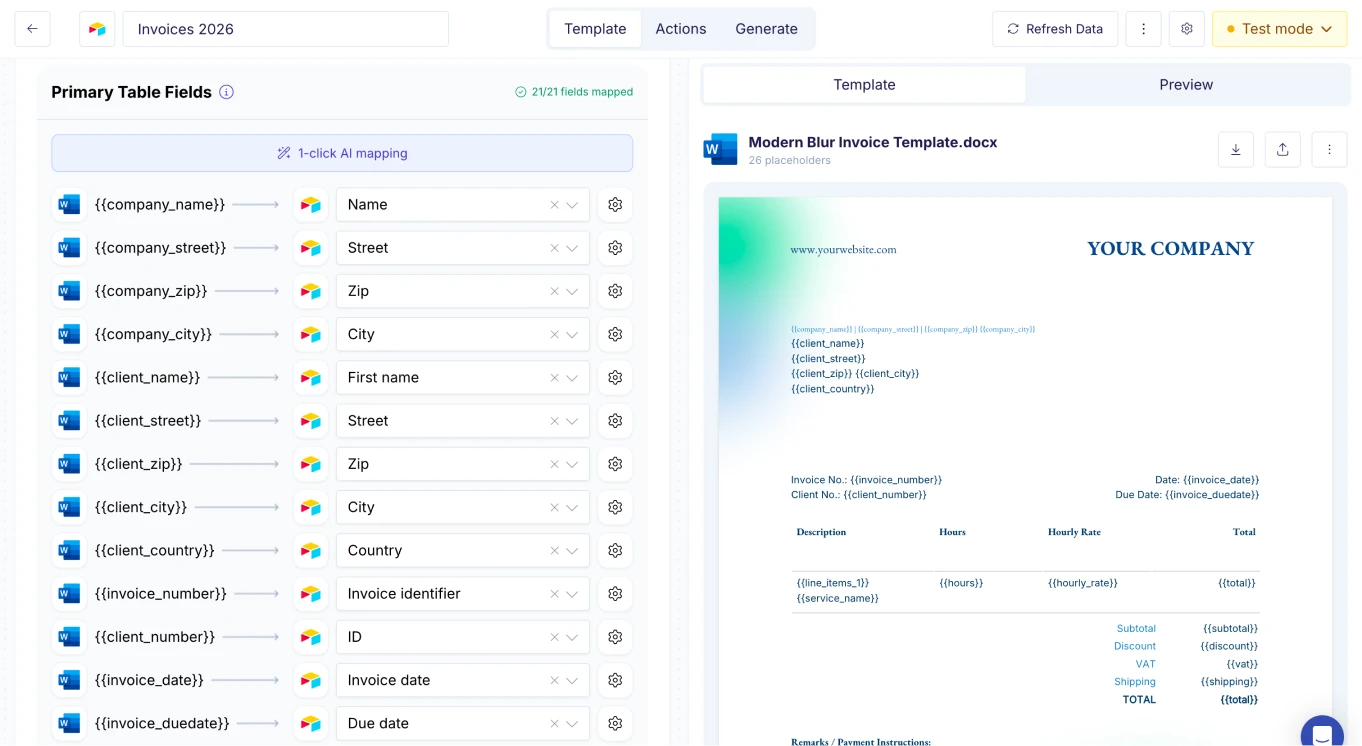
- In-editor live preview. As you build your automation, DocsAutomator renders your Word template with sample data in a split view, so you see the finished document before you ever generate one.
Update, October 2026: nested (multi-level) line items now work in Word templates too, up to three levels deep, with data from Airtable, Notion or the API. In your Word table, put each child row directly below its parent's row. The nested line items guide walks through the setup.
E-Signing Works Out of the Box
Word templates have full e-signature support from day one. Place {{esign.signature_1}}, {{esign.date_1}}, text, and checkbox tags in your Word file exactly where you'd put them in a Google Doc, configure your signers, and DocsAutomator handles the signing workflow: invitation emails, reminders, an audit trail, and the final signed PDF.
Pricing is the same as for every other template format: since October 2026, e-signing and acceptance are included in every plan, however many signers a document has.
Combined with the no-Google-account requirement, this means a legal team can go from a Word contract to a fully automated, signable document pipeline without leaving the Microsoft ecosystem.
Three Ways to Start a Word Template
When you select Word (.docx) as your template type, you can get going three ways:
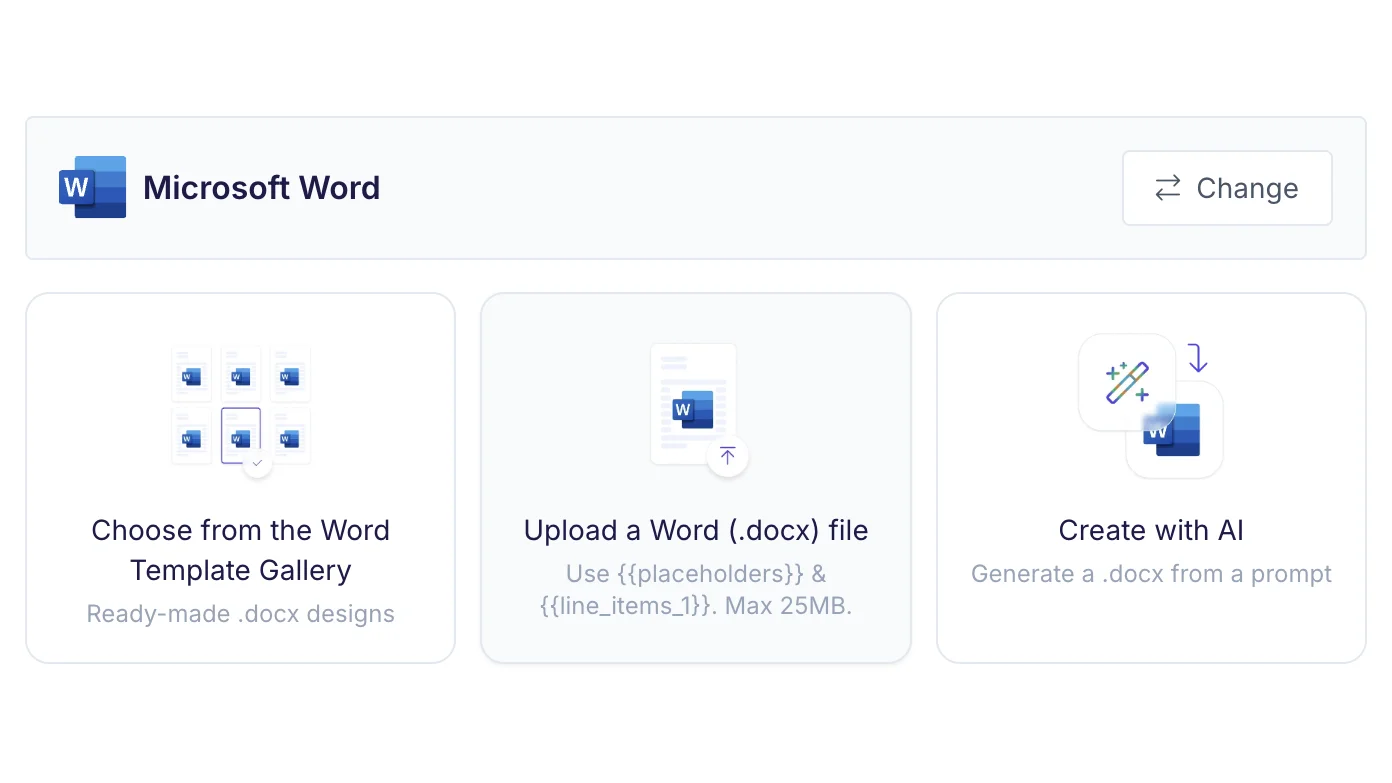
1. Pick from the Word template gallery. All 125 designs in our template gallery are now available as native Word files: invoices, contracts, certificates, reports, statements, and more. Pick one, and it lands in your automation with placeholders already in place.
2. Upload your own .docx. Take your existing Word document, type placeholders where the data should go, and upload it. DocsAutomator detects every placeholder automatically and lists the fonts it found, so you know exactly what to map and what to embed.
3. Create with AI. Describe the document you need, and DocsAutomator generates a complete Word template for you: layout, styling, placeholders, and line item tables included. You can download it, refine it in Word, and re-upload whenever you like.
Keep the Word File, Too
By default, Word automations produce a PDF, with all the output options you're used to: save to Google Drive, send by email with conditions, trigger webhooks, or route into e-signing.
New with this launch is the Save Word document action. Enable it and DocsAutomator keeps the generated .docx alongside the PDF, downloadable from the document's run history. Depending on your data source, it can also write the Word file straight back to your records:
- Airtable attachment fields
- SmartSuite file fields
- Notion file properties
And if you generate through the API or an API-based platform like Softr, the response includes a link to the saved .docx (wordFileUrl), ready to store on the record or hand to the next step in your workflow.
So if your workflow ends in "and then someone needs an editable copy," that copy is already where your team works.
What Teams Can Build With This
A few workflows that become straightforward with native Word templates:
Contracts and agreements. Map client details from your CRM into the Word contract your legal team already approved, route it through e-signing, and write the signed PDF back to the record. The template stays under legal's control, in Word, the entire time. No parallel Google Docs copy to keep in sync.
Invoices and quotes. Pull line items from Airtable or Notion into a Word invoice with automatic row numbers and group calculations. The table grows with the data and flows cleanly across pages, repeating header rows as it goes.
Client reports with an editable handoff. Generate the report as a PDF for delivery and keep the .docx through the Save Word document action, so an account manager can make a last-minute wording change to an individual report without touching the template or the automation.
HR documents. Offer letters, onboarding packets, and policy acknowledgments generated from employee records, with conditional sections handling the variants: an EU-terms section that only appears for EU hires, a relocation clause that only shows when the relocation field is set.
Certificates and statements. Batch-generate from a spreadsheet or database, in portrait or landscape, with dynamic logos and signatures placed per record.
How It Works
Setting up a Word automation takes three steps:
- Add placeholders to your Word file. Type
{{client_name}},{{invoice_date}}, or{{line_items_1}}{{description}}wherever data should appear. Format the placeholders however you want the data to look; the styling carries over. - Connect your data and map fields. Word templates work with every data source DocsAutomator supports, from Airtable and Notion to Google Sheets, SmartSuite, ClickUp, Zapier, Make, n8n, and the REST API. Mapping is free-form: any placeholder can map to any field, regardless of naming.
- Generate. Trigger documents the same way you do today: from a button, a webhook, an automation in your data source, or the API. DocsAutomator fills the template, renders the PDF, and runs your output actions.
Test generation is unlimited and free while you build, so you can iterate on the template until the output is exactly right.
A Note on Rendering Fidelity
We spent a lot of this build on one question: does the PDF look like the Word file? A few things we do to make sure it does:
- Font detection on upload. DocsAutomator lists the fonts found in your template. Standard fonts (Arial, Times New Roman, Calibri, and similar) render reliably out of the box; for custom brand fonts, embed them in the file (File ▸ Options ▸ Save ▸ "Embed fonts in the file") and the PDF will match exactly.
- Border normalization. Invisible white-on-white table borders, a common artifact in Word files that many converters render as faint lines, are neutralized automatically. Visible borders are always preserved.
- Floating objects. Floating text boxes and anchored drawings are kept as-is, though in-line images and standard tables give the most predictable PDF output.
- Your file stays untouched. Generation works on a copy. The template you uploaded is byte-for-byte the one you get back.
Word, Google Docs, or PDF?
DocsAutomator now offers three template formats, and the right one depends on where your team works:
- Word (.docx): your team designs in Microsoft Word, you have existing approved templates, or you don't use Google Workspace.
- Google Docs: you want real-time collaboration on the template itself.
- PDF: the layout is fixed (government forms, third-party paperwork) and you position fields on top.
Placeholders, field mapping, conditional logic, and outputs work the same across all three, so switching formats later doesn't mean relearning anything.
Available Now, on Every Plan
Native Word templates are live today for all DocsAutomator workspaces, on every plan, with no add-on required. Pick a template from the Word gallery, upload your own .docx, or let AI draft one for you.
Nothing changes for your existing automations: Google Docs and PDF templates work exactly as before, and Word simply joins them as a third format. Generated Word documents count toward your plan's document quota the same way Google Docs and PDF generations do.
Already a DocsAutomator user? Create a new automation, choose Word (.docx) as the template type, and follow the flow. The Word Template Guide covers everything in detail, and the feature page has the full overview.
Word templates join a busy season of launches: we shipped the Notion integration just two weeks ago, and there's more on the way. If there's a format or workflow you're missing, tell us at support@docsautomator.co.