

This guide covers Google Doc templates. For PDF templates with visual placeholder positioning, see the PDF Template Guide.
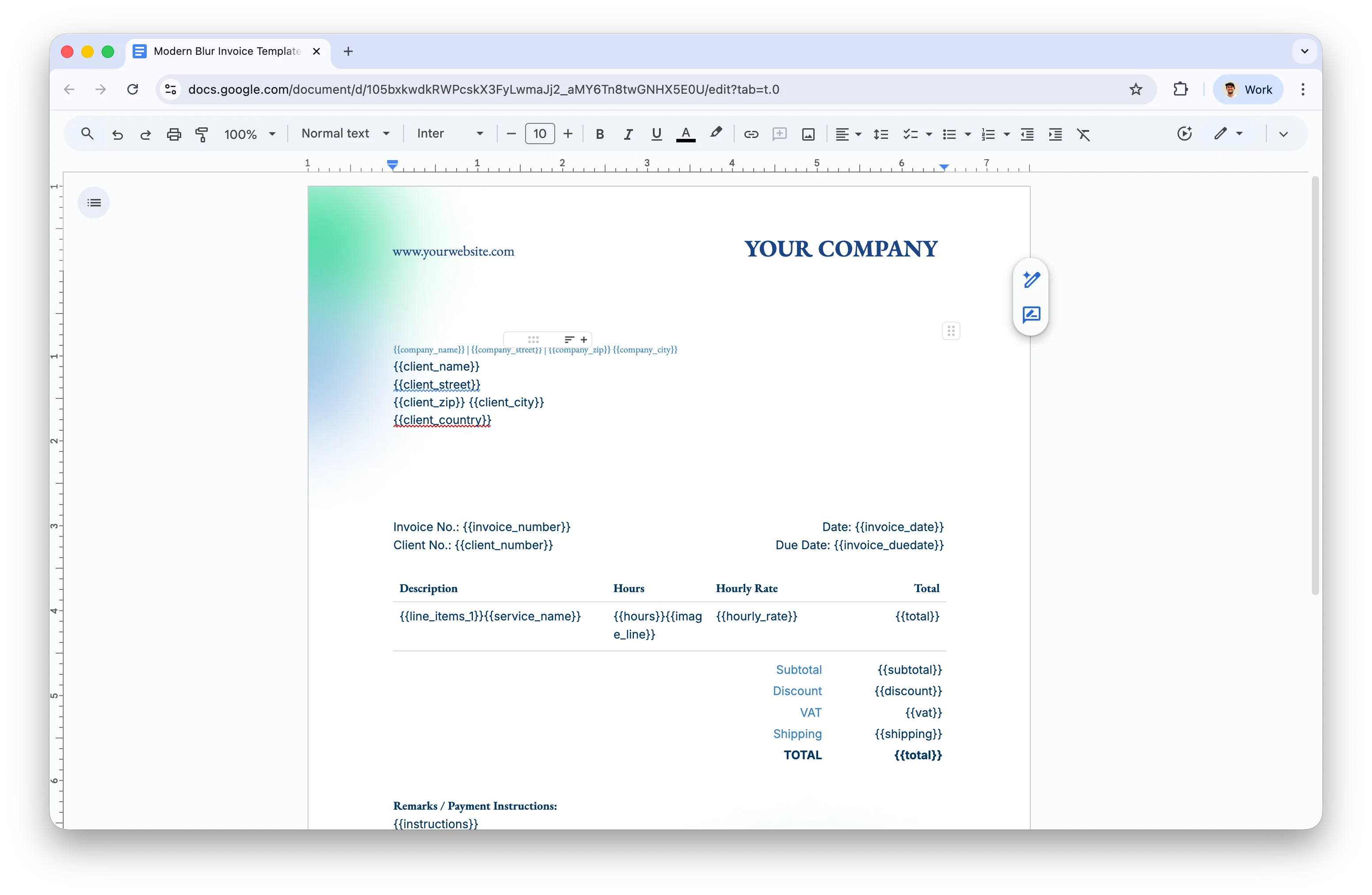
A Google Doc invoice template with placeholders
Template Syntax
DocsAutomator uses three types of variables declared with double curly brackets{{...}}:
Text Variables/Placeholders
Basic text placeholders replace content in your document with data from your source.Variable names must be unique within a document. However, the same placeholder can appear multiple times—you only need to map the data once.
Image Variables/Placeholders
Dynamic image insertion uses theimage_ prefix:
Line Item Variables/Placeholders
Line items enable adding lists of data such as invoice positions, timesheet entries, or product lists. They’re declared as table rows in your template:Line items support:
- Static text alongside variables
- Multiple variables per table cell
- Nested line items (up to 3 levels deep)
- Calculations and grouping
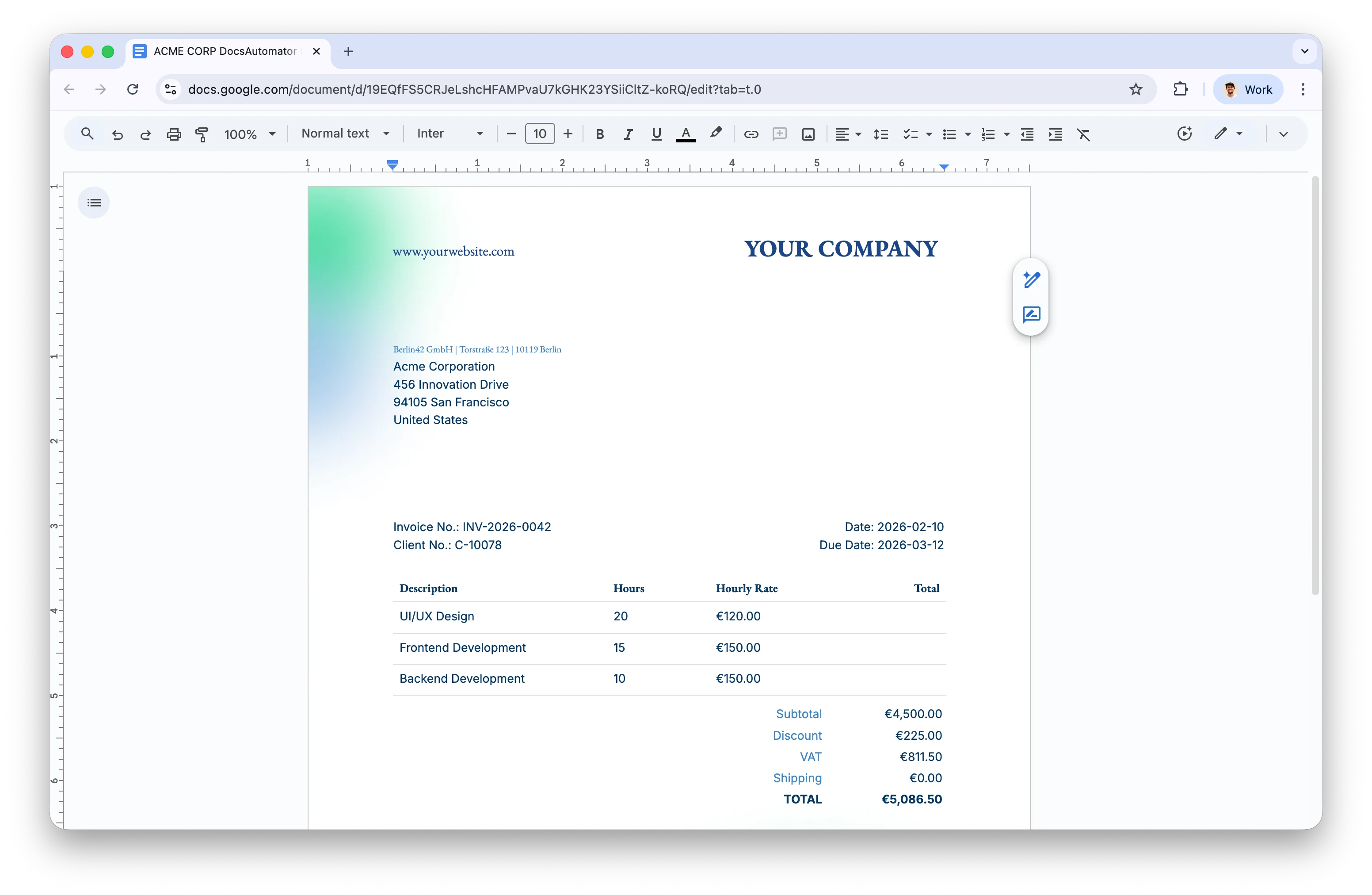
Generated invoice with placeholders replaced by actual data — line items, totals, and client details filled in automatically
E-Signature Placeholders
Add e-signature fields to your Google Doc template to collect legally binding signatures through DocsAutomator eSign. E-signature placeholders use theesign. prefix followed by the field type and signer number.
Field Types
Where
N is the signer number (1, 2, 3, etc.). Use different numbers to assign fields to different signers in a multi-party signing workflow.
Example: Two-Party Signature Block
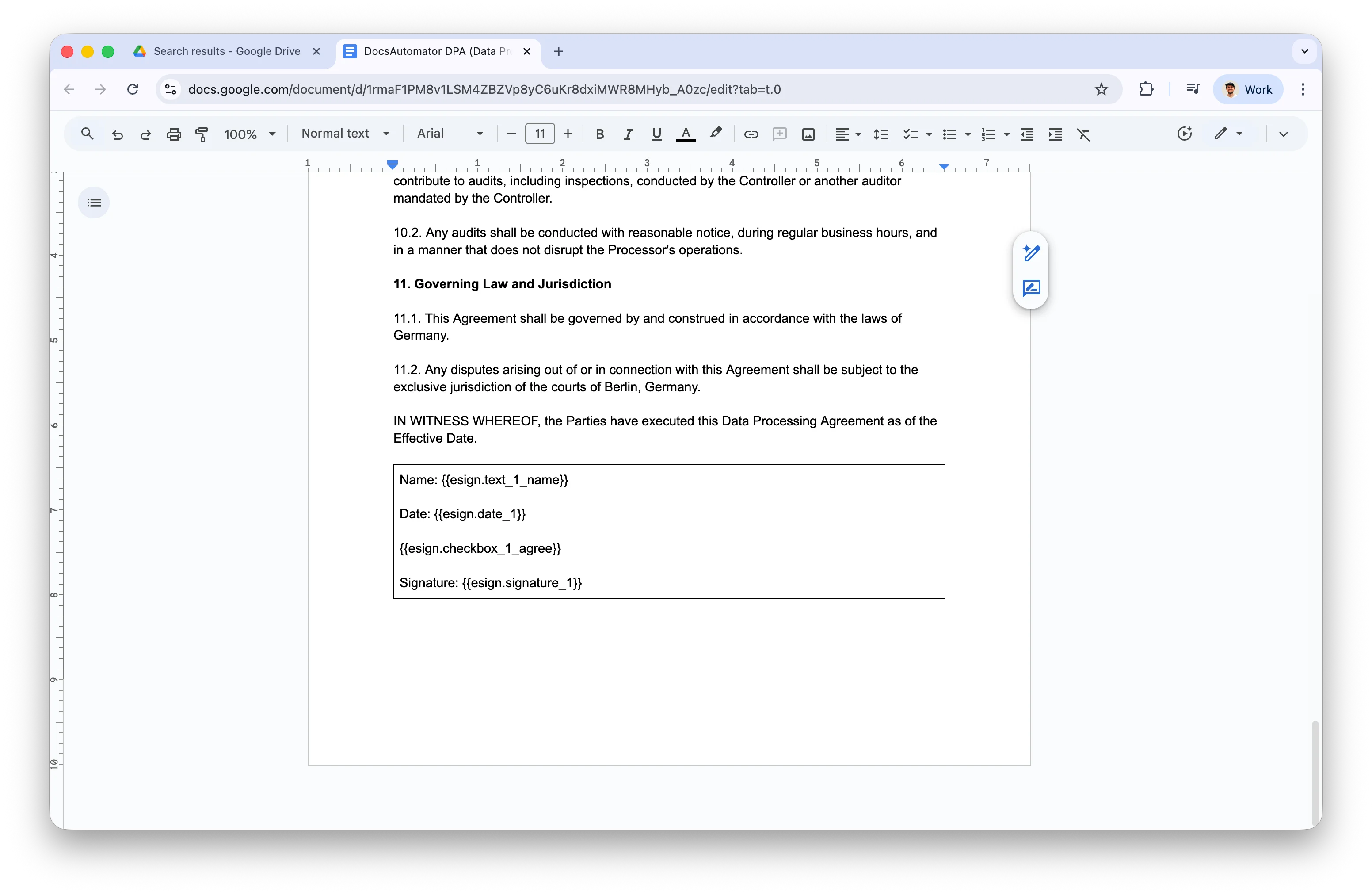
E-signature placeholders in a Google Doc template for collecting legally binding signatures
E-signature signer details (name, email, signing order) are configured in the automation’s E-Signing card, not in the template itself. See DocsAutomator eSign for setup instructions.
Generate with AI (Beta)
Instead of building a Google Doc template from scratch, you can describe what you need and let AI generate one for you. See the AI Template Generator guide for details.Tips & Best Practices
Start with a Template
Start with a Template
Browse the Template Gallery for pre-built solutions rather than creating from scratch. It’s faster and helps you understand the syntax.
Use Tables for Positioning
Use Tables for Positioning
Use tables with hidden borders to position elements precisely during design. Set border width to 0pt when finished for a clean look.
Fixed Positioning for Images
Fixed Positioning for Images
Apply fixed positioning to images in headers, footers, or at the top of pages to prevent text flow interference.
Understand Sharing Settings
Understand Sharing Settings
Generated Google Docs inherit sharing permissions from either the selected Google Drive folder or the template folder.
Test in Test Mode
Test in Test Mode
Always use Test Mode when setting up a new automation to verify your template renders correctly before going live.
Common Placeholder Patterns
Next Steps
PDF Template Guide
Upload existing PDFs and overlay data fields
Dynamic Images
Learn how to insert images dynamically
Line Items
Master tables and repeating rows
Conditional Content
Show or hide content based on conditions
DocsAutomator eSign
Collect legally binding e-signatures
Template Gallery
Browse pre-built templates