

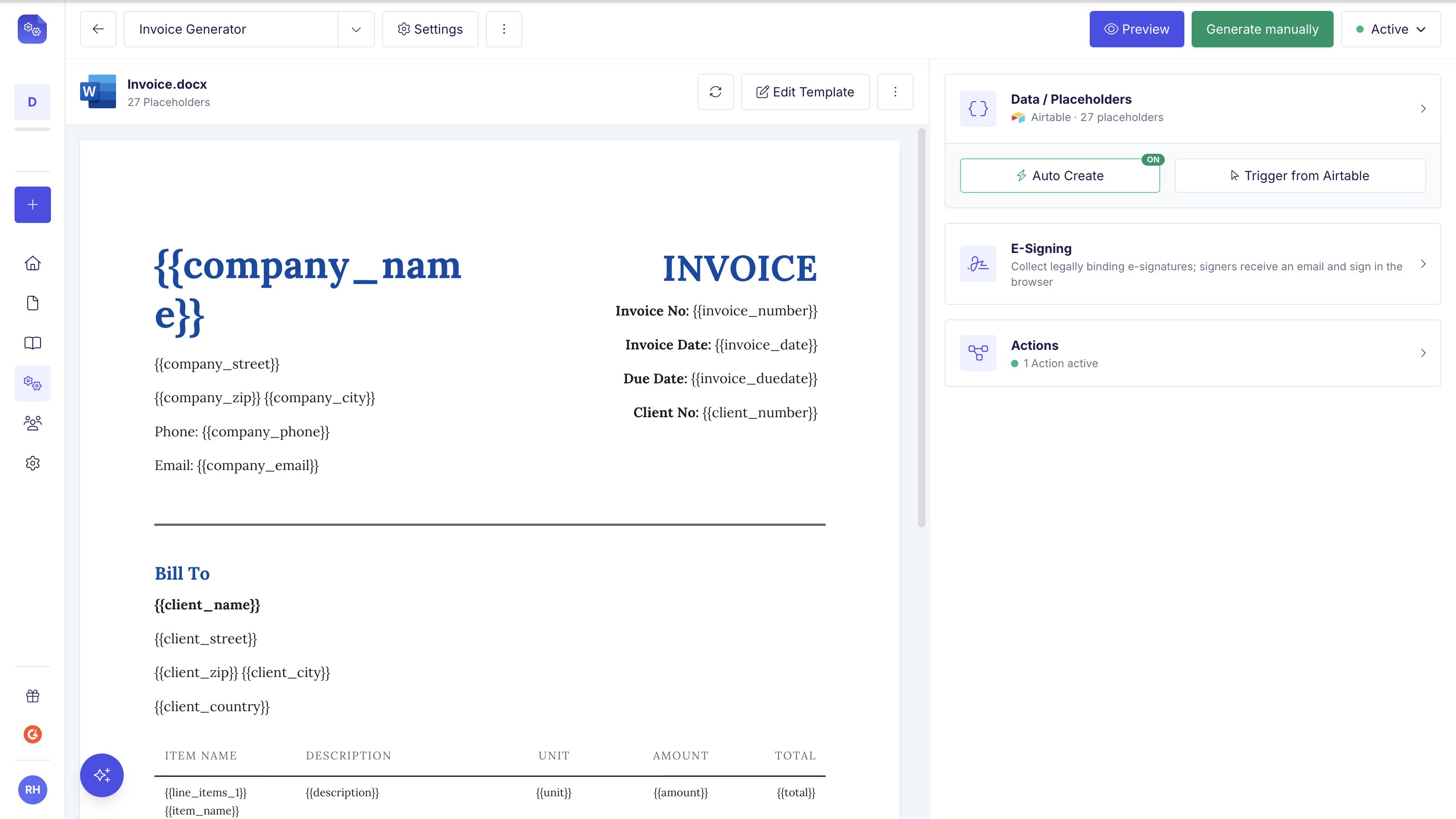
Generated files automatically save to specified Airtable fields.
Step-by-Step Setup
1
Create Automation
Begin by establishing a new automation within your DocsAutomator account.
2
Configure Template
Every automation needs a template. Use a Google Doc, a Word (.docx) file, or a PDF. Create one with AI, browse the template library, start from scratch, or drag your own file in. See the Google Doc Template Guide, the Word Template Guide, or the PDF Template Guide.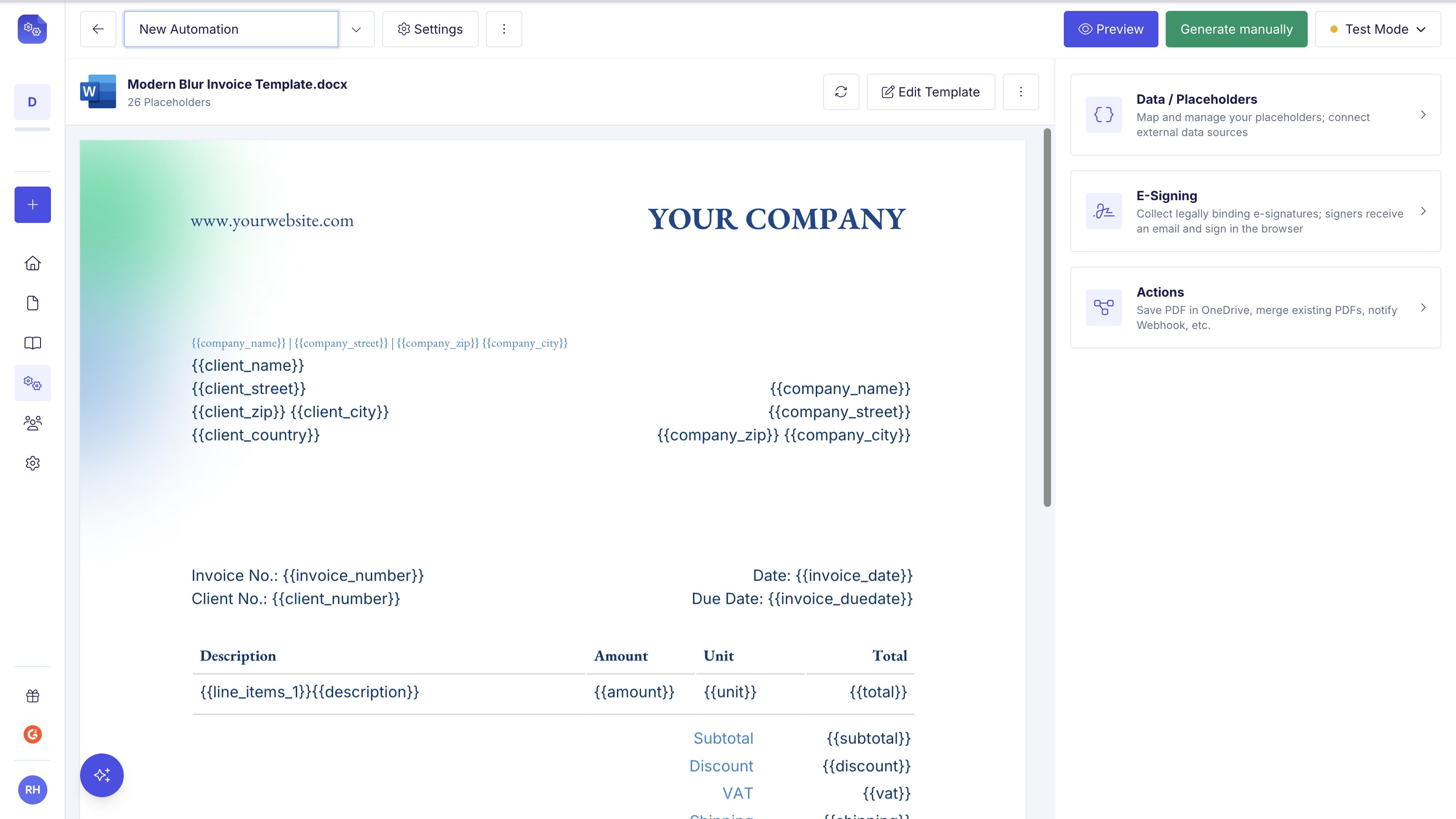
3
Connect Airtable
Open the Data / Placeholders panel, click Connect, and choose Airtable. Authorise the bases you want DocsAutomator to read.
4
Choose Base and Table
Select your primary Airtable base and table. DocsAutomator distinguishes between primary tables (containing main record data) and linked tables (containing related line items).
5
Set Output Configuration
Specify three key settings:
- Document name field: Determines generated file naming. Pick any text-based field: single line text, long text, formula, select, number, date, and more all work (bases imported from Excel/CSV create long-text columns, which are now selectable). Long values are trimmed to a safe length and have line breaks removed automatically.
- Attachment field: Designates where PDFs store; select “Overwrite attachment” to replace existing files
- Google Doc URL field: Stores URLs for generated Google Docs (optional)
6
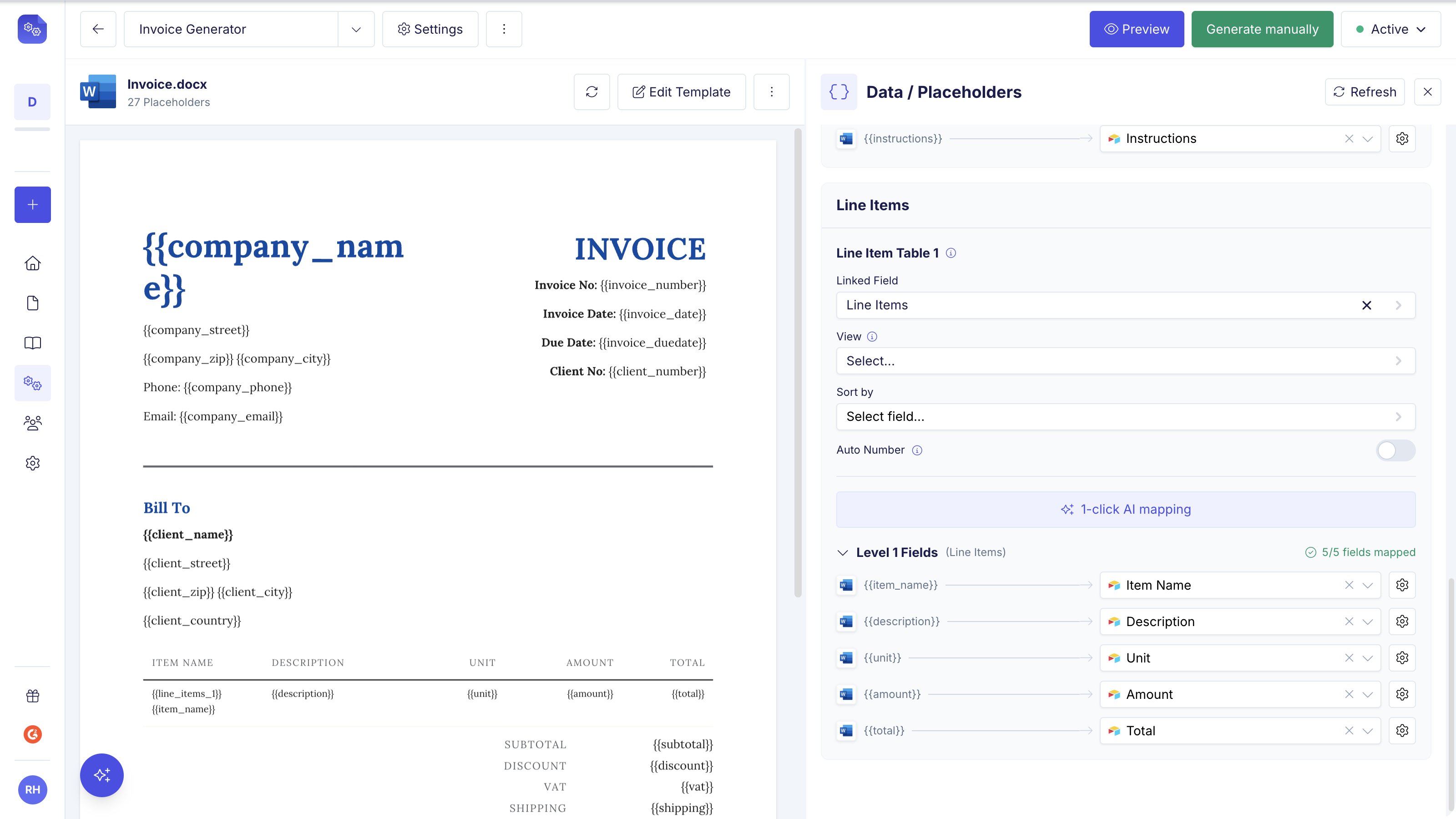
Map Fields and Line Items
Connect all applicable fields from your Airtable table. For line items, select the linked field and corresponding view to determine sort order.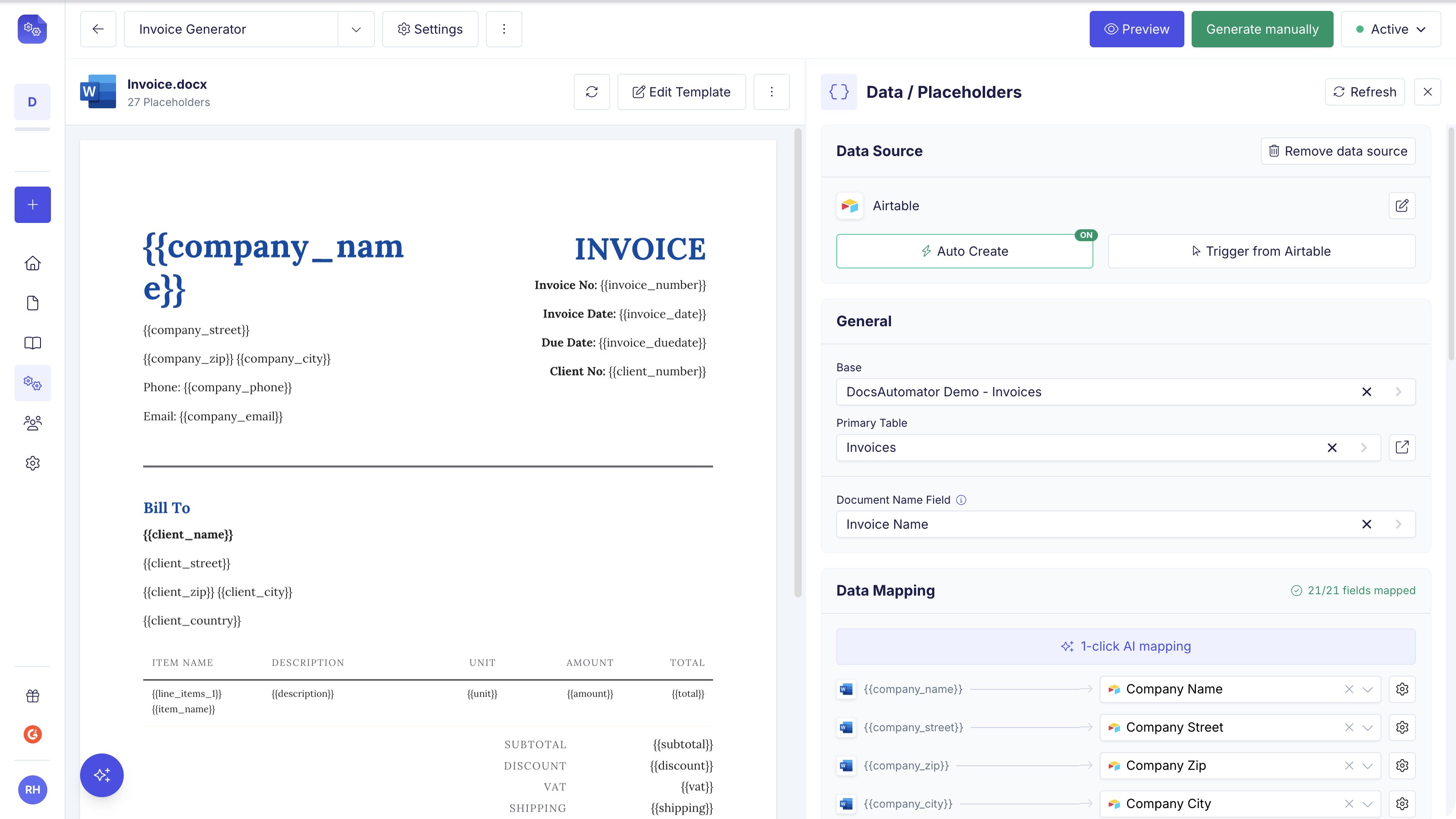
7
Create Previews
Generate document previews. The system loads 50 records automatically; search functionality enables previewing specific records.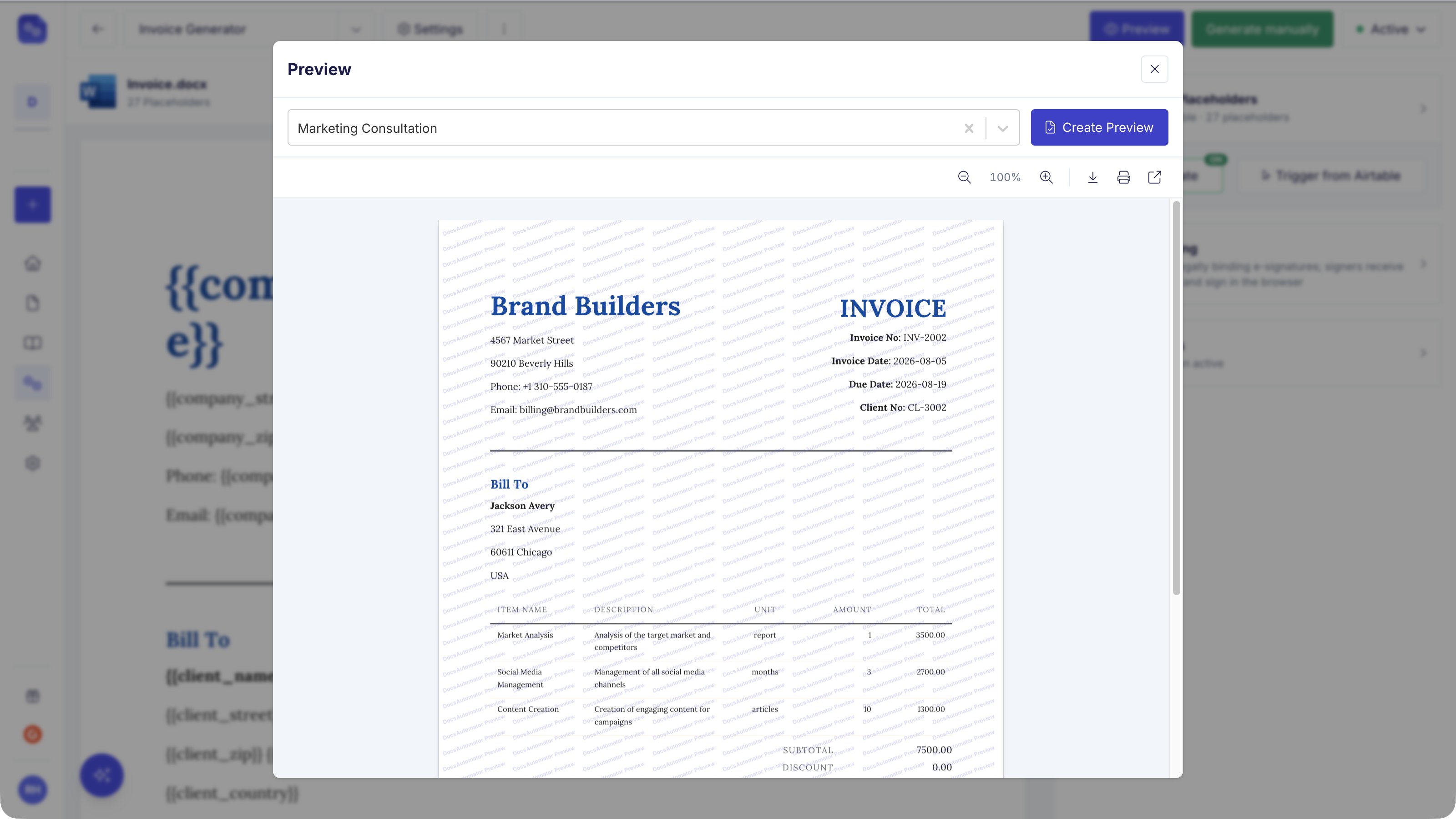
8
Trigger Document Generation
Turn on Auto Creation to generate documents when a field changes to match your condition, or trigger from inside Airtable with a button, formula field, automation script, or the DocsAutomator extension.
Triggering Methods
You can generate documents from Airtable three ways: automatically when a field changes, from inside Airtable with a button or script, or from DocsAutomator.Automatic — Auto Creation
Pick a field and a condition that should fire generation. When a record changes to match (for example, Status = Approved, or Invoice Total is greater than 5,000), DocsAutomator generates a document for that record, usually within seconds. Nothing needs to be set up inside Airtable.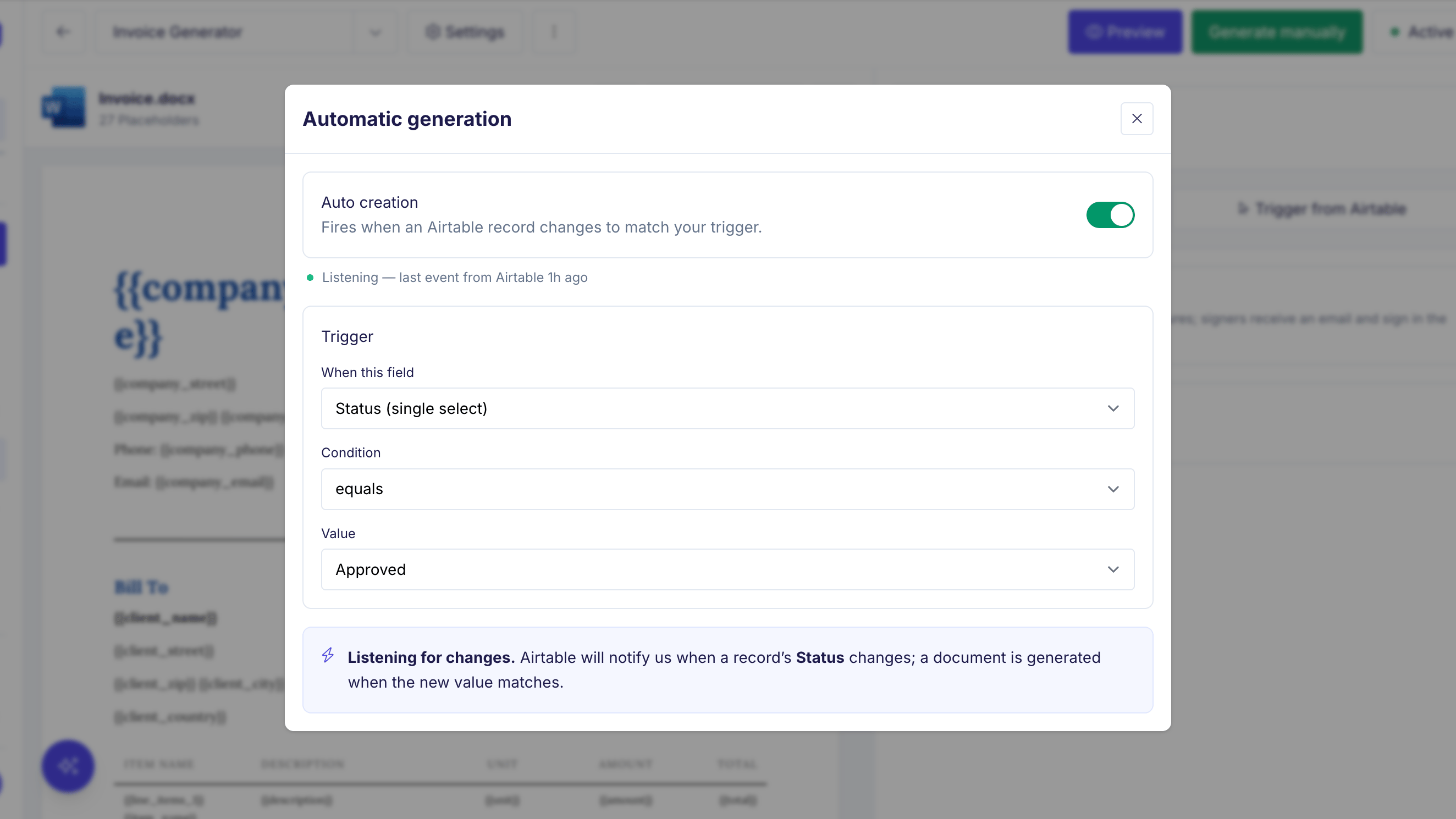
Enabling Auto Creation registers a webhook with Airtable. This needs a connection with webhook access (connections made before August 2026 show a prompt to reconnect Airtable in Settings → Integrations; your automations and mappings are kept) and Creator permission on the base.
Fields and conditions you can trigger on
Trigger field types supported:- Single select and multiple select (multiple select fires when the chosen option is among the selected values)
- Checkbox
- Text fields: single line text, long text, email, URL, phone
- Number fields: number, currency, percent, rating
- Date and date and time
- Formula, rollup, count, and lookup fields. The conditions follow the computed result: a number formula gets number conditions, a text formula gets text conditions. These also fire on indirect changes: edit a line item, and a trigger on the invoice’s rollup total fires when the recomputed total matches. For lookups, the trigger fires when any looked-up value matches the condition.
- Attachments (empty / not empty)
How often Auto Creation fires
Auto Creation reacts to changes, and it deliberately avoids generating the same document twice:- Only the watched field counts. The condition is evaluated when the field you picked changes. Editing other fields on a record that already matches does not generate another document.
- The same record does not fire twice within 10 minutes. If a record generated a document less than 10 minutes ago, a further matching change is skipped and logged as a suppressed refire. This prevents duplicates when a record is edited several times in a row.
- Rapid edits within 5 seconds count as one change. Airtable batches quick successive edits, and DocsAutomator collapses them into a single evaluation.
- Bulk updates log at most 25 skipped records per automation, per batch of changes. The documents still generate for every matching record; only the skip rows are capped, so the log stays readable after a mass update.
Auto Creation limits and lifecycle
- Auto-generated documents count against your plan’s document quota, exactly like manual runs.
- Turning Auto Creation off removes the webhook from your Airtable base.
- Changing the base or table of an automation switches Auto Creation off, because the watched field no longer exists. Pick a new trigger field and switch it back on.
- Automations that use the same base share one webhook. Airtable allows an app two webhooks per base, so this stays within the limit no matter how many automations you run.
- DocsAutomator refreshes the webhook daily. Airtable expires webhooks after seven days and stops notifications after repeated delivery failures; the daily job renews them, re-enables notifications, and recreates a registration that Airtable has dropped. Missed changes are collected on the next refresh.
- Formula fields in an error state (
#ERROR!,NaN) are treated as empty and never match a condition.
Trigger from Airtable
Fire generation from inside Airtable with a button, formula, script, or the extension:- Automation Script
- DocsAutomator Extension
Documents are generated when records are created or updated, using an Airtable Automation Script with a trigger you define in Airtable (for example, when a record meets a condition).Copy the provided script into Airtable’s automation action. Define the Record ID parameter to pass the triggering record’s identifier.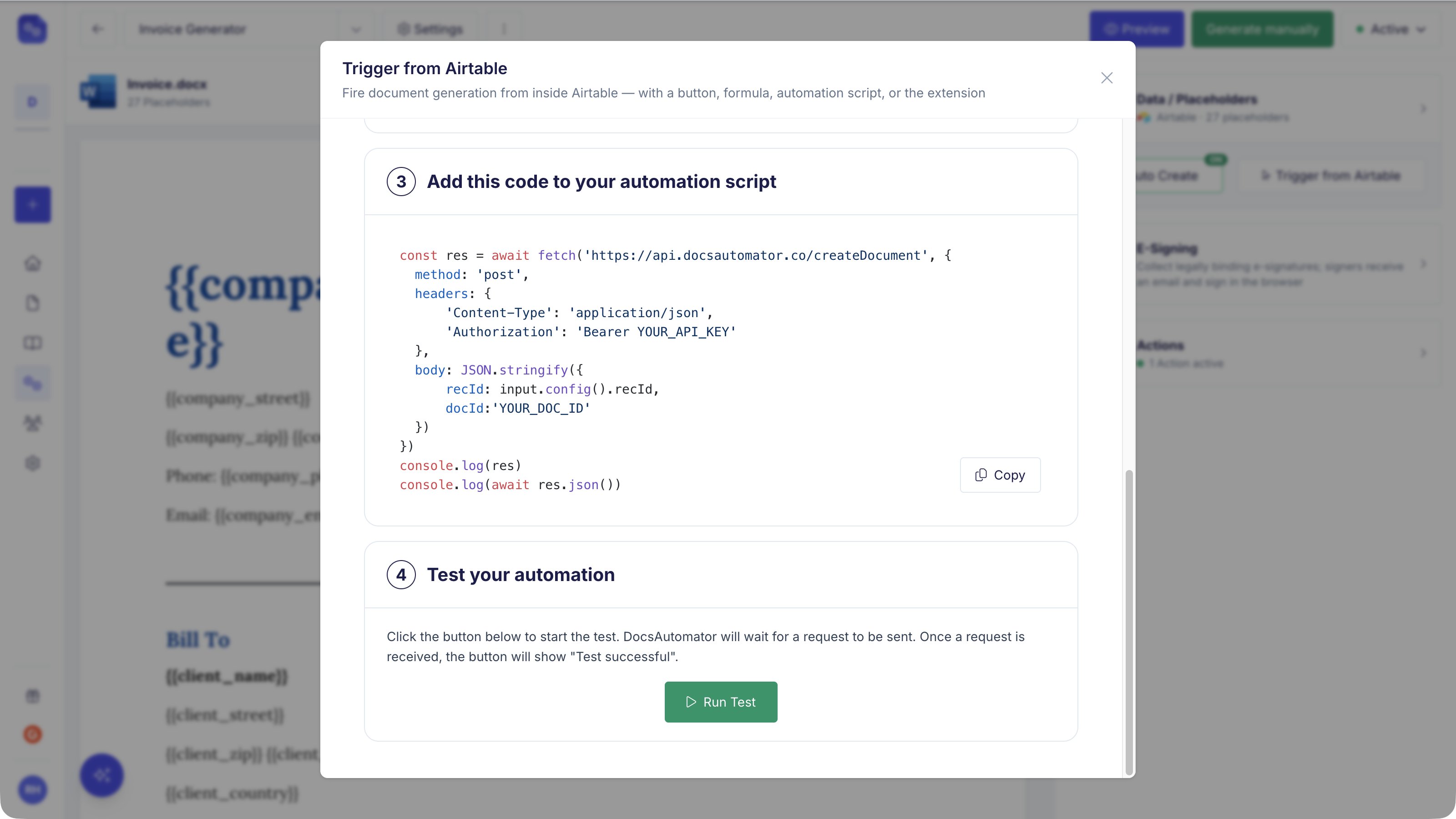
Automation scripts require a paid Airtable account.
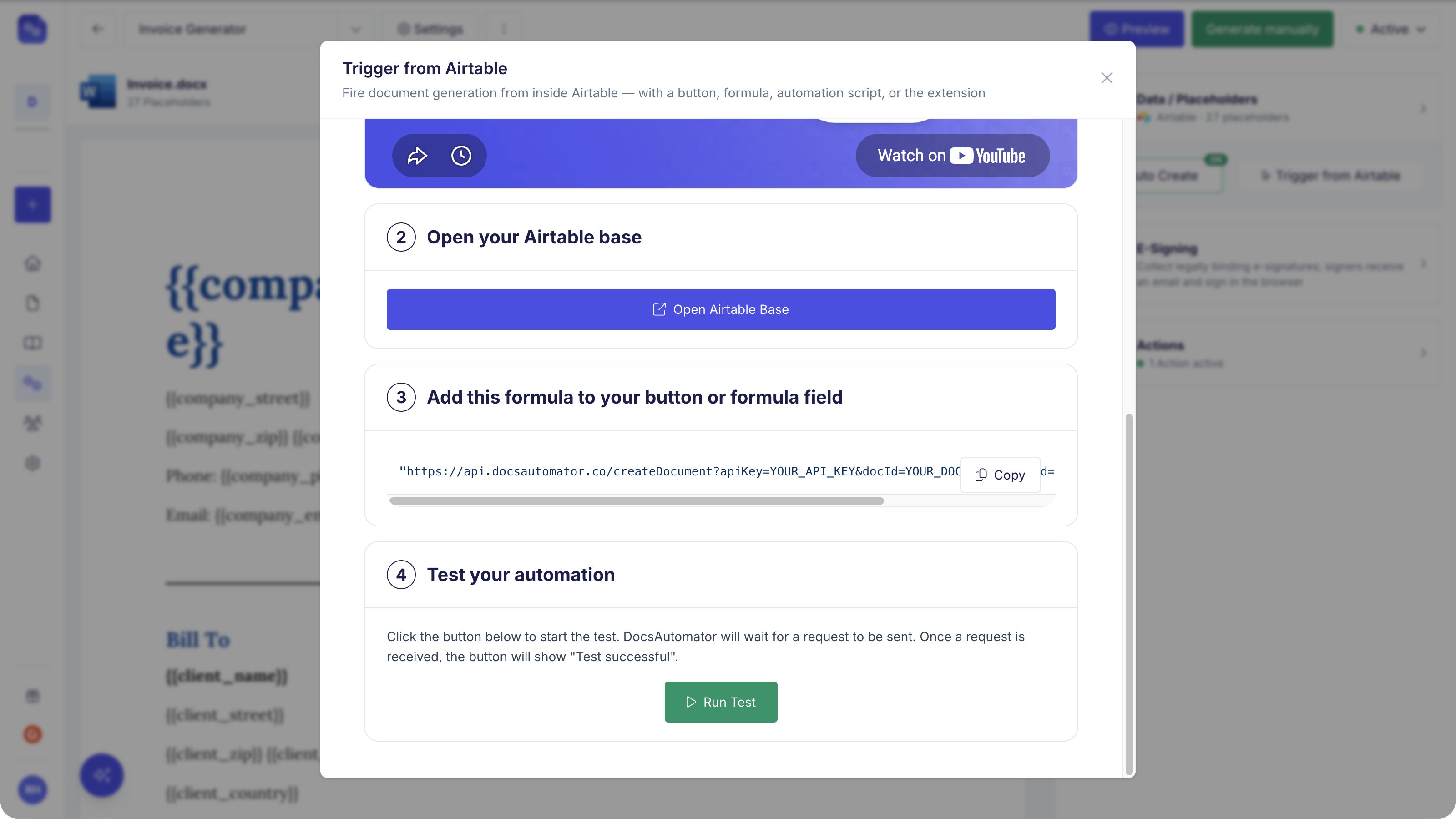
From DocsAutomator
You can always generate documents from inside DocsAutomator. This works on every Airtable plan.- Click Generate manually on the automation page.
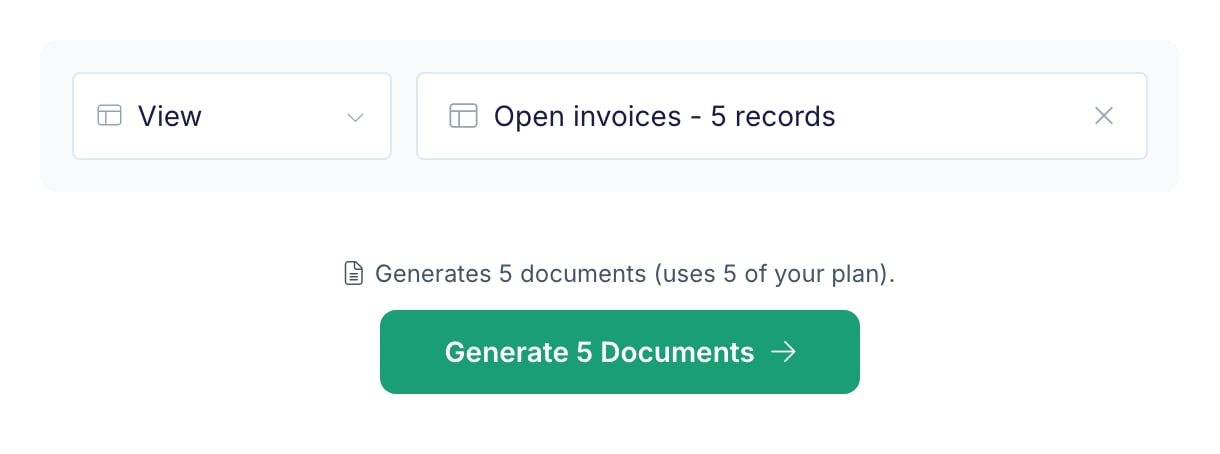
- Pick the records. Choose Record to pick one or more records, or choose View and then a view to generate a document for every record in that view.
- Check the line above the generate button. It shows how many documents the run uses, for example “Generates 5 documents (uses 5 of your plan).” Each record counts as one document in your plan. In test mode, test documents are free, and one run makes up to 3 documents.
- Click the generate button.
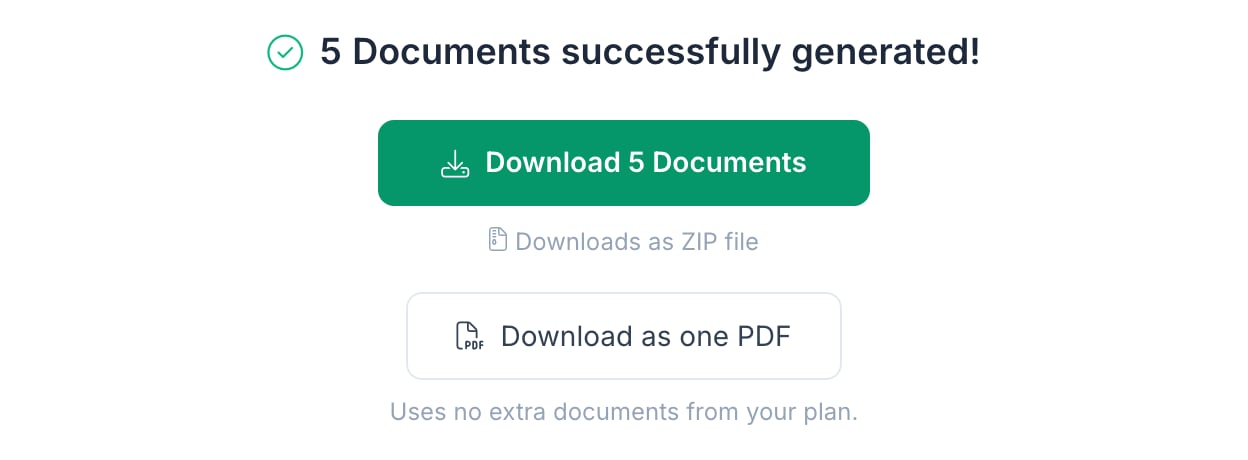
- Download with the number of documents saves every PDF in one ZIP file.
- Download as one PDF merges the documents into a single PDF, in the order of your selection or your view. One PDF holds up to 100 documents per download. A document whose signing is complete goes into the PDF as its signed version. Failed documents are left out, and the result names them. The download adds no documents to your plan usage.
Field Type Reference
Configuration Options
Locale Settings
Locale Settings
Control number/currency notation (comma vs. dot) in automation template settings under Document Generation Options.
View Sorting
View Sorting
Line item sort order follows the selected view’s configuration.
Professional Integration Service
Professional Integration Service
Professional assistance available for integrating DocsAutomator into existing workflows (service fee applies).
E-Signatures
Documents generated from Airtable records can go out for signature or one-click acceptance in the same step, and the sealed PDF comes back to the record. Open the automation’s Signing & Acceptance card. Under How it completes, pick one of three options:- Signature required: the recipients sign the document. These are legally binding e-signatures, with an audit trail and a certificate.
- Acceptance: the recipient clicks Accept, for example on a quote or a proposal. See Acceptance.
- No closing step: documents are delivered without a signing or acceptance request.
{{esign.signature_1}} and {{esign.date_1}} in your template where signatures and dates should appear. The number is the signer. The E-Signature Guide lists every tag, including text and checkbox fields.
Under After signing, set Save Signed PDF To to an attachment field. When the last person signs or accepts, the sealed PDF lands in that field on the record. With signing, Save Field Values To writes the text, checkbox and date values the signers enter into Airtable fields.
E-signing and acceptance are included in every plan. See How e-signing and acceptance are billed.
E-signatures work with both Google Doc templates and PDF templates. See the E-Signature Guide for full configuration details and placeholder reference.
Frequently Asked Questions
Can I use DocsAutomator on a free Airtable account?
Can I use DocsAutomator on a free Airtable account?
Yes! Auto Creation and button/formula triggering both work on free Airtable plans. Only automation scripts and Interface buttons require a paid Airtable account.
Auto Creation did not generate a document. What do I check?
Auto Creation did not generate a document. What do I check?
Work through this list in order:
- Open Documents → Logs. Every evaluated change appears there. A skip row tells you the reason: the condition did not match, or the record already generated a document in the last 10 minutes.
- No row at all? Then Airtable sent no change event. Confirm you edited the field the trigger watches. Editing other fields does not fire the trigger, and a date passing does not either.
- Check the record still matches. Number, percent and date conditions compare the stored value: a percent field stores 0.5 for 50%, and a date and time field carries a timestamp, so “equals” rarely matches. Use “is after” or “is before” instead.
- Check the connection. If Airtable was disconnected or the grant was revoked, the automation page shows a prompt to reconnect. Reconnecting keeps your automations and mappings.
- Check your document quota. Auto-generated documents count against your plan.
Why did editing a record twice only create one document?
Why did editing a record twice only create one document?
A record does not generate a second document within 10 minutes of the previous one. The second change is logged as a suppressed refire. This keeps a burst of edits from producing duplicates. Wait ten minutes, or generate the extra copy manually.
Why don't my bases appear after granting access?
Why don't my bases appear after granting access?
Disconnect and reconnect in settings while selecting all desired bases.
Where can I find a record's ID?
Where can I find a record's ID?
Find record IDs in the URL bar (format: “rec…”) when expanding records, or create a formula field using
RECORD_ID().How do I sort line items?
How do I sort line items?
The specified view determines sort order for printed line items.
I'm on an Enterprise workspace and can't connect
I'm on an Enterprise workspace and can't connect
Connected apps may require whitelisting on Enterprise plans; contact workspace administrators with the DocsAutomator client ID.