

Generated PDFs can be uploaded straight to a file property on the Notion page, and the PDF or Google Doc URL can be written to a URL or text property.
Step-by-Step Setup
1
Create an automation
Start a new automation in your DocsAutomator account.
2
Connect Notion and pick your databases
Choose Notion as your data source and authorize the connection. You’ll be redirected to Notion, where you can: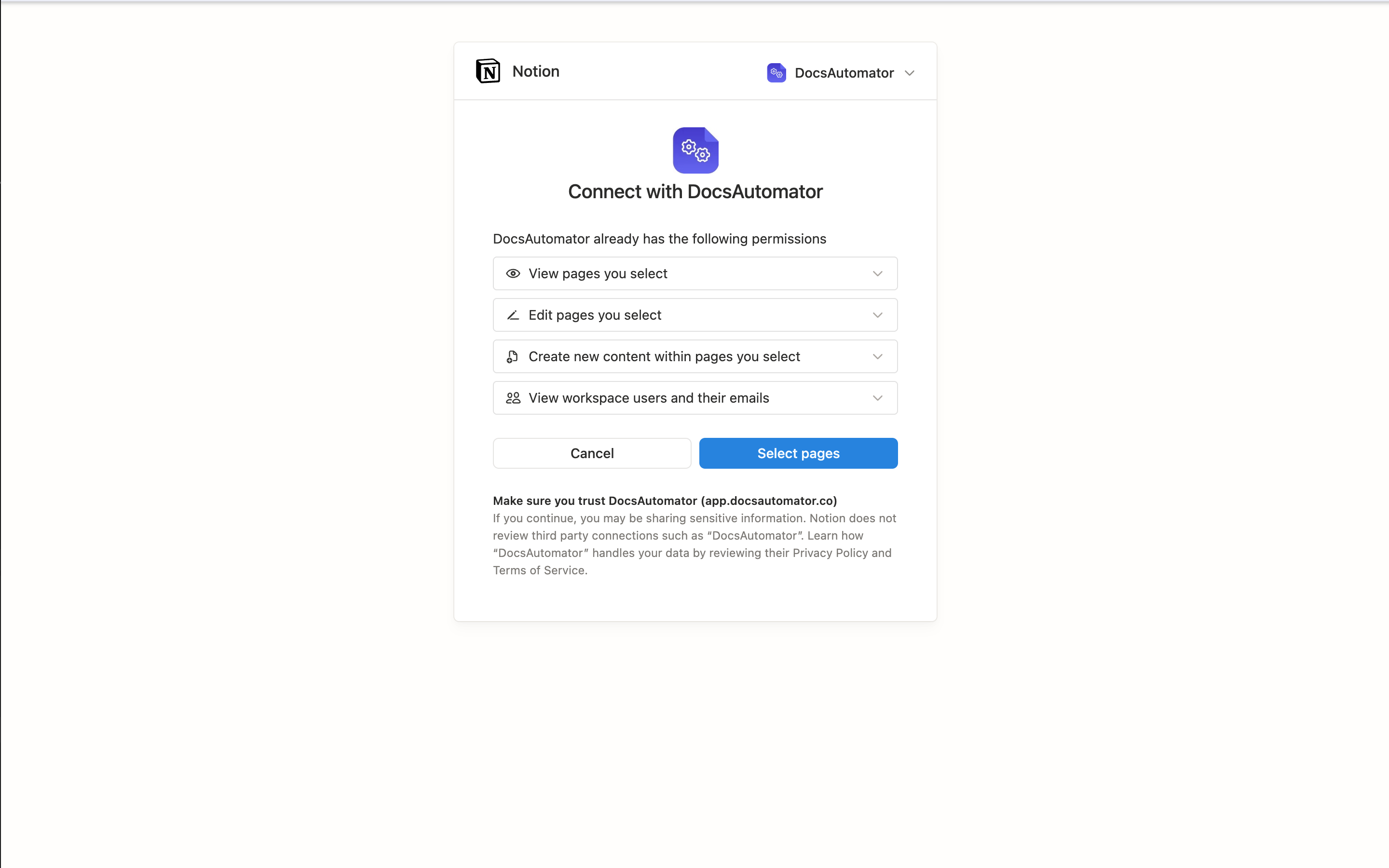
- Pick the workspace you want to connect.
- Select the databases you want DocsAutomator to access right on the authorization screen.
3
Pick a template
Every automation needs a template. Follow the Google Doc Template Guide or PDF Template Guide, or start from the Playground Template.
4
Select your database
Pick the Notion database you want to generate documents from. DocsAutomator lists every database you’ve shared with the integration.
5
Choose the document name
Pick which Notion property to use for naming the generated document — typically your Title property. Text and string-formula properties also work.
6
Map your properties to placeholders
Match every template placeholder to a Notion property. Renaming a property in Notion later won’t break the mapping — DocsAutomator tracks properties even when you rename them.
7
Map line items (optional)
If your template includes 
{{line_items_1}} markers, pick a Relation property on your database, then map the fields on the related pages to the line-item placeholders. You can nest line items up to three levels deep.8
Preview
Generate a preview to make sure everything looks right. You can search for any page in your database to preview from.
9
Configure write-back in the Actions tab
Open the Actions tab to control what happens after a document is generated. For Notion, you can:
- Upload the generated PDF to a file property on the page (with overwrite or append).
- Write the PDF URL or Google Doc URL into a URL or text property.
- Send the PDF by email, save it to Google Drive, merge it with an existing PDF, or send a webhook notification.
10
Choose how documents get triggered
You can generate documents manually from DocsAutomator, automatically when a property changes, or with a button placed on each row in Notion — see the next section.
Triggering Methods
You can generate documents from Notion three ways: from inside DocsAutomator, automatically when a property changes, or by clicking a button on a row in Notion.Automatic — Auto Creation
Pick a property and a value that should fire generation. When a page changes to match (for example, Status = Ready), DocsAutomator generates a document for that page. Trigger property types supported:- Status
- Select
- Multi-select (fires when the chosen option is among the selected values)
- Checkbox

Manual — Notion Button (per-row)
Add a button on your database that generates a document for the clicked row.1
Open the database in Notion
Open the database connected to your automation.
2
Add a Button property
Add a new property and choose Button as its type.
3
Set the action to Send webhook
In the button settings, change the action to Send webhook.
4
Paste the URL from DocsAutomator
Copy the webhook URL shown on the Notion Button setup panel inside your automation and paste it into the URL field in Notion.
5
Add the Authorization header
Click Add custom header in Notion and enter:
- Key:
Authorization - Value: copy the value shown on the DocsAutomator setup panel (it starts with
Bearer)
6
Tick 'Select all existing properties'
Scroll to the Content section in Notion and check Select all existing properties so Notion sends the row’s data along with the click.
7
Save
Clicking the button on any row now generates a document for that row in seconds.
Manual — From DocsAutomator
You can always click Generate on any page from inside DocsAutomator. This works on every Notion plan, including Free.Page Body as Content
DocsAutomator can drop the entire body of a Notion page (everything you write below the property panel) into your document. In the property picker, choose 📄 Page body (Markdown) for any placeholder, and the page’s content appears at that spot in the document.
- Headings, paragraphs, and lists (bulleted, numbered, to-do, nested)
- Toggles, quotes, callouts, dividers
- Code blocks, equations
- Images, videos, files, PDFs, and audio
- Bookmarks, embeds, link previews
- Columns, synced blocks, child pages, child databases
code, and Property Type Reference
Need a different format? Open the Format popover on any placeholder to override the default — currency code, date format, decimals, and more. See Format Values.
Line Items from Relations
DocsAutomator turns a Relation property on your database into a{{line_items_N}} row in the template — one row per related page.
- Pick the relation on your primary database.
- Map fields on the related pages to the line-item placeholders (
{{line_items_1_qty}},{{line_items_1_name}}, …). - Sort by any property on the related pages, ascending or descending. With no sort set, line items follow the order you’ve arranged them in on the parent page.
- Nest up to three levels —
{{line_items_1_1_*}}pulls from a relation on the related page,{{line_items_1_2_*}}adds another level beneath that.
E-Signatures
Documents generated from Notion pages can go out for signature or one-click acceptance in the same step, and the sealed PDF comes back to the page. Open the automation’s Signing & Acceptance card. Under How it completes, pick one of three options:- Signature required: the recipients sign the document. These are legally binding e-signatures, with an audit trail and a certificate.
- Acceptance: the recipient clicks Accept, for example on a quote or a proposal. See Acceptance.
- No closing step: documents are delivered without a signing or acceptance request.
{{esign.signature_1}} and {{esign.date_1}} in your template where signatures and dates should appear. The number is the signer. The E-Signature Guide lists every tag, including text and checkbox fields.
Under After signing, set Save Signed PDF To to a files property. When the last person signs or accepts, the sealed PDF is added to that property on the page. With signing, Save Field Values To writes the text, checkbox and date values the signers enter into Notion properties.
E-signing and acceptance are included in every plan. See How e-signing and acceptance are billed.
E-signatures work with both Google Doc templates and PDF templates. See the E-Signature Guide for full configuration details and the placeholder reference.
Frequently Asked Questions
No need to reconnect. In Notion, open the database, click the 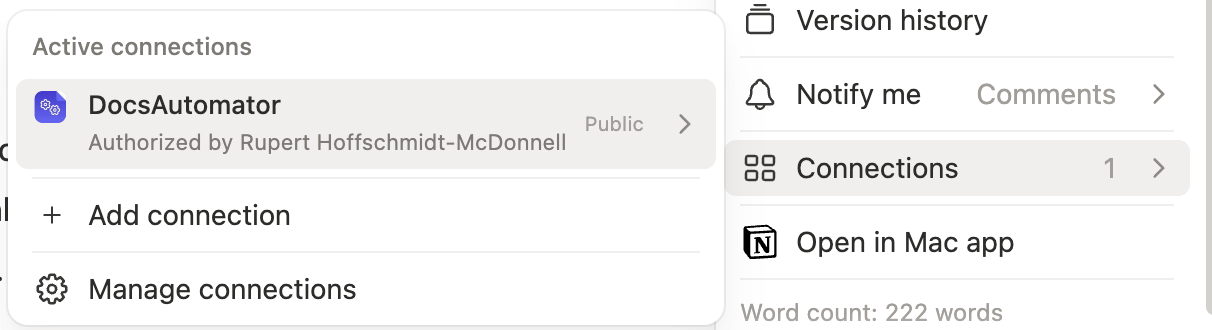
••• menu in the top-right, choose Connections → DocsAutomator, then come back to DocsAutomator and click Refresh.Why does automatic generation take a minute or two?
Why does automatic generation take a minute or two?
Notion delivers change events to integrations in batches, so the delay is usually 1–2 minutes. If you need instant generation, use the Notion Button trigger instead.
What happens if I rename a property in Notion?
What happens if I rename a property in Notion?
Nothing breaks. DocsAutomator keeps tracking the property after a rename.
Can I render a page's body content (not just properties)?
Can I render a page's body content (not just properties)?
Yes. In the property picker, choose 📄 Page body (Markdown) for any placeholder and the page’s content (headings, lists, tables, images, callouts, code, and so on) appears in your document at that spot.
Can I write the PDF back to Notion?
Can I write the PDF back to Notion?
Yes. In the output settings, pick a file property on the database. The generated PDF is uploaded to that property on the page, and you can choose whether to overwrite existing files or add alongside them.
Next Steps
Template Guide
Learn the template syntax
Line Items
Add tables and repeating rows
E-Signatures
Collect signatures on generated documents
Dynamic Images
Embed images from Notion file properties