The fastest way to your first automation is the DocsAutomator AI Agent: describe the document you need in the chat on the left side of the app and it builds the automation for you, template included. The steps below walk through the manual setup.
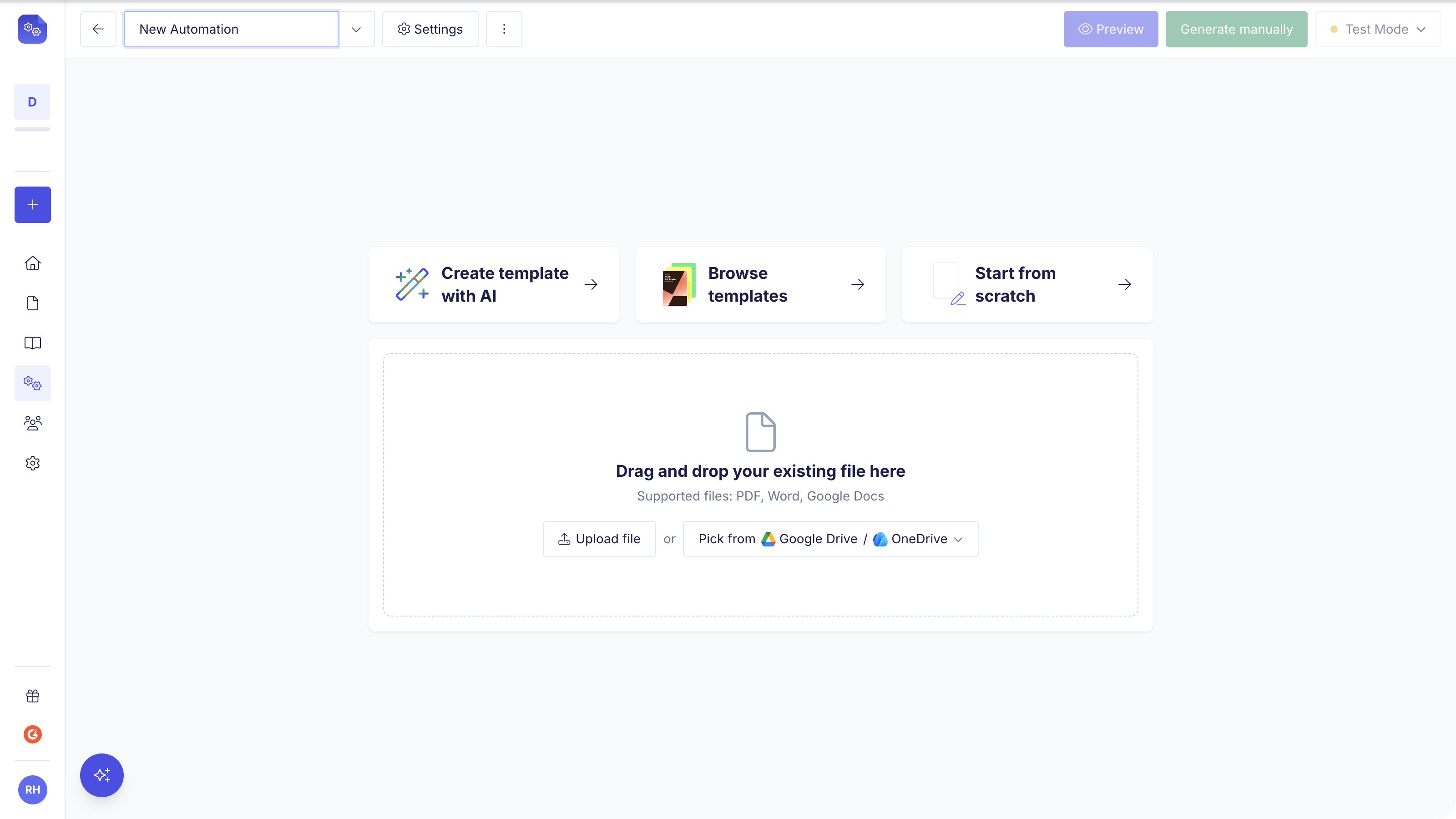
DocsAutomator supports three template formats: Google Docs, Word (.docx), and PDF. In the template area you can pick Create template with AI, Browse templates, or Start from scratch, or drag and drop a .docx or PDF file directly.
Choose how to start your template
Google Doc Template
PDF Template
Create a Google Doc with placeholder syntax ({{field_name}}). Best for text-heavy documents like invoices, contracts, and reports.
Browse the template library and apply a ready-made design
Add the Playground Template
Use the built-in playground template to learn interactively and test the placeholder syntax before building your own.
Select from Template Library
Browse pre-built templates at docsautomator.co/templates for common use cases like invoices, contracts, and reports.
Prefer Microsoft Word? Choose Start from scratch and then Microsoft Word, or upload your own .docx directly. See the Word Template Guide for details.
Request Professional Template
Need help? Request professional template creation through our service form.
Upload or drag and drop a PDF into the template area, then use the visual editor to define where data fields should be overlaid. The PDF itself is not modified. DocsAutomator fills in the fields on top of your original layout at generation time. Best for pre-designed forms, certificates, or branded documents.See the PDF Template Guide for full setup instructions.
Open the Data / Placeholders panel on the right and click Connect. Pick the app that holds your data:
Pick the app that holds your data
Airtable
Notion
Google Sheets
SmartSuite
Glide
Noloco
ClickUp
Zapier
n8n
API
Airtable, Google Sheets, Google Forms, Notion, SmartSuite and ClickUp connect directly and you authorise them once. Zapier, Make, n8n, Softr, Glide and Noloco push data to DocsAutomator instead, so you set those up in the tool itself. The DocsAutomator API and MCP server let you generate documents programmatically or straight from an AI assistant.
Set up what happens after a document is generated — save PDFs, send emails, merge documents, collect e-signatures, and more.
Configure what happens after each document is generated
Want to collect signatures? Enable e-signatures in the E-Signing card of your automation. See the eSign guide for setup instructions.
E-signature settings: add signers and take their email from your data or a fixed address
The configuration process differs by integration:
Airtable
Notion
Glide
Noloco
ClickUp
Google Sheets
SmartSuite
Zapier
n8n
Make
Softr
API
1
Select Base and Table
Choose your Airtable Base and the Primary Table containing your data
2
Configure Output
Set the document name field and attachment field where PDFs will be saved
3
Map Placeholders
Map template placeholders to your Airtable fields
4
Generate Preview
Create a preview to verify the output looks correct
5
Set Up a Trigger
Turn on Auto Create to generate documents when a field changes to match your condition (for example, Status = Approved), or trigger from inside Airtable with a button, formula field, automation script, or the DocsAutomator extension
1
Connect Notion
Authorize DocsAutomator and pick the workspace and database containing your data
2
Configure Output
Set the title property and (optionally) the file property where PDFs will be saved back
3
Map Placeholders
Map template placeholders to your Notion database properties — or to the page body as Markdown
4
Generate Preview
Create a preview to verify the output looks correct
5
Set Up Automation
Trigger document creation from a Notion button (requires Notion Plus or higher)
Set your automation to Test Mode while testing.
1
Add Integration
Add the DocsAutomator integration in your Glide app settings
2
Configure Credentials
Provide your API key and account email
3
Add Action
Configure the DocsAutomator action and add your automation/template ID
4
Map Values
Map values from your Glide data to template variables
5
Define Output
Set the PDF output field in your Glide data
Set your automation to Test Mode while testing.
1
Connect Account
Connect your DocsAutomator account in Noloco settings
2
Create Workflow
Create a workflow and select “Generate a document with DocsAutomator”
3
Choose Automation
Select your DocsAutomator automation
4
Map Fields
Map template fields to your Noloco data
5
Add Follow-up
Add a follow-up action to save the generated PDF
1
Select Workspace
Choose your ClickUp Space and List
2
Map Placeholders
Map template placeholders to ClickUp fields
3
Generate Preview
Create previews to verify the output
4
Configure Webhook
Copy the webhook URL and configure it in ClickUp Automations
1
Select Spreadsheet
Choose your Google Spreadsheet and the Primary Sheet containing your data
2
Configure Columns
Set the Primary Column, Document Name Column, and PDF Link Column
3
Map Placeholders
Map template placeholders to your sheet columns
4
Generate Preview
Create a preview to verify the output looks correct
5
Set Up Trigger
Choose between Auto-Create on new rows, webhook formula, or Apps Script
1
Select Solution and Table
Choose your SmartSuite Solution and the Table containing your data
2
Configure Output
Set the document name field and attachment field
3
Map Placeholders
Map template placeholders to your SmartSuite fields
4
Generate Preview
Create a preview to verify the output
5
Set Up SmartSuite Automation
Configure a SmartSuite automation with the DocsAutomator action
1
Create a Zap
Start a new Zap and choose your trigger app and event
2
Add DocsAutomator Action
Search for DocsAutomator and select “Create Document”
3
Connect Account
Provide your API key and account email
4
Select Automation
Choose the automation to use for document generation
5
Map Fields
Map your trigger data to the template placeholders
1
Install Community Node
Install the DocsAutomator node from the n8n community nodes panel
2
Add Credentials
Configure your API key and account email in n8n credentials
3
Add DocsAutomator Node
Add the node to your workflow and select “Create Document”
4
Configure Parameters
Select your automation and map placeholder values
1
Create a Scenario
Start a new scenario and add your trigger module
2
Add HTTP Module
Add an HTTP “Make a request” module for the DocsAutomator API
3
Configure Request
Set the API endpoint, authorization header, and request body
4
Map Data
Map your trigger data to the template placeholders in the JSON body
1
Add Integration
Add DocsAutomator in your Softr app’s integrations settings
2
Configure Credentials
Provide your API key and account email
3
Create Workflow
Create a Softr workflow with the DocsAutomator action
4
Map Fields
Map your Softr data fields to template placeholders
5
Set Output
Configure where the generated PDF will be stored
1
Get API Key
Find your API key in the DocsAutomator dashboard settings
2
Send POST Request
Send a POST request to the /createDocument endpoint with your automation ID and data
3
Handle Response
Receive the PDF URL and optional Google Doc URL in the response