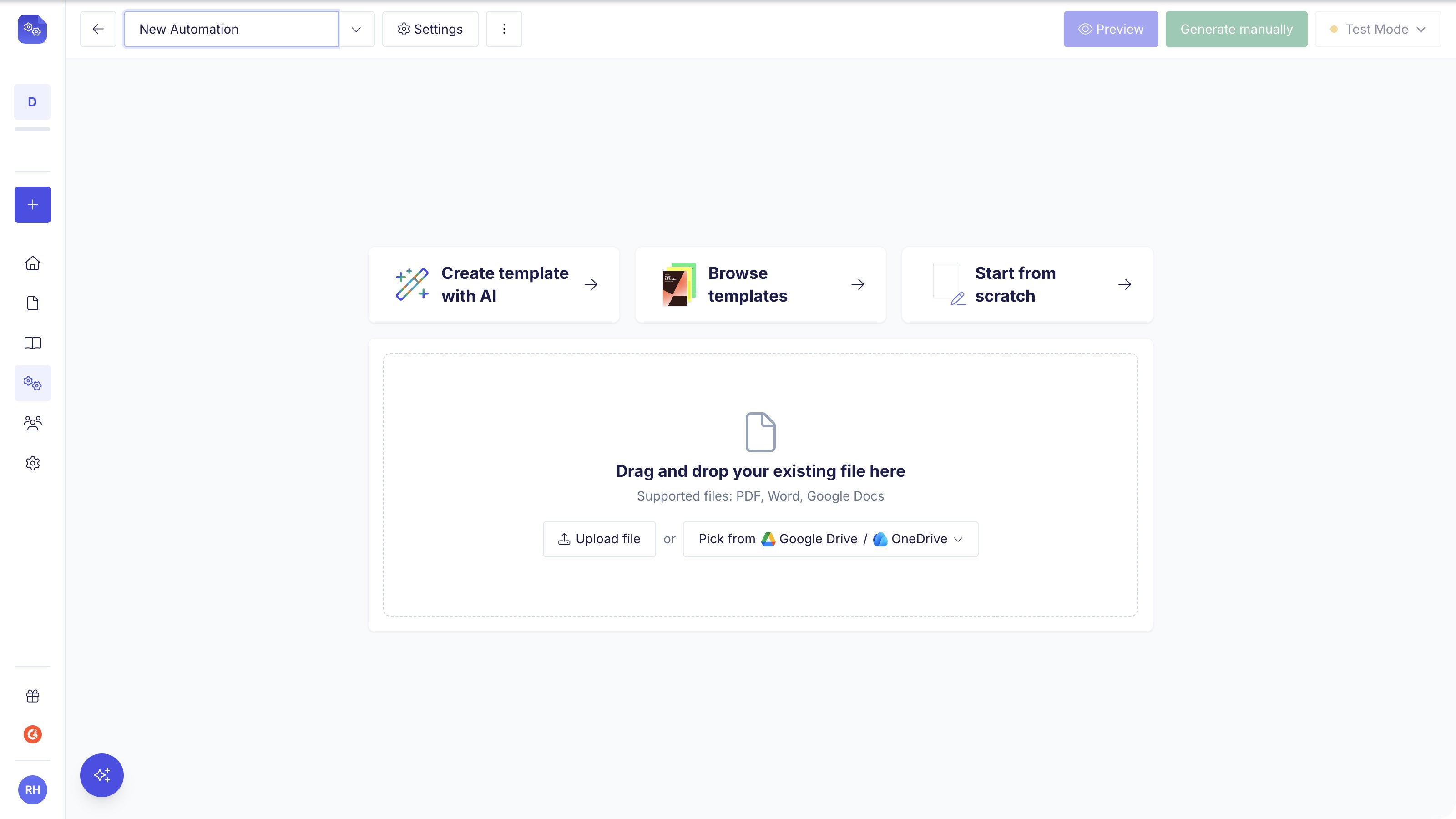
Upload existing PDFs and overlay data fields for pixel-perfect document generation
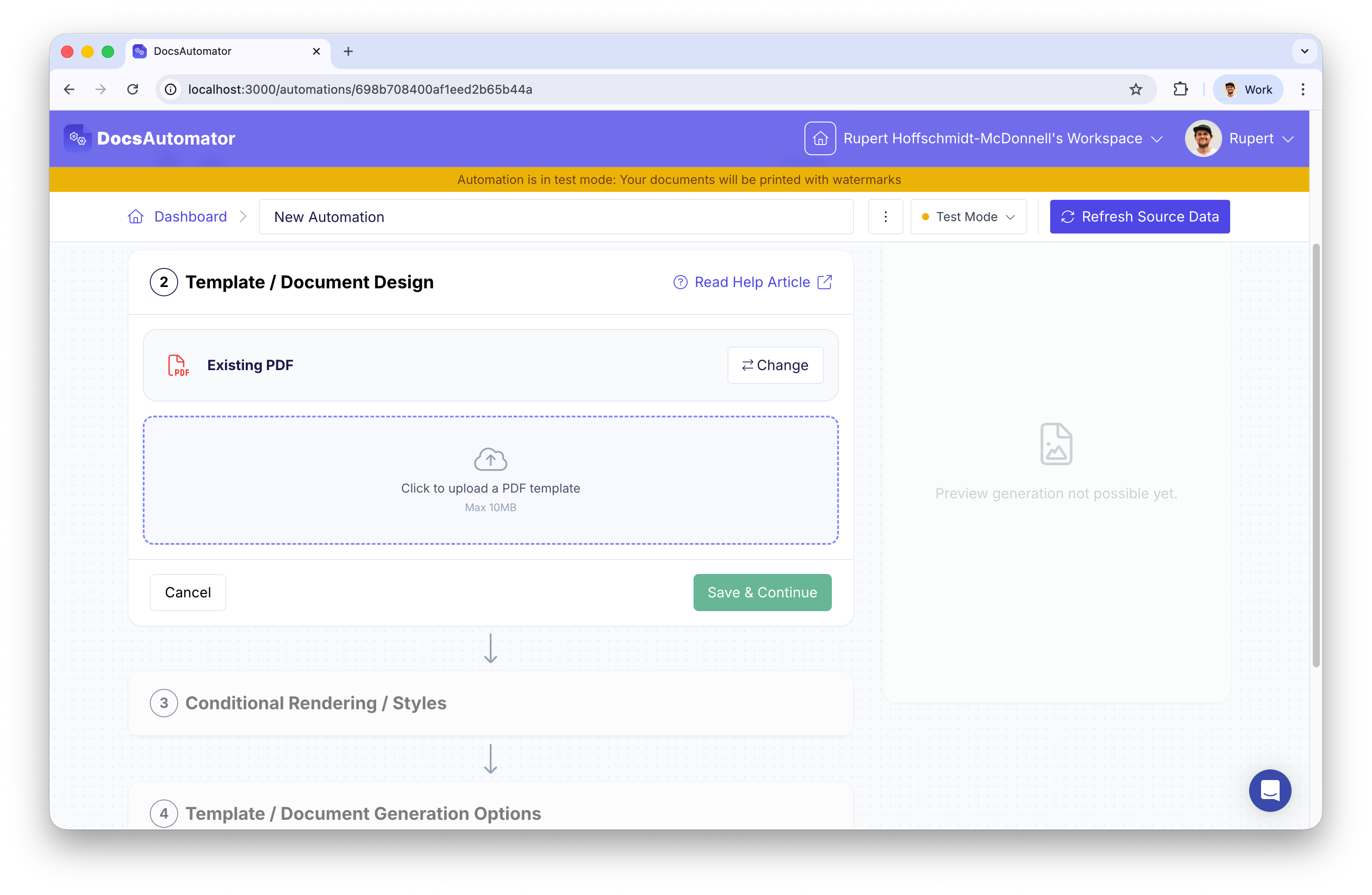
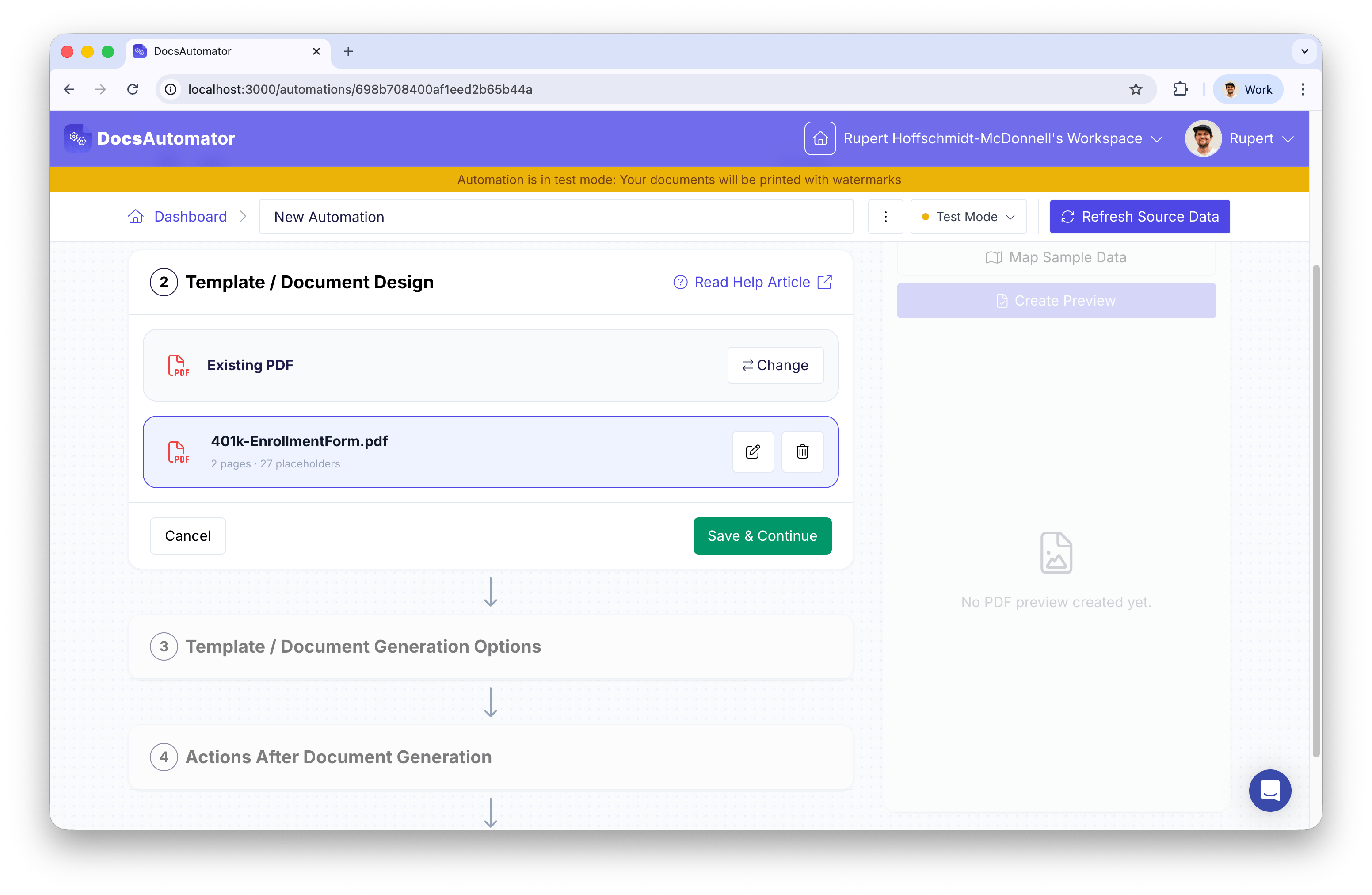
PDF templates let you use an existing PDF as the base for document generation. Upload any PDF and use the visual editor to define where data fields should be overlaid. At generation time, DocsAutomator fills in those fields on top of your original PDF — the underlying PDF is never modified.
The visual editor positions data fields on top of your PDF. It does not edit the PDF itself. If you need to change the underlying layout, update the source PDF in your design tool and re-upload it.
Don’t type {{placeholders}} into your PDF. The double-curly-bracket syntax only works in Google Doc templates, where DocsAutomator finds and replaces the text for you. In a PDF, that text is part of the page itself, so it prints literally in your generated document (you would see {{invoice_number}} instead of the value, with no error to warn you). Upload your PDF unchanged, then add fields with the visual editor described below.
When you upload a PDF that contains interactive form fields (created in tools like Adobe Acrobat), DocsAutomator automatically converts them into placeholders:
PDF Field Type
Placeholder Type
Text field / Dropdown
Text
Checkbox
Checkbox
Signature
E-Signature
Button and radio group fields are not supported and will be skipped.
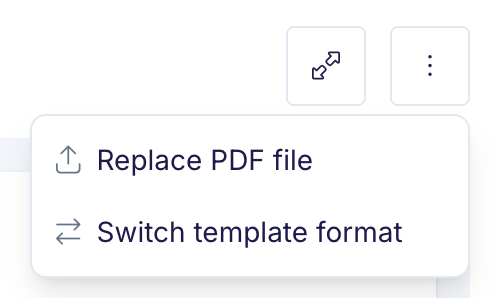
Use this when you receive a revised version of the same document and want to swap the file without rebuilding your placeholder layout.You can trigger it from two places:
Three-dots menu on the minimized template row → Replace PDF file
Upload icon between the Edit and Delete buttons on the PDF template card
Three-dots menu on the template row showing Replace PDF file and Switch template format
Pick the new PDF and DocsAutomator updates the file binary in place. AcroForm field detection is not re-run — your existing placeholders are reused as-is.
If the new PDF has different page dimensions, fewer pages, or content has reflowed, some placeholders may end up in the wrong position or point at a page that no longer exists. Open the editor after replacing the file and review each placeholder.
Use the Switch template format option in the three-dots menu (or the Change button in the format picker) when you want to discard the current PDF entirely — for example, to move to a Google Docs template instead. This removes the PDF file from DocsAutomator’s storage and clears all placeholders.
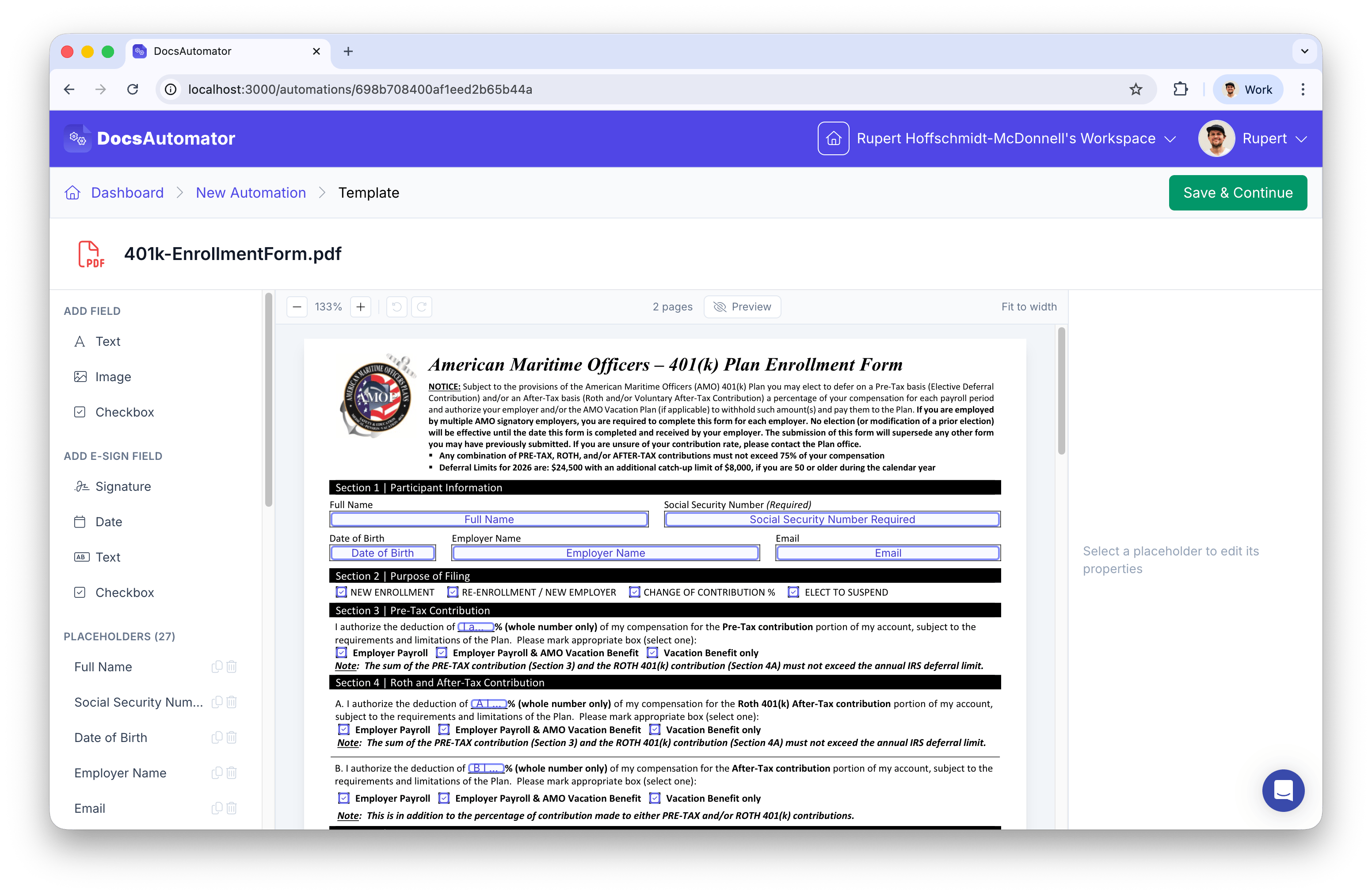
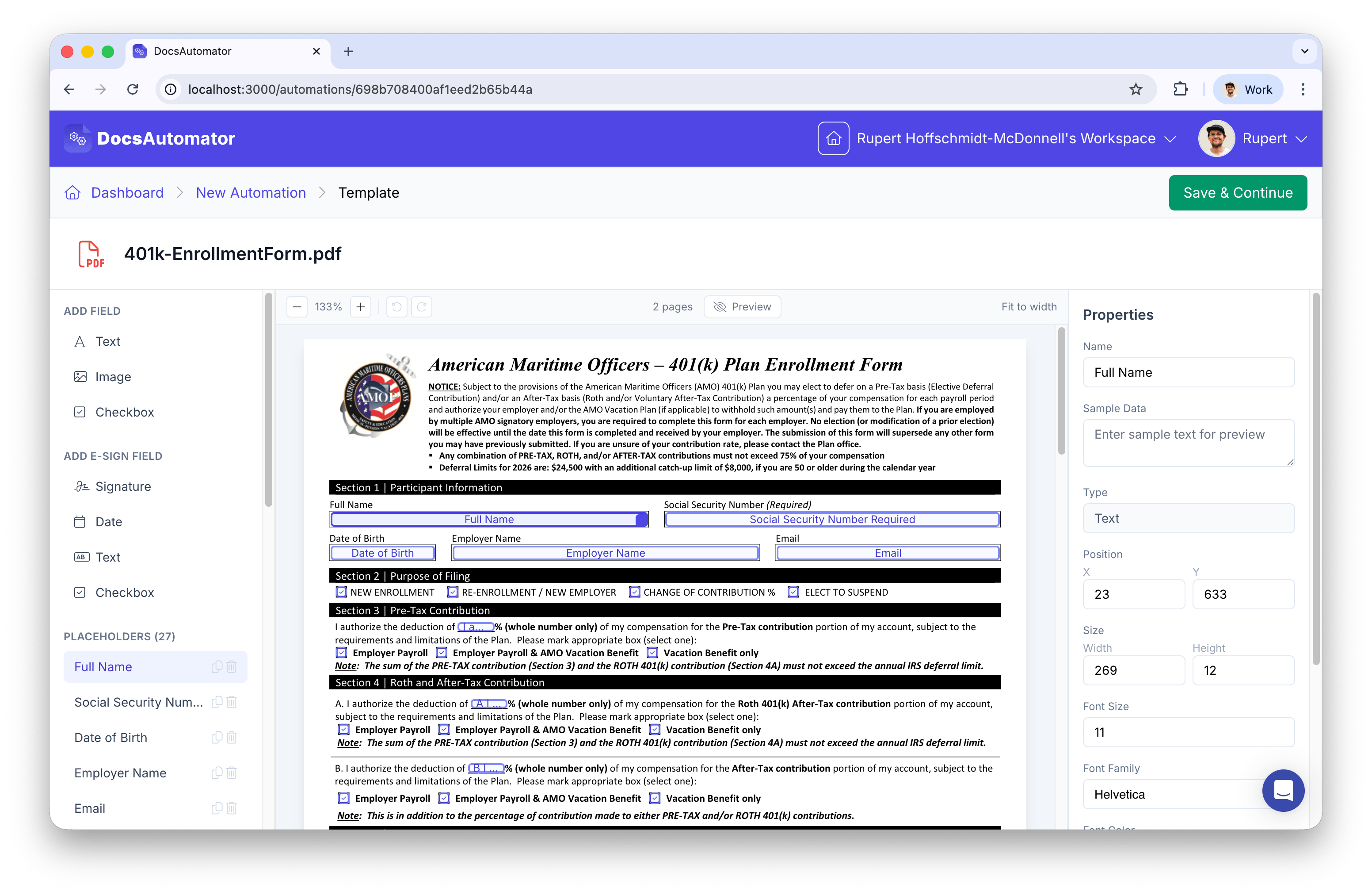
After uploading a PDF, click the edit button to open the full-screen placeholder editor. This editor lets you define where data fields appear on top of your PDF — it does not modify the PDF content itself. The editor has three panels:
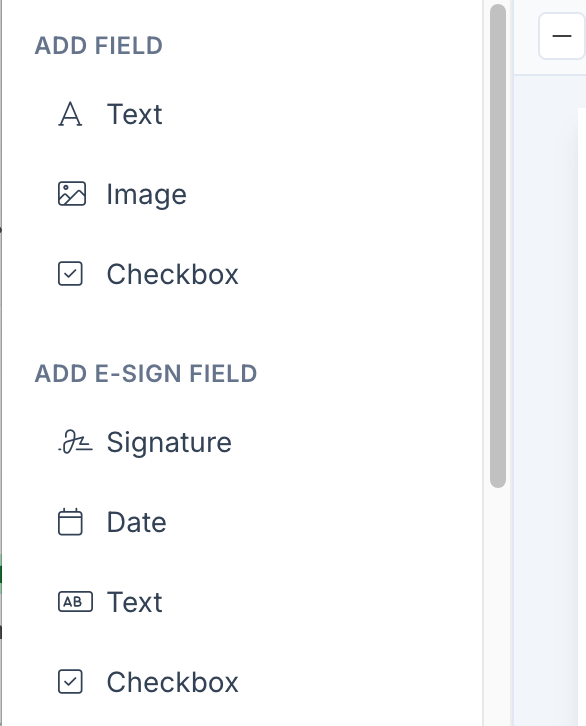
Left sidebar — Add new fields and manage existing placeholders
Center — The PDF viewer with draggable placeholder overlays
Right sidebar — Properties panel for the selected placeholder
The visual editor with left sidebar, PDF viewer, and properties panel
The editor displays all pages of your PDF in a scrollable view. Each placeholder is assigned to a specific page. When you drag a field from the sidebar onto a page, it is placed on that page.
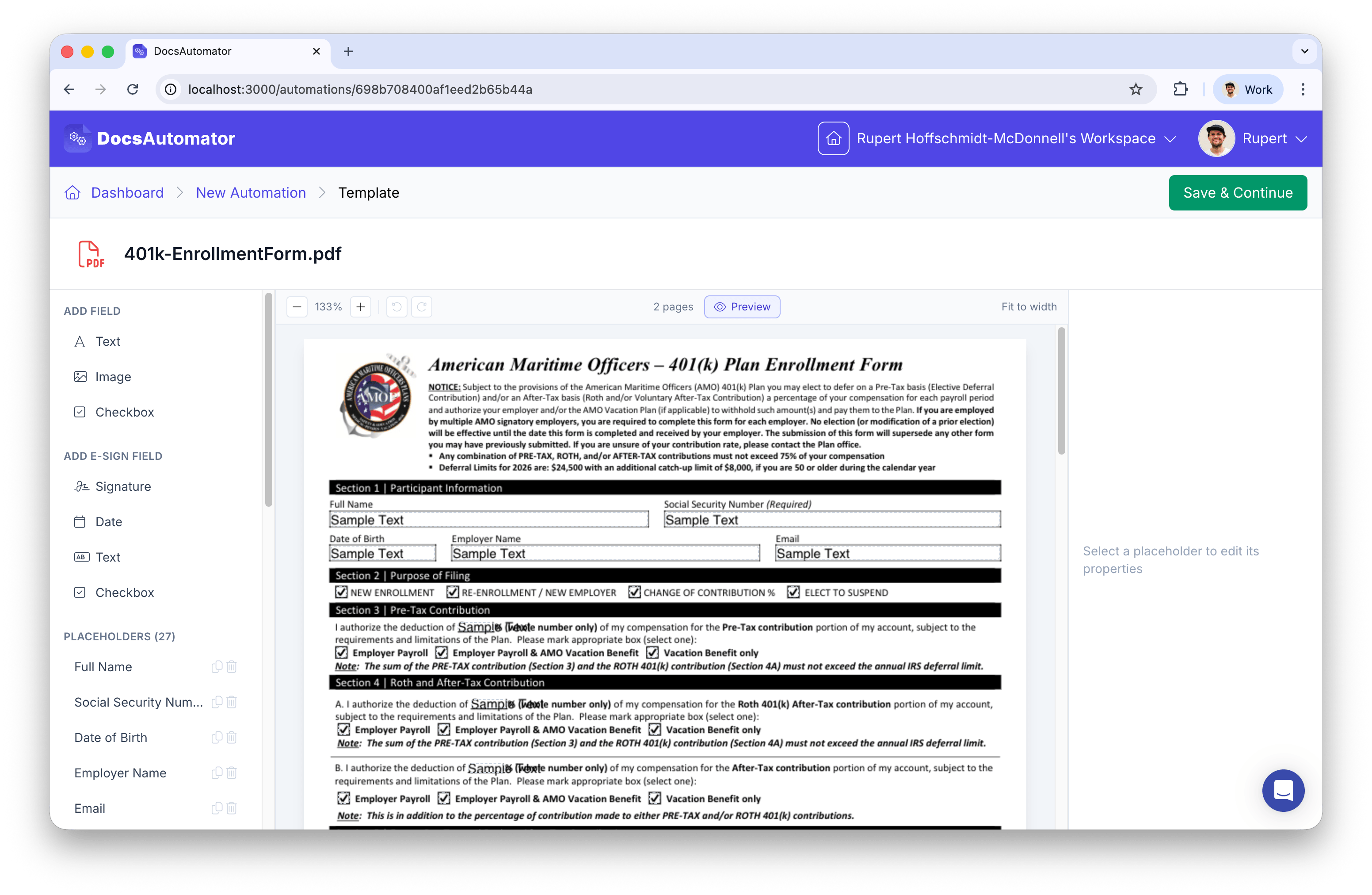
Toggle the Preview button in the toolbar to see a live rendering of your template with sample data filled in. The preview uses the same rendering engine as the final document generation, so what you see is what you get.You can configure sample data for each placeholder in the Properties panel.
Helvetica, Times Roman, Courier, Roboto, Open Sans, Lato, Montserrat, Playfair Display
Helvetica
Font Color
Any hex color
#000000
Chinese, Japanese, and Korean text renders with Noto Sans CJK in every font family. You do not need to select a special font.
| Text Style | Bold, Italic, Underline, Strikethrough (combine any) | None |
| Horizontal Align | Left, Center, Right | Left |
| Vertical Align | Top, Middle, Bottom | Middle |
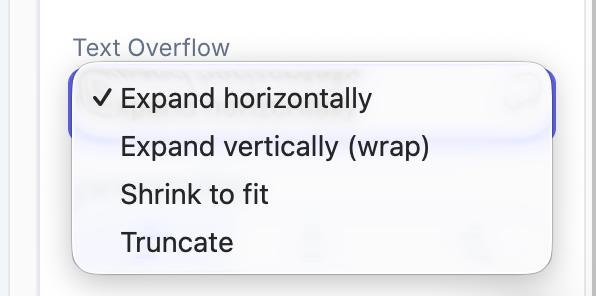
| Text Overflow | Expand horizontally, Expand vertically, Shrink to fit, Truncate | Expand horizontally |
| Sample Data | Text used in preview mode | — |The Text Style toggles apply bold, italic, underline, and strikethrough to the whole field. They can be combined (e.g. bold + underline), work with every font listed above, and apply across all text overflow modes. Styling is available for dynamic text and static text fields, and the live preview reflects it before you generate.
Image placeholders automatically scale the source image to fit within the placeholder bounds while maintaining the original aspect ratio. Supports JPG, PNG, and base64-encoded images.
PDF templates support two static field types that are baked into every generated document, independent of your data source:
Static Text — Fixed text that appears on every document (e.g. disclaimers, terms, labels). Configure the text value in the properties panel.
Static Image — Fixed image that appears on every document (e.g. logos, stamps, watermarks). Upload a PNG or JPEG image (up to 5MB) in the properties panel. Images are automatically optimized for fast rendering.
Add static fields from the Add Static Field section in the left sidebar. Static fields support the same drag, resize, and positioning controls as regular placeholders.
The checkbox accepts various truthy/falsy values from any data source: booleans, strings like “true”/“false”, “yes”/“no”, and Airtable/SmartSuite emoji values.
PDF templates support e-signature fields that integrate with DocsAutomator eSign. Unlike Google Doc templates which use text-based syntax ({{esign.signature_1}}), PDF templates use visually positioned e-sign fields.
Each e-sign field is assigned to a signer by number. The field name includes the signer number (e.g., esign_signature_1, esign_date_2). Configure signer details (name, email) in the E-Signing card of your automation.
At least one Signature field is required for e-signing to work. The editor displays a warning if you have other e-sign fields but no signature field.
PDF templates work with all DocsAutomator data sources:
Airtable
Google Sheets
SmartSuite
ClickUp
API
Zapier
Glide
n8n
Make
The placeholder Name field is what maps to your data source fields. For example, if your Airtable table has a “Company Name” field, set the placeholder name to match the field name configured in your automation’s field mapping.
Click Save in the top navigation bar to persist your placeholder layout. The placeholders and sample data are saved to the automation and will be used during document generation.