

What approvals do
With Approvals, a document waits until the people you choose approve it. DocsAutomator makes the document as usual and then holds it. Nothing is sent, saved or signed before the approval. After the approval, the document goes out exactly as it would without approval. Approvals work with Google Doc, Word and PDF templates, with every data source, and with signing and acceptance.Switch it on
- Open the automation and click the Approvals card.
- Switch on Approve each document before it goes out.
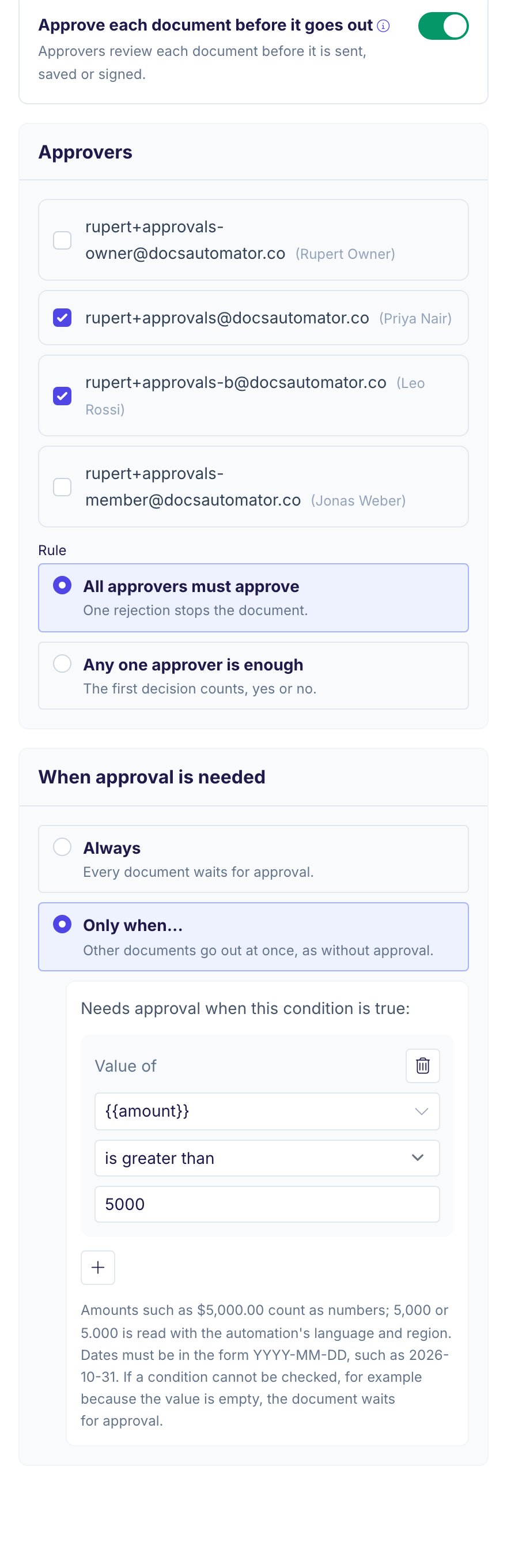
Choose approvers
You can name approvers in three ways. You can use more than one way in the same automation.Approvers from your team
Under Approvers, select one or more members of your team. They approve every document of this automation.Approvers from your data
Sometimes the right approver changes from record to record, for example the person who requested a contract. Then a field of the record can name the approver. This works for Airtable, Notion, Google Sheets, SmartSuite, ClickUp and Google Forms.- Under From your data, click Add a field.
- Pick the field that holds the approver’s email, for example Requested by.
- To add a second field, click Add another field.
Approvers in an API call
The API, Zapier, Make, n8n, the MCP server, Glide and other tools that send their data can name approvers in each request. Put the emails in theapproverEmails key at the top level of the request, next to data:
approverEmails can hold one email, a list, or several emails separated by commas, semicolons or line breaks. Inside data, it is an ordinary value and asks nobody. In Zapier and Make, add it as its own field, not as a placeholder value.
A request with approverEmails waits for approval even when approval is off for the automation. On a plan without Approvals, the request fails with an error. See createDocument for the full request.
Each document can have up to 10 approvers from your data or the request. Each one must be a valid email. When the fields or the request hold more than 10 emails, an invalid email, or nothing at all, the workspace owners approve instead.
The Approver role
Anyone named in an approver field or inapproverEmails can join your workspace as an approver, from any email domain. By default, the approval email asks them to join. Before they join, the link shows no document and no record data.
A person who joins this way gets the Approver role. An approver sees and approves only the documents assigned to them. They do not see your automations, the API key, the team or the settings.
Owners and admins can also invite someone as an approver directly. Go to Settings, Team, click Invite Team Member and choose the role Approver.
Approvers cost nothing. DocsAutomator charges for documents, not for people.
Approve without an account
Some approvers should not need a DocsAutomator account, for example a client who approves a quote. Open the automation, open the Approvals card and turn off Approvers need an account. The switch shows when the automation has an approver field or takes approvers from the request. Owners and admins can change it. With the switch off, a person who is not on your team approves or rejects from the link in their own approval email. They do not sign up and do not join the workspace. The link works only for that person and only for that document. It stops working when the approval closes or expires. DocsAutomator keeps the approver’s email, the time and the IP address of each decision. Team members still log in to decide. The switch is on by default.Approve or reject
Each approver gets an email with a Review document link. The approver logs in with the account the email was sent to. An approver from outside the team decides without a login when Approvers need an account is off. The document also waits on the Approvals page in the app.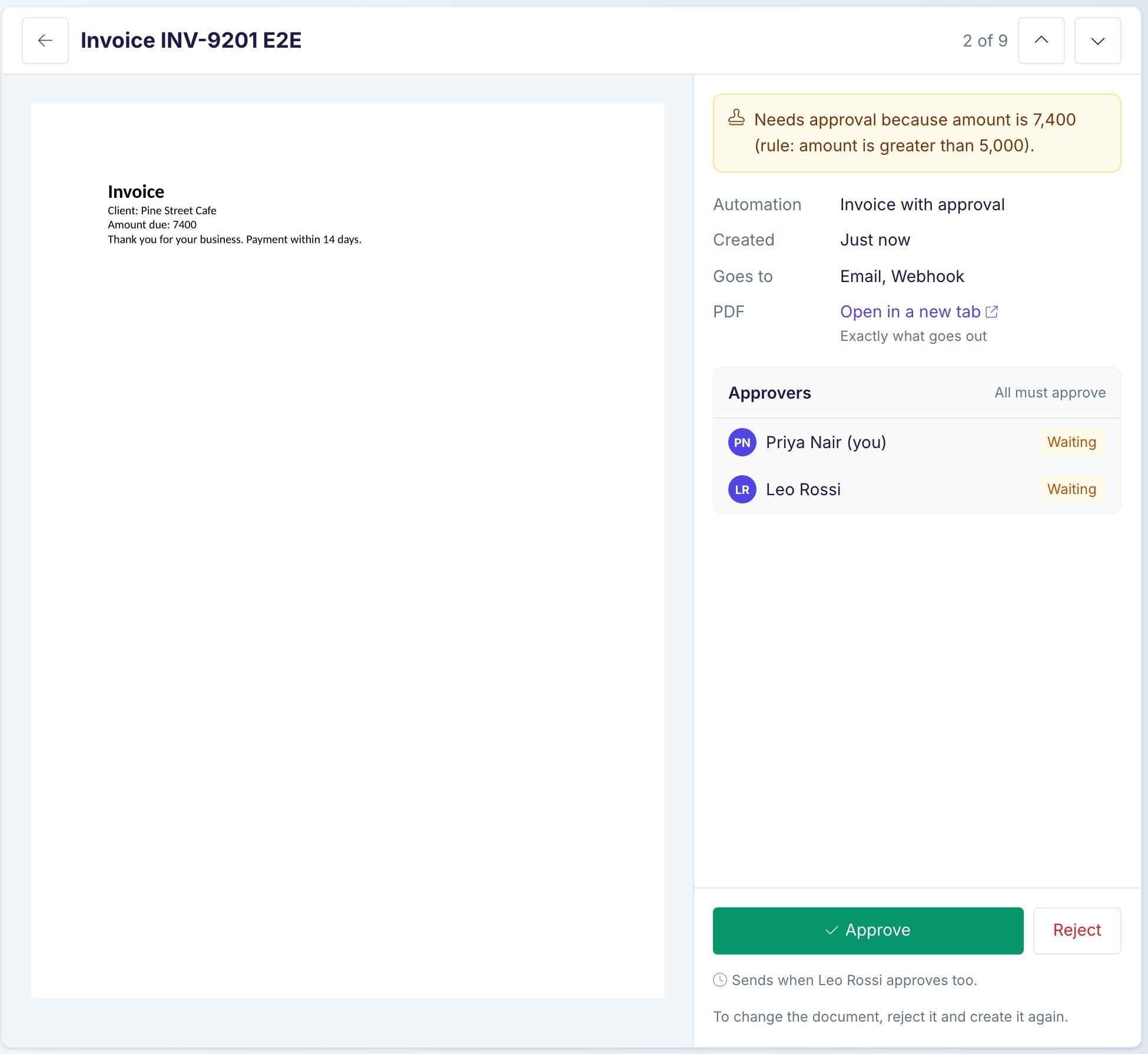
- Approve: your approval is recorded. When it completes the rule, the document goes out at once.
- Reject: you give a reason, and nothing goes out. The person who created the document gets the reason by email. When an automation or the API created it, the workspace owners get the email.
While a document waits, the email, the signing or acceptance request, the webhook, the save to the record and the saves to Google Drive, OneDrive or Dropbox do not run. After the approval, they run once. If the automation keeps the Google Doc, DocsAutomator makes that Google Doc at once, before the approval.
A document that nobody approves within 30 days expires, and nothing goes out. Owners and admins can decide for an approver who is away, from the All pending tab.
The rule
When a document has more than one approver, choose a Rule:- All approvers must approve: every approver must approve. One rejection stops the document.
- Any one approver is enough: the first decision counts, approve or reject.
approverEmails names people, all of them must approve.
Conditions
Under When approval is needed, choose Always or Only when…. With Only when…, a document waits only when the condition is true. All other documents go out at once. A condition works like a condition in Sections: pick a field or placeholder, a comparison and a value. You can add more conditions and choose whether all or any of them must be true.- Amounts such as
$5,000.00count as numbers. - Dates must have the form
YYYY-MM-DD, for example2026-10-31. - If DocsAutomator cannot check a condition, for example because the value is empty, the document waits for approval.
The API answers
"status": "awaiting_approval" for a document that waits. The normal webhook fires after the approval. A rejection sends one webhook with "event": "document.approval_rejected". Signing and acceptance runs have their own approval events. Each held document counts as one document.