

New: AI Template Generator (Beta) — Don’t want to build a template from scratch? Describe what you need and AI creates a complete Google Doc or Word template with proper placeholder syntax, formatting, and layout.
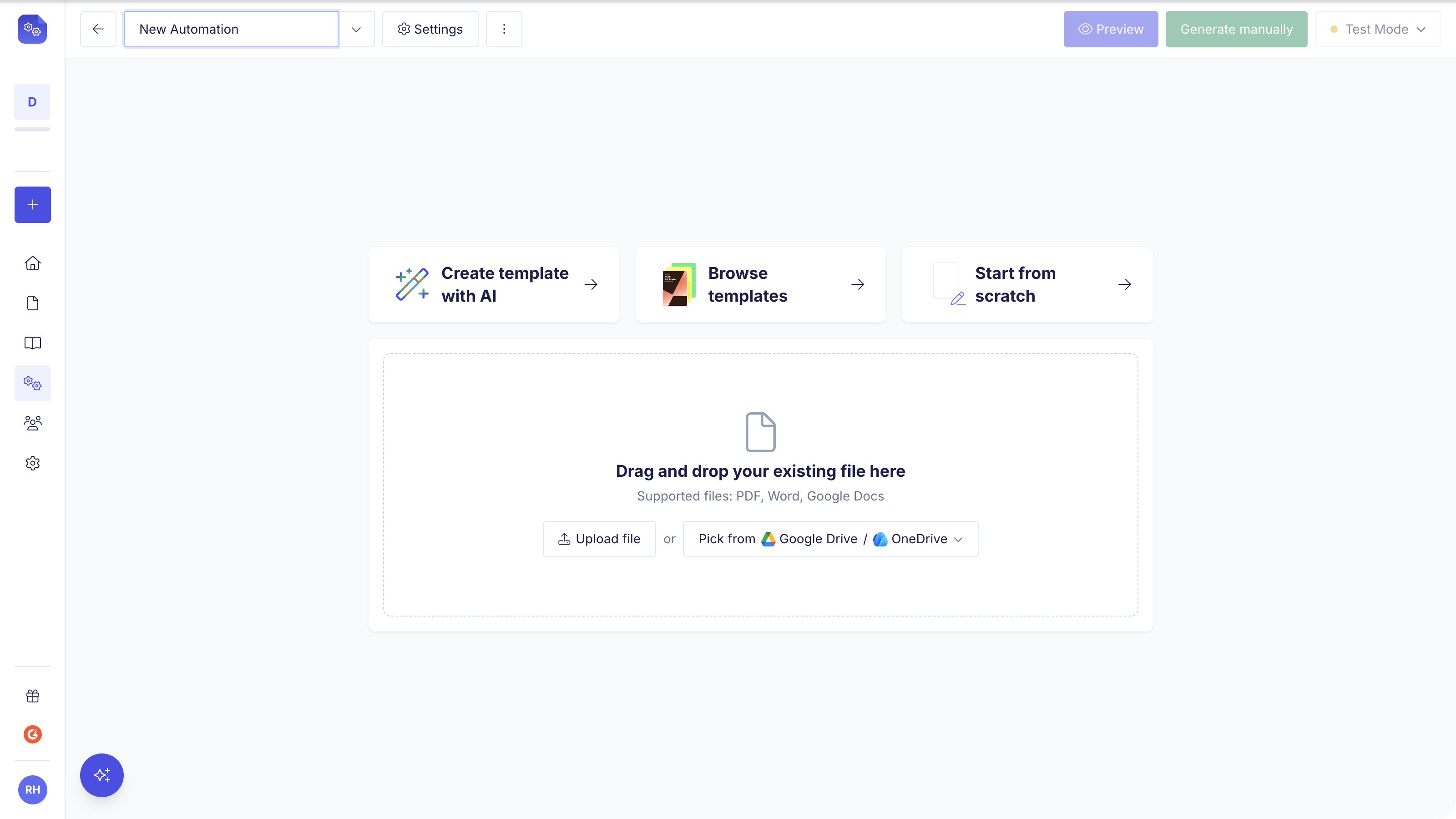
Template Types
Google Doc
Create templates directly in Google Docs using
{{ placeholder }} syntax.
Best for dynamic content with variable-length sections, line items, and
conditional content.Upload an existing PDF and use the visual editor to position data fields on
top. Best for fixed-layout documents like tax forms, branded designs, or
government docs.
Word (.docx)
Use a native Word file as your template with the same
{{ placeholder }}
syntax as Google Docs. Stays a .docx for its whole life and renders
straight to PDF. Best when your team designs documents in Microsoft Word.