

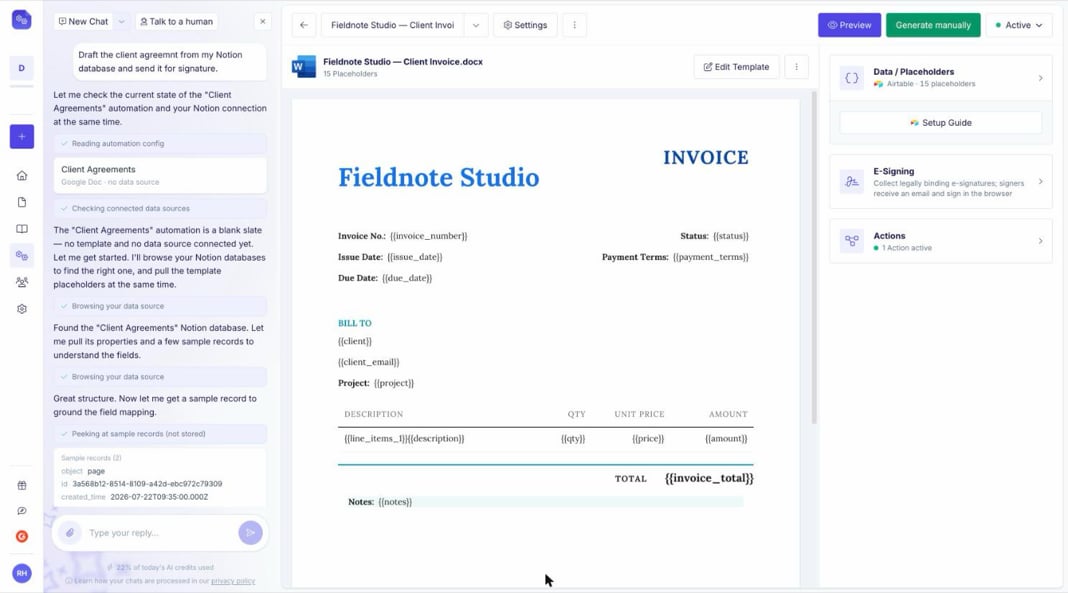
The AI Agent building an automation from a single sentence
How It Works
1
Describe the document you need
Write what you want in the chat, in your own words. Mention the data source if you already know it, for example “from my Airtable Invoices table”. The AI Agent asks follow-up questions when something is unclear.
2
It reads your data
Connect Airtable, Google Sheets, Notion, SmartSuite or ClickUp and the AI Agent browses your bases, tables and databases, then picks the fields that fit your document. It looks at a few sample records to get the mapping right; these are used for setup only and are not stored.
3
It designs the template
The AI Agent writes a Word template with your placeholders already in the right spots, or creates a native Google Doc template in your Drive. For Word templates it first shows your own document in three looks (restrained, branded, expressive); pick one and it is adopted. Line items are mapped too, so repeating rows work from the first run. Ask for a Google Doc template when you need nested line items.
4
It generates a test document
Before anything goes live, the AI Agent creates a real PDF from a real record so you can check the result.
5
It sets up the rest
Signature fields, email delivery, Drive folders and the other actions after document generation can all be configured straight from the chat.
What Else It Can Do
- Edit templates on request: describe the change in words, for example “make the header blue and add a payment terms section”, and it rewrites the template.
- Generate one-off documents: need a single document rather than a recurring automation? Ask for one and fill in the values directly, no data source required.
- Answer product questions: it answers setup questions from our documentation. Use Talk to a human in the chat header whenever you’d rather have one of us help; the AI Agent also hands over on its own when it cannot help.
Attaching Files
Use the paperclip in the chat to send the AI Agent a file. Common uses: your logo to place in the template, a screenshot of a document that came out wrong, or an existing invoice or contract to rebuild as a template. Attachments stay available for the rest of the conversation. Refresh the page or come back days later and the AI Agent can still see what you sent, so you never have to attach the same file twice. Images stay visible in the chat history too.Files you attach are deleted 90 days after the last message in that conversation. Templates, logos and documents you have already added to an automation are unaffected.
Pricing
The AI Agent is included on every plan at no extra charge for now. If we ever put pricing around it, you will hear it from us first.
Your Existing Automations
Nothing changes for what you’ve already built. Existing automations, templates, field mappings and integrations keep working exactly as before, and you can keep setting up automations manually whenever you prefer; the AI Agent works alongside the regular editor, not instead of it.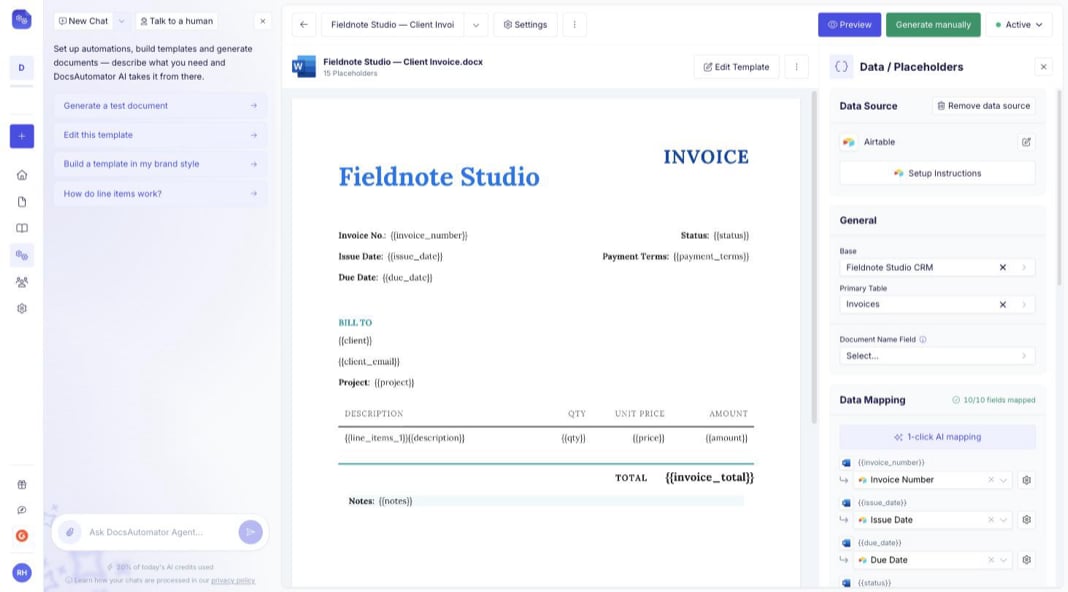
The AI Agent sits alongside the regular automation editor
Tips
- Be specific: name the table, the fields you care about and where the document should go. “Invoice from my Invoices table with line items, saved to Drive” beats “make me an invoice”.
- Iterate in chat: you don’t need the perfect first prompt. Get a first version, then refine it with follow-up messages.
- Check the test document: the AI Agent always generates one before your automation goes live. Look it over and describe anything that’s off.