> ## Documentation Index
> Fetch the complete documentation index at: https://docsautomator.co/docs/llms.txt
> Use this file to discover all available pages before exploring further.
# Approvals
> Have a teammate approve each document before it is sent, saved or signed.
With Approvals, a teammate checks each document before it goes out. DocsAutomator makes the document as usual, then holds it until your approvers approve it. Nothing is sent, saved or signed before that.
Approvals work for every document run:
* Google Doc, Word and PDF templates.
* Documents you create by hand in the app, from a data source trigger, through the API, through the MCP server or with the DocsAutomator Agent.
* Plain document runs, and runs with [signing or acceptance](/docs/features/docsautomator-esign).
Approvals are available on the current Business and Scale plans. See [Plans](#plans).
## Set up approvals
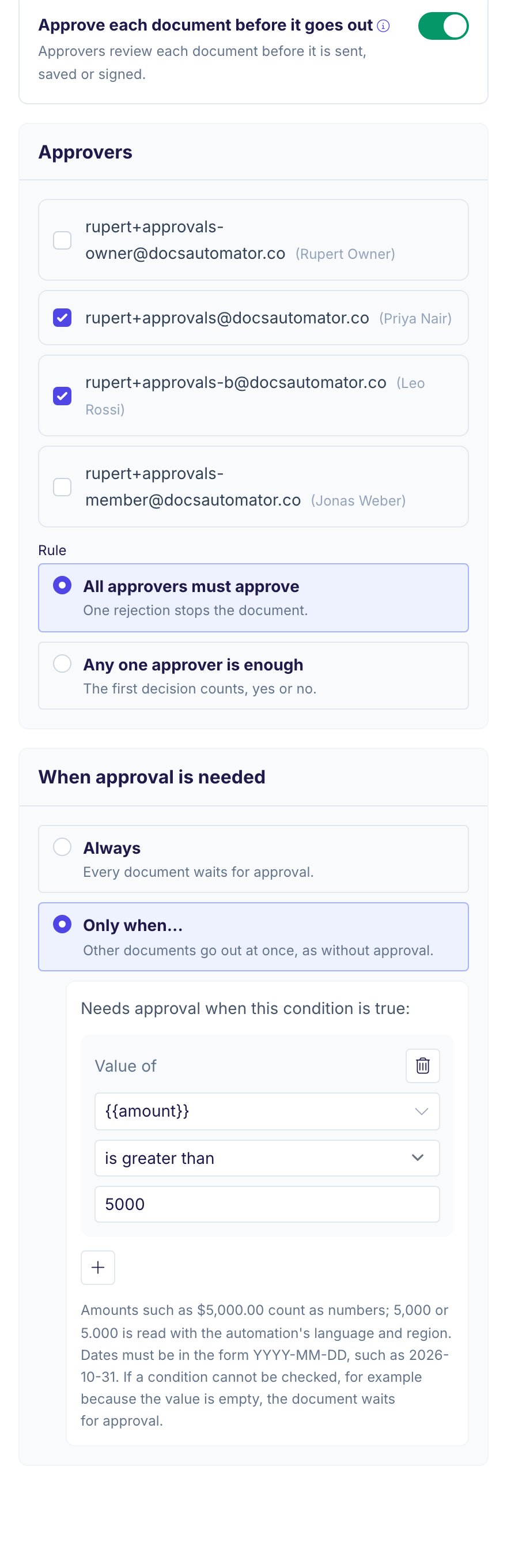 1. Open the automation and click the **Approvals** card.
2. Switch on **Approve each document before it goes out**.
3. Under **Approvers**, select one or more members of your team.
4. If you select more than one approver, choose a **Rule**:
* **All approvers must approve:** every approver must approve. One rejection stops the document.
* **Any one approver is enough:** the first decision counts, approve or reject.
5. Under **When approval is needed**, choose **Always** or **Only when...**.
### Approve only some documents
With **Only when...**, a document waits for approval only when the condition is true. All other documents go out at once, as without approval. A condition uses the same rules as [Sections](/docs/features/sections): pick a field or placeholder, a comparison and a value. You can add more than one condition and choose whether all or any of them must be true.
The condition reads values in this way:
* Amounts such as `$5,000.00` count as numbers. A value such as `5,000` or `5.000` is read with the automation's language and region.
* Dates must be in the form `YYYY-MM-DD`, for example `2026-10-31`.
* If a condition cannot be checked, the document waits for approval. For example, this happens when the value is empty or is not a number.
The review page shows why a document needs approval, for example "Needs approval because amount is 7,400 (rule: amount is greater than 5,000)".
## What waits until the approval
While a document waits, DocsAutomator makes and stores the document, but these steps do not run:
* The email with the document.
* The signing or acceptance request.
* The webhook.
* Saving the document to the record in your data source.
* Saving to Google Drive, OneDrive or Dropbox.
* The public link to the file.
When the approval is complete, all of these steps run once, exactly as they would without approval. The delivered document and the data saved to the record are the version that the approvers saw.
If the automation keeps the Google Doc, that Google Doc is made in your Google Drive at once, before the approval. DocsAutomator builds the PDF from it.
Approval also applies in test mode. After the approval, a test document goes out to its real recipients, the same as any other document.
## Review a document
Each approver gets an email with a **Review document** link. The link opens the document without a sign-in, because the link is personal to the approver. The document also waits on the **Approvals** page in the app, under **Waiting for me** and **All pending**. The **Approvals** item in the sidebar shows how many documents wait for you.
1. Open the automation and click the **Approvals** card.
2. Switch on **Approve each document before it goes out**.
3. Under **Approvers**, select one or more members of your team.
4. If you select more than one approver, choose a **Rule**:
* **All approvers must approve:** every approver must approve. One rejection stops the document.
* **Any one approver is enough:** the first decision counts, approve or reject.
5. Under **When approval is needed**, choose **Always** or **Only when...**.
### Approve only some documents
With **Only when...**, a document waits for approval only when the condition is true. All other documents go out at once, as without approval. A condition uses the same rules as [Sections](/docs/features/sections): pick a field or placeholder, a comparison and a value. You can add more than one condition and choose whether all or any of them must be true.
The condition reads values in this way:
* Amounts such as `$5,000.00` count as numbers. A value such as `5,000` or `5.000` is read with the automation's language and region.
* Dates must be in the form `YYYY-MM-DD`, for example `2026-10-31`.
* If a condition cannot be checked, the document waits for approval. For example, this happens when the value is empty or is not a number.
The review page shows why a document needs approval, for example "Needs approval because amount is 7,400 (rule: amount is greater than 5,000)".
## What waits until the approval
While a document waits, DocsAutomator makes and stores the document, but these steps do not run:
* The email with the document.
* The signing or acceptance request.
* The webhook.
* Saving the document to the record in your data source.
* Saving to Google Drive, OneDrive or Dropbox.
* The public link to the file.
When the approval is complete, all of these steps run once, exactly as they would without approval. The delivered document and the data saved to the record are the version that the approvers saw.
If the automation keeps the Google Doc, that Google Doc is made in your Google Drive at once, before the approval. DocsAutomator builds the PDF from it.
Approval also applies in test mode. After the approval, a test document goes out to its real recipients, the same as any other document.
## Review a document
Each approver gets an email with a **Review document** link. The link opens the document without a sign-in, because the link is personal to the approver. The document also waits on the **Approvals** page in the app, under **Waiting for me** and **All pending**. The **Approvals** item in the sidebar shows how many documents wait for you.
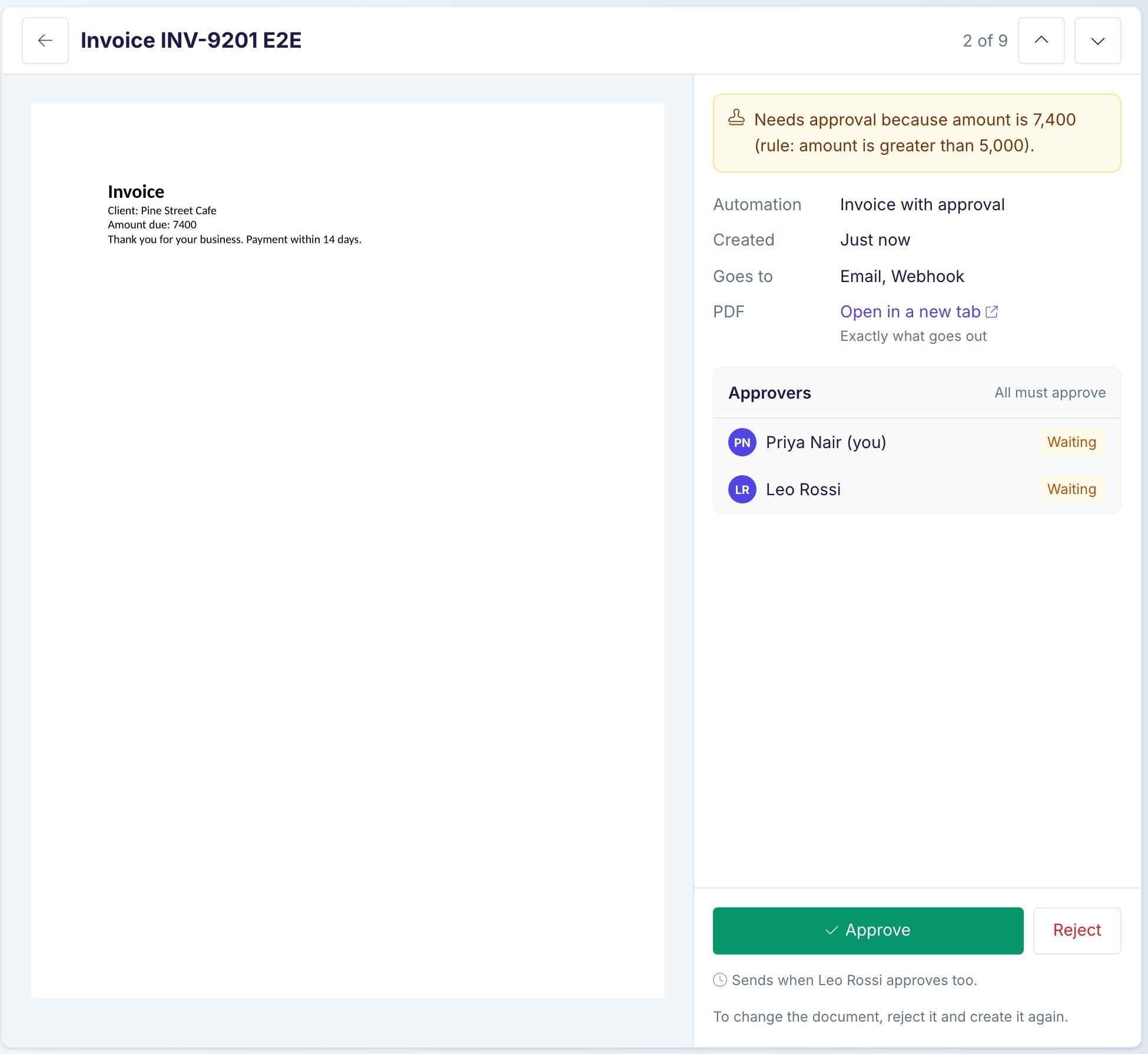 The review page shows:
* The PDF, exactly as it goes out.
* **Goes to**: the steps that run after the approval, for example email and webhook.
* Each approver and their decision.
Opening the link does not decide anything. To decide, click **Approve** or **Reject**:
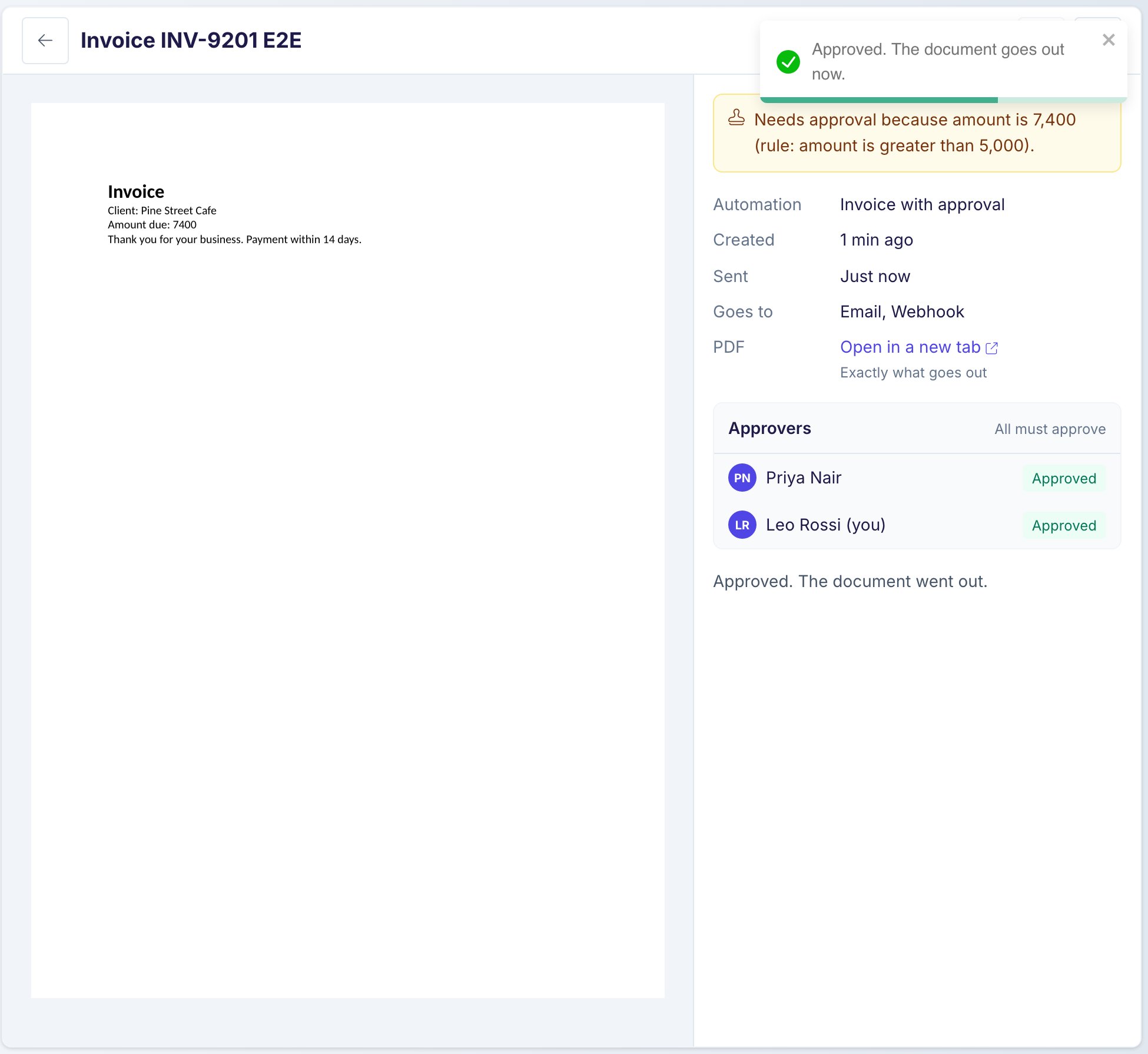
* **Approve:** your approval is recorded. When it completes the rule, the button reads **Approve and send**, and the document goes out at once.
* **Reject:** you must give a reason. Nothing goes out. The person who created the document gets the reason by email. If an automation, the API or another tool created the document, the workspace owners get the email.
To change a document, reject it and create it again.
The review page shows:
* The PDF, exactly as it goes out.
* **Goes to**: the steps that run after the approval, for example email and webhook.
* Each approver and their decision.
Opening the link does not decide anything. To decide, click **Approve** or **Reject**:
* **Approve:** your approval is recorded. When it completes the rule, the button reads **Approve and send**, and the document goes out at once.
* **Reject:** you must give a reason. Nothing goes out. The person who created the document gets the reason by email. If an automation, the API or another tool created the document, the workspace owners get the email.
To change a document, reject it and create it again.
 ### Status in the app
On the **Documents** page and in the run history, a held document shows one of these states:
| Status | Meaning |
| - | - |
| Waiting for approval | The document is made. Nothing went out yet. |
| Rejected | An approver rejected the document. Nothing went out. |
| Expired | Nobody approved the document in time. Nothing went out. |
After the approval, the document shows as a normal finished run. The filters on the **Documents** page include these states.
### Good to know
* Owners and admins can decide for a named approver from the **All pending** tab, for example when the approver is away. The review shows who decided for whom.
* DocsAutomator takes the approvers and the rule from the automation when it creates the document. A later change applies to new documents only.
* If none of the selected approvers is still in the team, the workspace owners must approve.
* A document that nobody approves within 30 days expires, and nothing goes out. For signing and acceptance, the request expires at the end of its link expiration.
* AI agents, the API and the MCP server can create documents that wait for approval. Only people can approve them.
## Signing and acceptance
For an automation with [signing or acceptance](/docs/features/docsautomator-esign), the approval comes before the request. The invitations, the signing links and the write-back of the links to your record wait until the approval. After the approval, the request goes out as usual, and the link expiration starts again, so recipients get the full number of days.
## API and MCP
When a document waits for approval, the [createDocument](/docs/api-reference/documents/create-from-api) call answers at once:
```json theme={null}
{
"message": "awaiting_approval",
"status": "awaiting_approval",
"logId": "6710f2c4e1a2b3c4d5e6f701",
"holdId": "6710f2c4e1a2b3c4d5e6f702",
"documentName": "Invoice INV-1042",
"pdfUrl": null,
"googleDocUrl": null,
"approval": {
"status": "pending",
"rule": "all",
"approvers": [
{ "name": "Priya Nair", "email": "priya@example.com" },
{ "name": "Leo Rossi", "email": "leo@example.com" }
],
"condition": null
}
}
```
* `pdfUrl` and `googleDocUrl` are `null`. The save fields for Google Drive, OneDrive, Dropbox and the Word file are not in the answer.
* `approval.condition` shows the result of the condition check, or `null` when the automation uses **Always**.
* With an asynchronous call, `GET /job/:jobId` returns the same body as the job result.
* For a signing or acceptance run, the answer has `signingStatus: "awaiting_approval"` and the same `approval` block, and no signing links.
In the MCP server and the DocsAutomator Agent, the AI tool says that the document waits for approval and names the approvers. It cannot approve the document.
### Webhooks
* **After the approval:** the automation's normal webhook fires once, with the usual body plus an `approval` block.
* **After a rejection:** the webhook URL gets one request with `"event": "document.approval_rejected"`, `"status": "approval_rejected"`, `logId`, `documentName` and an `approval` block with the `reason`.
* No webhook fires when a document starts to wait or when it expires.
Signing and acceptance runs fire their own events: `esign.approval_requested`, `esign.approval_approved` and `esign.approval_rejected`. The payloads are in the [e-sign API reference](/docs/features/docsautomator-esign/docsautomator-esign-api-reference#approval-events).
## Plans
* Approvals are included in the current Business and Scale plans.
* On a trial, the Professional plan and legacy plans, the Approvals card is locked.
* If your workspace moves to a plan without Approvals, the toggle switches off. Your approvers, rule and condition stay saved. Documents that already wait keep waiting until an approver decides. After an upgrade, switch the toggle on again.
Each held document counts as one document when DocsAutomator makes it, the same as any other document. An approval or a rejection does not count it again.
This documentation is built and hosted on [Mintlify](https://mintlify.com), a developer documentation platform.
### Status in the app
On the **Documents** page and in the run history, a held document shows one of these states:
| Status | Meaning |
| - | - |
| Waiting for approval | The document is made. Nothing went out yet. |
| Rejected | An approver rejected the document. Nothing went out. |
| Expired | Nobody approved the document in time. Nothing went out. |
After the approval, the document shows as a normal finished run. The filters on the **Documents** page include these states.
### Good to know
* Owners and admins can decide for a named approver from the **All pending** tab, for example when the approver is away. The review shows who decided for whom.
* DocsAutomator takes the approvers and the rule from the automation when it creates the document. A later change applies to new documents only.
* If none of the selected approvers is still in the team, the workspace owners must approve.
* A document that nobody approves within 30 days expires, and nothing goes out. For signing and acceptance, the request expires at the end of its link expiration.
* AI agents, the API and the MCP server can create documents that wait for approval. Only people can approve them.
## Signing and acceptance
For an automation with [signing or acceptance](/docs/features/docsautomator-esign), the approval comes before the request. The invitations, the signing links and the write-back of the links to your record wait until the approval. After the approval, the request goes out as usual, and the link expiration starts again, so recipients get the full number of days.
## API and MCP
When a document waits for approval, the [createDocument](/docs/api-reference/documents/create-from-api) call answers at once:
```json theme={null}
{
"message": "awaiting_approval",
"status": "awaiting_approval",
"logId": "6710f2c4e1a2b3c4d5e6f701",
"holdId": "6710f2c4e1a2b3c4d5e6f702",
"documentName": "Invoice INV-1042",
"pdfUrl": null,
"googleDocUrl": null,
"approval": {
"status": "pending",
"rule": "all",
"approvers": [
{ "name": "Priya Nair", "email": "priya@example.com" },
{ "name": "Leo Rossi", "email": "leo@example.com" }
],
"condition": null
}
}
```
* `pdfUrl` and `googleDocUrl` are `null`. The save fields for Google Drive, OneDrive, Dropbox and the Word file are not in the answer.
* `approval.condition` shows the result of the condition check, or `null` when the automation uses **Always**.
* With an asynchronous call, `GET /job/:jobId` returns the same body as the job result.
* For a signing or acceptance run, the answer has `signingStatus: "awaiting_approval"` and the same `approval` block, and no signing links.
In the MCP server and the DocsAutomator Agent, the AI tool says that the document waits for approval and names the approvers. It cannot approve the document.
### Webhooks
* **After the approval:** the automation's normal webhook fires once, with the usual body plus an `approval` block.
* **After a rejection:** the webhook URL gets one request with `"event": "document.approval_rejected"`, `"status": "approval_rejected"`, `logId`, `documentName` and an `approval` block with the `reason`.
* No webhook fires when a document starts to wait or when it expires.
Signing and acceptance runs fire their own events: `esign.approval_requested`, `esign.approval_approved` and `esign.approval_rejected`. The payloads are in the [e-sign API reference](/docs/features/docsautomator-esign/docsautomator-esign-api-reference#approval-events).
## Plans
* Approvals are included in the current Business and Scale plans.
* On a trial, the Professional plan and legacy plans, the Approvals card is locked.
* If your workspace moves to a plan without Approvals, the toggle switches off. Your approvers, rule and condition stay saved. Documents that already wait keep waiting until an approver decides. After an upgrade, switch the toggle on again.
Each held document counts as one document when DocsAutomator makes it, the same as any other document. An approval or a rejection does not count it again.
This documentation is built and hosted on [Mintlify](https://mintlify.com), a developer documentation platform.