> ## Documentation Index
> Fetch the complete documentation index at: https://docsautomator.co/docs/llms.txt
> Use this file to discover all available pages before exploring further.
# AI Template Generator
> Generate professional Google Doc templates from a text description using AI
This feature is currently in **Beta**. We'd love your feedback — use the feedback button in the AI editor to share your thoughts.
The AI Template Generator creates professional Google Doc templates from natural language descriptions. Instead of manually building templates, describe what you need and AI generates a fully-formatted, ready-to-use template with the correct DocsAutomator placeholder syntax.
## How It Works
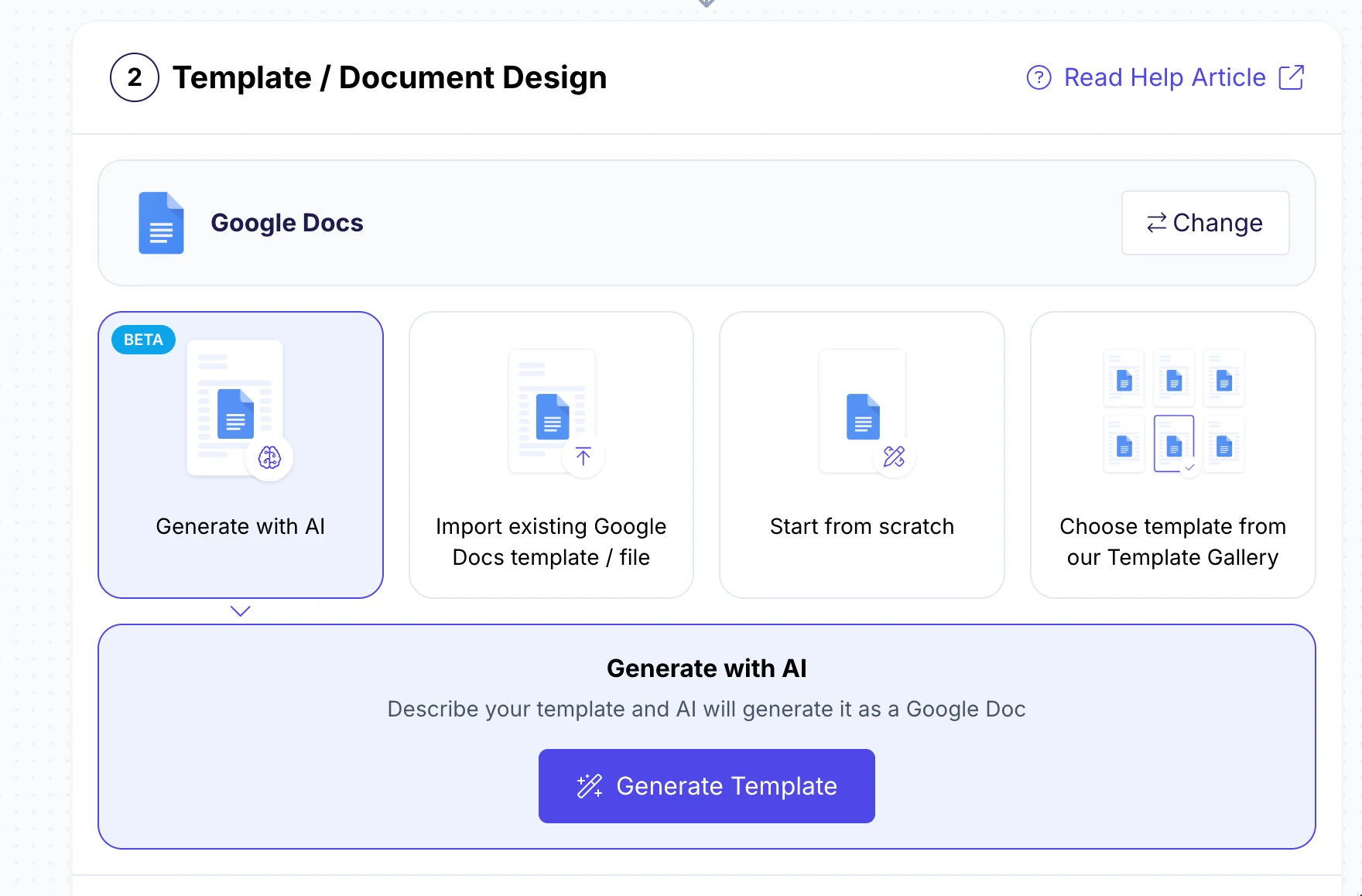
When creating or editing an automation, open the **Template** tab. With Google Docs selected as your document type, you'll see four options for setting up your template. Select **Generate with AI**.
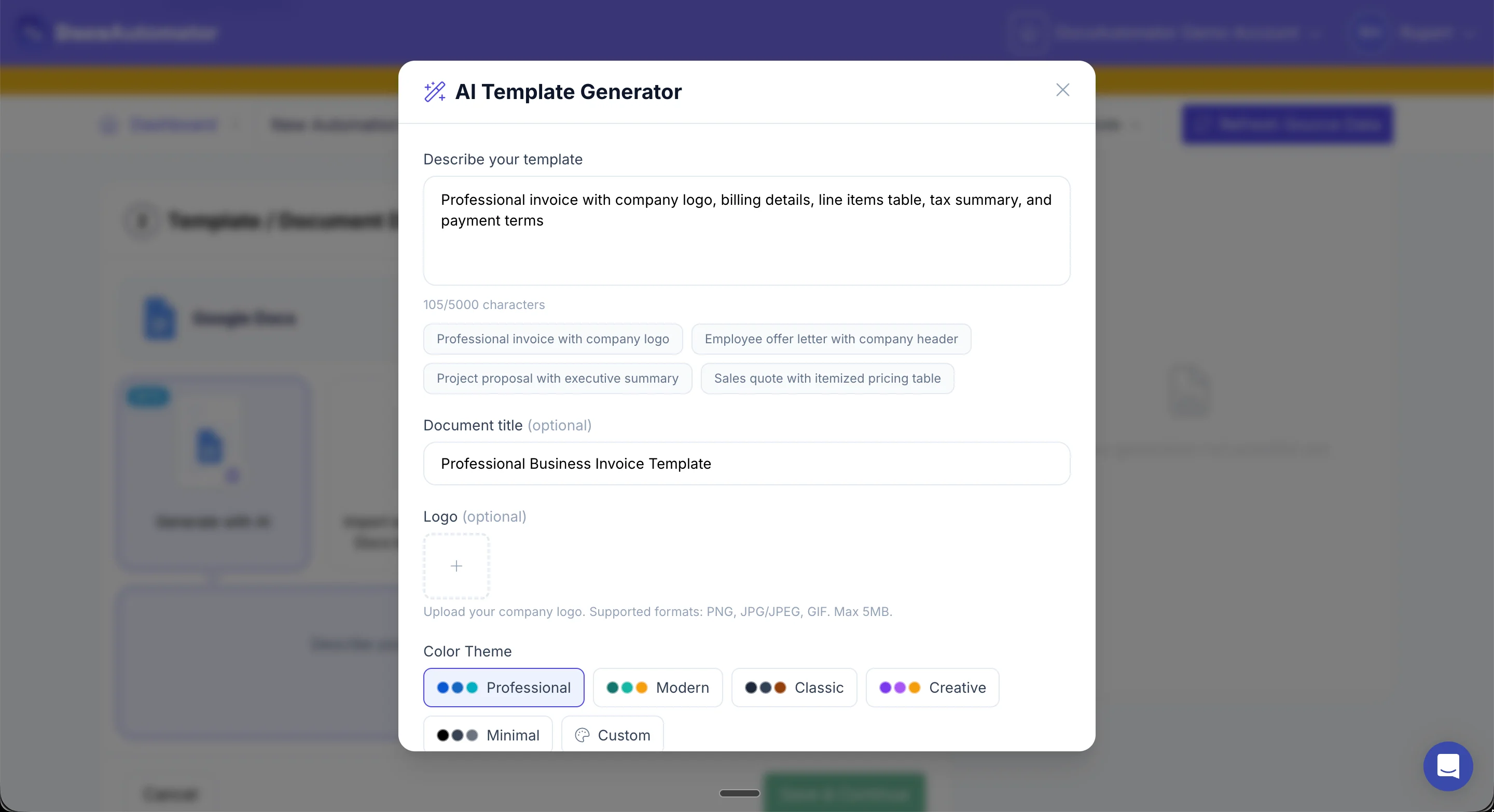
Write a description of the template you need. For example: "Professional invoice with company logo, billing details, line items table, tax summary, and payment terms." You can also click one of the example prompts to get started quickly.
Optionally, set a **document title**, upload your **logo** (brand colors are extracted automatically), and pick a **color theme**.
Click **Generate Template**. AI creates a complete Google Doc template with proper placeholder syntax, formatting, and layout.
After generation, use the chat editor to make changes. Send instructions like "Make the header blue", "Add a footer with page numbers", or "Add an e-signature block for two signers". Each edit updates the template in real time.
Click **Done Editing** to save the template and continue setting up your automation.
## Features
### Logo & Brand Colors
Upload your company logo and AI automatically extracts the dominant colors to apply consistent branding throughout the template.
### Color Themes
Choose a color theme for your template:
| Color Theme | Best for |
| ------------ | ------------------------------------------------ |
| Professional | Business documents, invoices, contracts |
| Modern | Clean, contemporary designs with teal tones |
| Classic | Traditional documents with neutral, warm accents |
| Creative | Bold, vibrant designs with purple accents |
| Minimal | Simple black and gray palette |
### AI Chat Editor
After generating your template, refine it with natural language instructions:
* Change colors, fonts, and layout
* Add or remove sections
* Insert placeholder fields, line items, or e-signature blocks
* Upload additional images to include in the template
### Undo
Made a change you don't like? Click **Undo** in the chat editor to revert to the previous version.
## Tips
* **Be specific**: The more detail you provide in your description, the better the result. Mention specific sections, fields, and formatting preferences.
* **Include field names**: If you know what data fields you'll be mapping, mention them in the prompt. For example, "include fields for client\_name, invoice\_number, and due\_date."
* **Iterate with chat**: Don't try to get everything perfect in the first prompt. Generate a base template, then refine it with follow-up instructions.
* **Upload your logo first**: This helps AI apply your brand colors from the start rather than having to restyle later.