> ## Documentation Index
> Fetch the complete documentation index at: https://docsautomator.co/docs/llms.txt
> Use this file to discover all available pages before exploring further.
# Save PDFs in Dropbox
> Automatically store generated PDFs in Dropbox folders
Save generated PDFs straight to a Dropbox folder you choose, with optional dynamic subfolders. This works like saving to Google Drive or OneDrive, using a connected Dropbox account.
## Basic Setup
1. Open the **Actions** card of the automation editor.
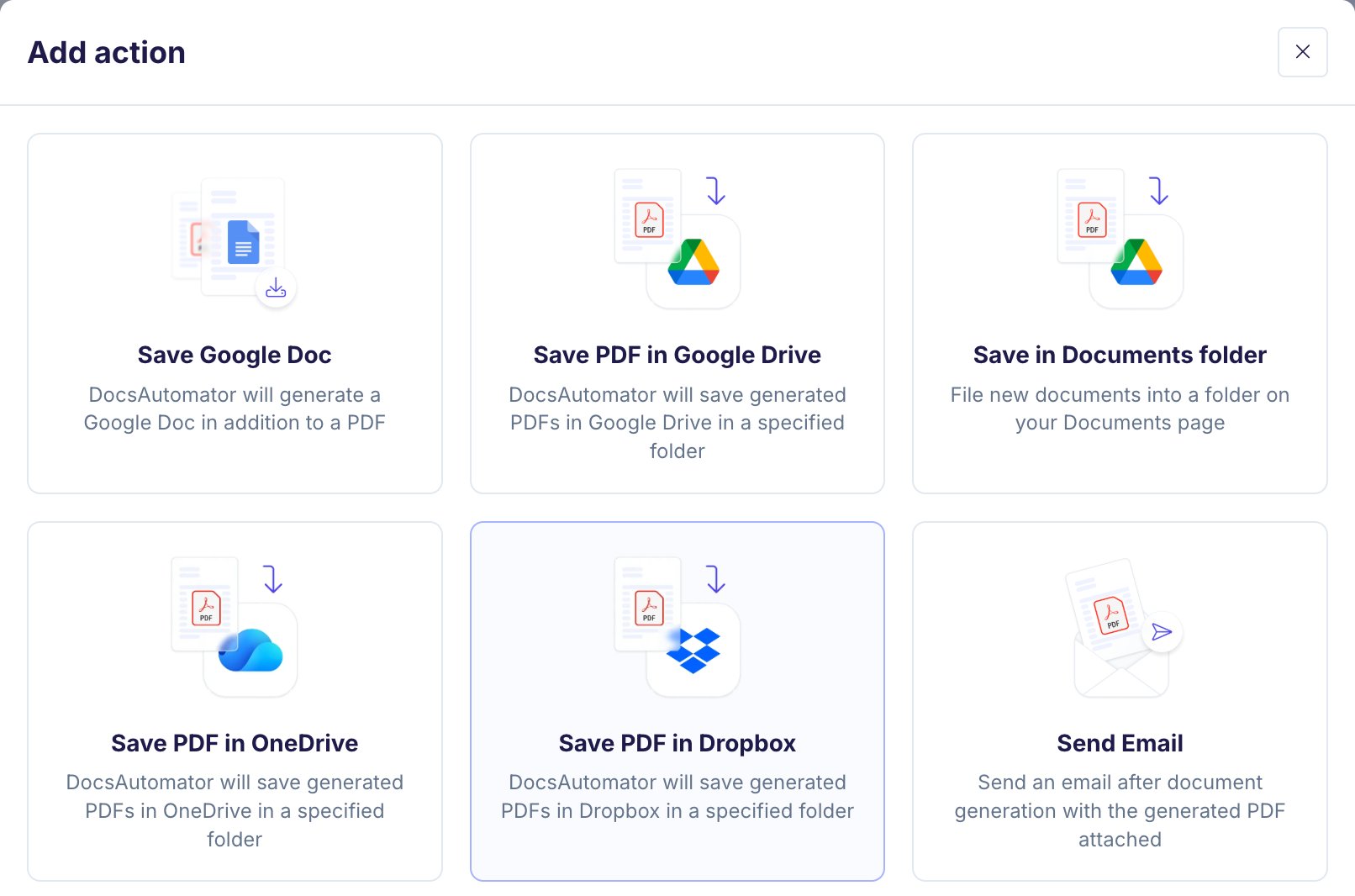
2. Click **Add action** and pick "Save PDF in Dropbox".
3. Choose your connected **Dropbox account**, or connect one.
4. Click **Browse** and open your target Dropbox folder.
5. (Optional) Set a dynamic subfolder.
 If no folder is selected, PDFs save to the top level of your Dropbox.
## Connecting a Dropbox account
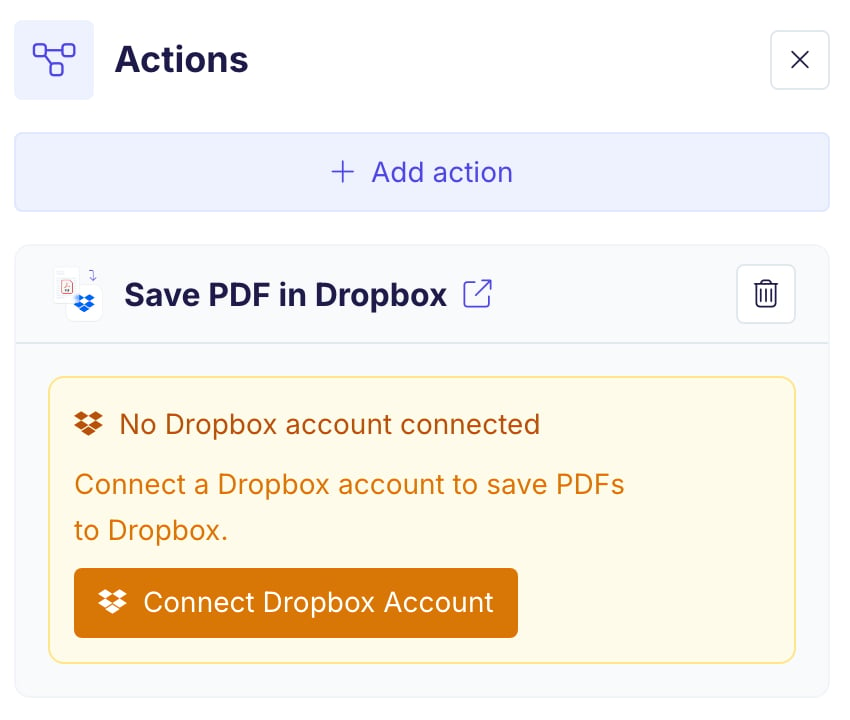
If you have not connected Dropbox yet, click **Connect Dropbox Account** and allow DocsAutomator access. DocsAutomator asks for three permissions: your account name and email, a list of your folders (for the folder picker), and permission to add files. You can connect or disconnect accounts anytime under **Workspace Settings → Integrations**.
If no folder is selected, PDFs save to the top level of your Dropbox.
## Connecting a Dropbox account
If you have not connected Dropbox yet, click **Connect Dropbox Account** and allow DocsAutomator access. DocsAutomator asks for three permissions: your account name and email, a list of your folders (for the folder picker), and permission to add files. You can connect or disconnect accounts anytime under **Workspace Settings → Integrations**.
 ## Dynamic Subfolders
Organize PDFs automatically with subfolders made of static text and placeholders.
Select your connected Dropbox account and browse to a destination folder.
Enter a "Subfolder Name (optional)" using text and placeholders.
Use forward slashes (`/`) for nested folders.
**Examples:**
```
Invoices/2026
{{client_name}}
Clients/{{client_name}}/{{year}}
```
Type `/` in the subfolder field to browse your placeholders, or type `{{placeholder_name}}` yourself. Line item placeholders are excluded.
## How It Works
1. DocsAutomator replaces the placeholders with the values of the document.
2. Dropbox creates any folder in the path that does not exist yet.
3. The PDF is saved in the final folder. If a file with the same name already exists, Dropbox keeps both and adds a number to the new one, for example `Invoice 7 (1).pdf`. Nothing is overwritten.
## Word files and signed PDFs
* For Word templates, the **Save Word Document** action has a **Save to Dropbox?** toggle that uploads the `.docx` as well. See [Save Word Document](/docs/features/actions-after-document-generation/save-word-document).
* For signing and acceptance, turn on **Save to Dropbox** under **After signing** to save the signed PDF. See [Signed PDF Delivery](/docs/features/docsautomator-esign#signed-pdf-delivery).
## Troubleshooting
| Issue | Solution |
| - | - |
| No account to select | Click "Connect Dropbox Account" and allow access. |
| Account shows "Reconnect needed" | Access was removed in Dropbox. Reconnect the account under Workspace Settings → Integrations. |
| Folders not created | Check that the placeholder values exist in your data. |
| Empty placeholders | An empty placeholder is left out of the path, so the PDF saves one level higher. |
| A team folder of a Dropbox business account is missing in the picker | The picker shows your own folders and the folders shared with you. Team space folders are not supported yet. |
This documentation is built and hosted on [Mintlify](https://mintlify.com), a developer documentation platform.
## Dynamic Subfolders
Organize PDFs automatically with subfolders made of static text and placeholders.
Select your connected Dropbox account and browse to a destination folder.
Enter a "Subfolder Name (optional)" using text and placeholders.
Use forward slashes (`/`) for nested folders.
**Examples:**
```
Invoices/2026
{{client_name}}
Clients/{{client_name}}/{{year}}
```
Type `/` in the subfolder field to browse your placeholders, or type `{{placeholder_name}}` yourself. Line item placeholders are excluded.
## How It Works
1. DocsAutomator replaces the placeholders with the values of the document.
2. Dropbox creates any folder in the path that does not exist yet.
3. The PDF is saved in the final folder. If a file with the same name already exists, Dropbox keeps both and adds a number to the new one, for example `Invoice 7 (1).pdf`. Nothing is overwritten.
## Word files and signed PDFs
* For Word templates, the **Save Word Document** action has a **Save to Dropbox?** toggle that uploads the `.docx` as well. See [Save Word Document](/docs/features/actions-after-document-generation/save-word-document).
* For signing and acceptance, turn on **Save to Dropbox** under **After signing** to save the signed PDF. See [Signed PDF Delivery](/docs/features/docsautomator-esign#signed-pdf-delivery).
## Troubleshooting
| Issue | Solution |
| - | - |
| No account to select | Click "Connect Dropbox Account" and allow access. |
| Account shows "Reconnect needed" | Access was removed in Dropbox. Reconnect the account under Workspace Settings → Integrations. |
| Folders not created | Check that the placeholder values exist in your data. |
| Empty placeholders | An empty placeholder is left out of the path, so the PDF saves one level higher. |
| A team folder of a Dropbox business account is missing in the picker | The picker shows your own folders and the folders shared with you. Team space folders are not supported yet. |
This documentation is built and hosted on [Mintlify](https://mintlify.com), a developer documentation platform.