> ## Documentation Index
> Fetch the complete documentation index at: https://docsautomator.co/docs/llms.txt
> Use this file to discover all available pages before exploring further.
# Templates Overview
> Choose the right template type for your document automation — Google Docs, PDF, or native Word (.docx)
DocsAutomator supports multiple template types so you can pick the best fit for your documents.
**New: [AI Template Generator (Beta)](/features/ai-template-generator)** — Don't want to build a template from scratch? Describe what you need and AI creates a complete Google Doc template with proper placeholder syntax, formatting, and layout.
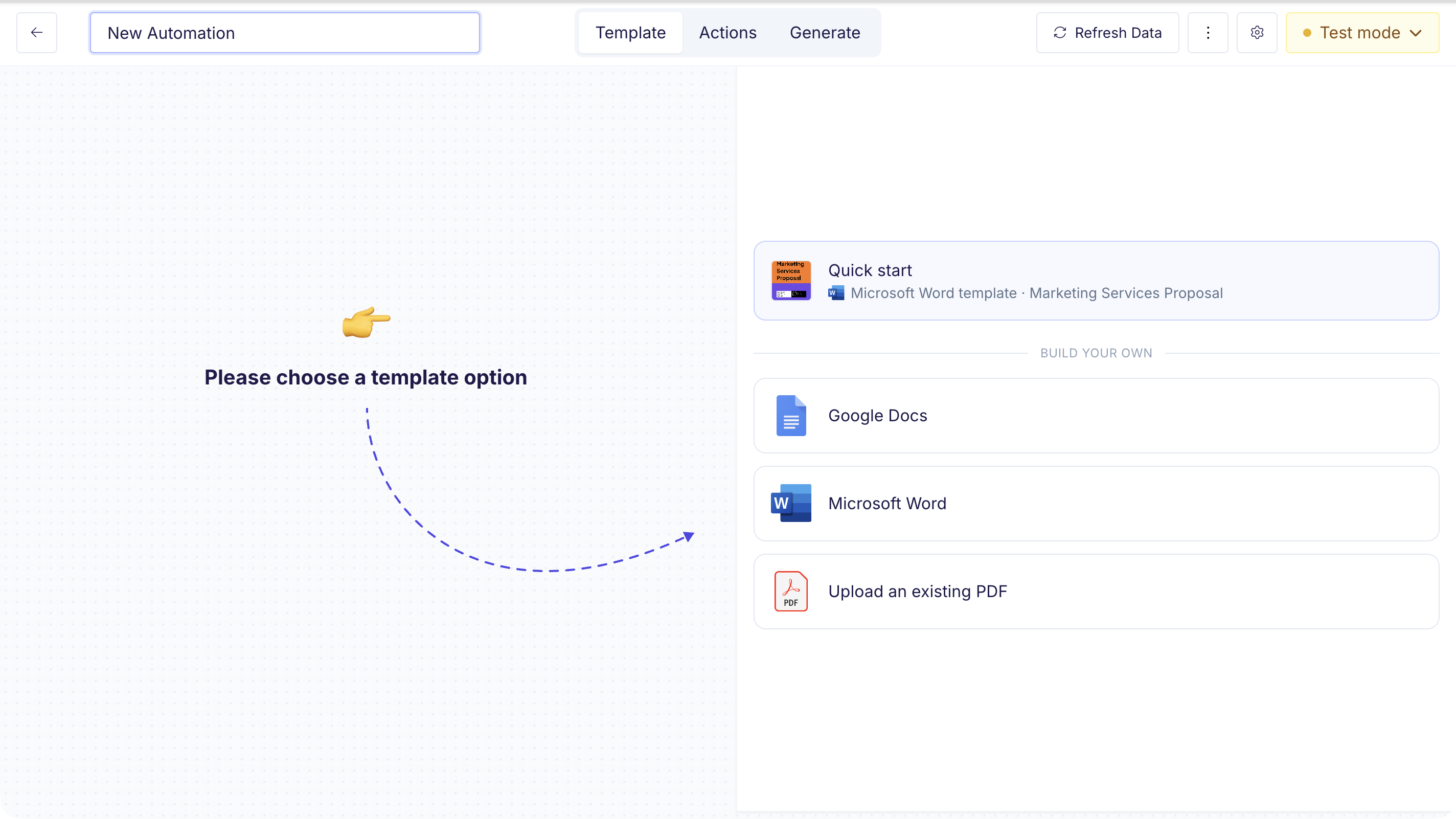 ## Template Types
Create templates directly in Google Docs using `{{ placeholder }}` syntax.
Best for dynamic content with variable-length sections, line items, and
conditional content.
Upload an existing PDF and use the visual editor to position data fields on
top. Best for fixed-layout documents like tax forms, branded designs, or
government docs.
Use a native Word file as your template with the same `{{ placeholder }}`
syntax as Google Docs. Stays a `.docx` for its whole life and renders
straight to PDF. Best when your team designs documents in Microsoft Word.
## Which Should I Use?
| | Google Doc | PDF | Word (.docx) |
| ------------------------------------------------------ | ---------- | --- | ------------------ |
| **Dynamic content** (variable-length text, line items) | Yes | No | Yes |
| **Fixed layout** (exact positioning) | No | Yes | No |
| **Line items & repeating rows** | Yes | No | Yes (single level) |
| **Nested (multi-level) line items** | Yes | No | No |
| **Conditional content** (show/hide sections) | Yes | No | Yes |
| **E-signatures** | Yes | Yes | Yes |
| **Pixel-perfect design** | No | Yes | No |
| **Edit in Microsoft Word** | No | No | Yes |
If you're not sure, start with a **Google Doc template** — it's the most
flexible option and supports all of DocsAutomator's advanced features like
line items, conditional content, and e-signatures.
## Template Types
Create templates directly in Google Docs using `{{ placeholder }}` syntax.
Best for dynamic content with variable-length sections, line items, and
conditional content.
Upload an existing PDF and use the visual editor to position data fields on
top. Best for fixed-layout documents like tax forms, branded designs, or
government docs.
Use a native Word file as your template with the same `{{ placeholder }}`
syntax as Google Docs. Stays a `.docx` for its whole life and renders
straight to PDF. Best when your team designs documents in Microsoft Word.
## Which Should I Use?
| | Google Doc | PDF | Word (.docx) |
| ------------------------------------------------------ | ---------- | --- | ------------------ |
| **Dynamic content** (variable-length text, line items) | Yes | No | Yes |
| **Fixed layout** (exact positioning) | No | Yes | No |
| **Line items & repeating rows** | Yes | No | Yes (single level) |
| **Nested (multi-level) line items** | Yes | No | No |
| **Conditional content** (show/hide sections) | Yes | No | Yes |
| **E-signatures** | Yes | Yes | Yes |
| **Pixel-perfect design** | No | Yes | No |
| **Edit in Microsoft Word** | No | No | Yes |
If you're not sure, start with a **Google Doc template** — it's the most
flexible option and supports all of DocsAutomator's advanced features like
line items, conditional content, and e-signatures.