> ## Documentation Index
> Fetch the complete documentation index at: https://docsautomator.co/docs/llms.txt
> Use this file to discover all available pages before exploring further.
# Quickstart Guide
> Your fast track guide to get started automating documents
This guide helps you begin using DocsAutomator in minutes. It assumes you've already created an account at [app.docsautomator.co](https://app.docsautomator.co).
Need personal assistance? [Schedule a call](https://cal.com/docsautomator/20min) with our team.
## 1. Create New Automation
After logging in, you'll see the initial dashboard. Click the **"+ New Automation"** button to begin setting up document generation.
 An automation combines your data source (Airtable, Google Sheets, etc.) with a template — either a Google Doc or a PDF template.
## 2. Set Title & Choose Data Source
Select your data source from the available integrations:
An automation combines your data source (Airtable, Google Sheets, etc.) with a template — either a Google Doc or a PDF template.
## 2. Set Title & Choose Data Source
Select your data source from the available integrations:
 Depending on your selection, you may need to connect your account.
## 3. Choose Document Template
DocsAutomator supports two template types:
Depending on your selection, you may need to connect your account.
## 3. Choose Document Template
DocsAutomator supports two template types:
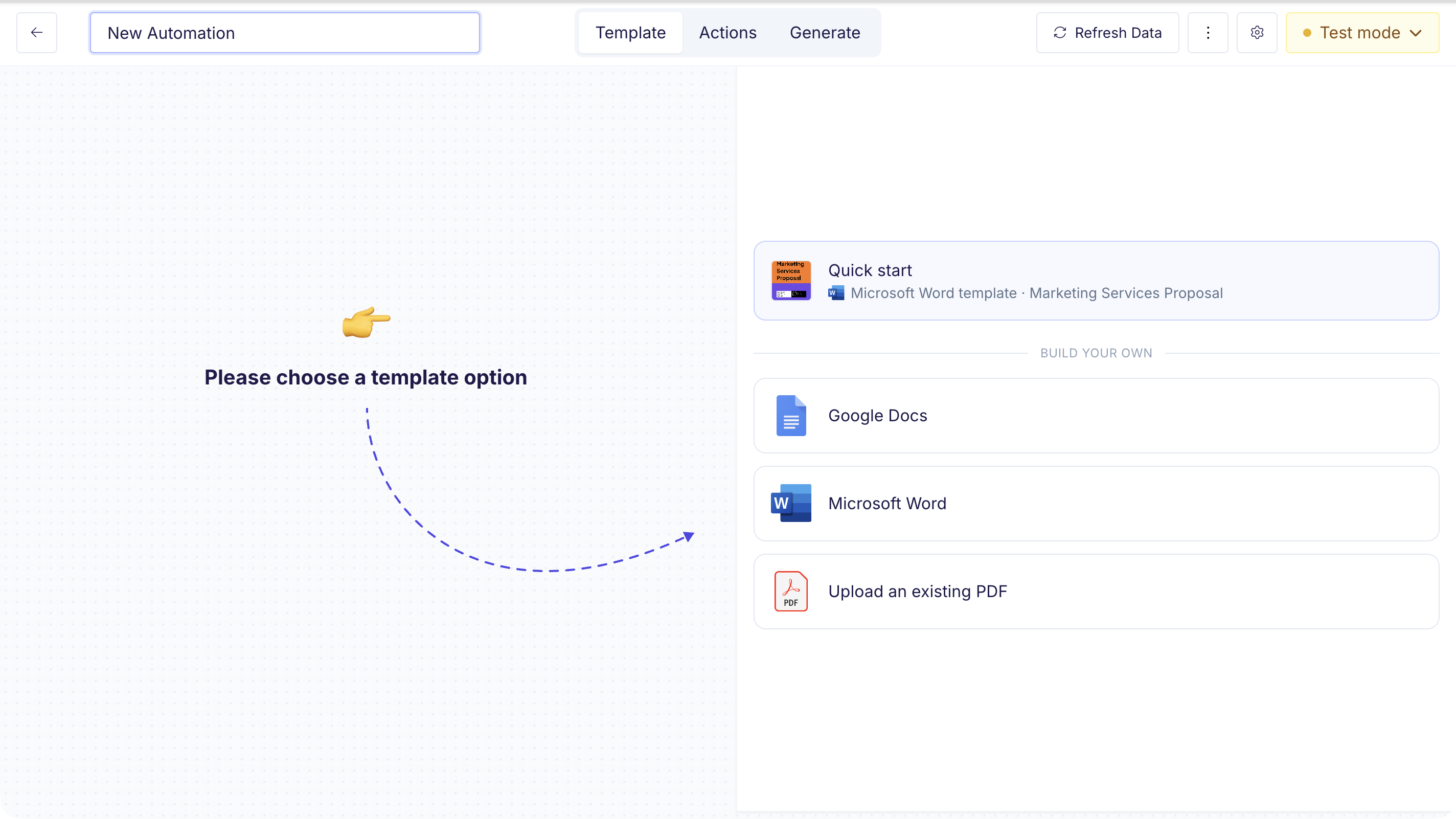 Create a Google Doc with placeholder syntax (`{{field_name}}`). Best for text-heavy documents like invoices, contracts, and reports.
 Use the built-in playground template to learn interactively and test the placeholder syntax before building your own.
Browse pre-built templates at [docsautomator.co/templates](https://docsautomator.co/templates/) for common use cases like invoices, contracts, and reports.
Follow the [Google Doc Template Guide](/docsautomator-basics/google-doc-template-guide) to create a custom template.
Prefer Microsoft Word? Choose **Microsoft Word** as the template type, then upload your `.docx`, pick a Word gallery design, or generate one with AI. See the [Word Template Guide](/docsautomator-basics/word-template-guide) for details.
Need help? Request professional template creation through our [service form](https://docsautomator.co/templates/).
Upload an existing PDF and use the visual editor to define where data fields should be overlaid. The PDF itself is not modified — DocsAutomator fills in the fields on top of your original layout at generation time. Best for pre-designed forms, certificates, or branded documents.
See the [PDF Template Guide](/docsautomator-basics/pdf-template-guide) for full setup instructions.
## 4. Map Data, Create Previews & Start Automating
Select your base and table, then map your template placeholders to your data source fields.
Use the built-in playground template to learn interactively and test the placeholder syntax before building your own.
Browse pre-built templates at [docsautomator.co/templates](https://docsautomator.co/templates/) for common use cases like invoices, contracts, and reports.
Follow the [Google Doc Template Guide](/docsautomator-basics/google-doc-template-guide) to create a custom template.
Prefer Microsoft Word? Choose **Microsoft Word** as the template type, then upload your `.docx`, pick a Word gallery design, or generate one with AI. See the [Word Template Guide](/docsautomator-basics/word-template-guide) for details.
Need help? Request professional template creation through our [service form](https://docsautomator.co/templates/).
Upload an existing PDF and use the visual editor to define where data fields should be overlaid. The PDF itself is not modified — DocsAutomator fills in the fields on top of your original layout at generation time. Best for pre-designed forms, certificates, or branded documents.
See the [PDF Template Guide](/docsautomator-basics/pdf-template-guide) for full setup instructions.
## 4. Map Data, Create Previews & Start Automating
Select your base and table, then map your template placeholders to your data source fields.

 Once mapping is complete, generate a preview to verify your document looks correct.
 ## 5. Configure Output Actions
Set up what happens after a document is generated — save PDFs, send emails, merge documents, collect e-signatures, and more.
## 5. Configure Output Actions
Set up what happens after a document is generated — save PDFs, send emails, merge documents, collect e-signatures, and more.
 Want to collect signatures? Enable e-signatures in your automation's output settings. See the [eSign guide](/features/docsautomator-esign) for setup instructions.
 The configuration process differs by integration:
Choose your Airtable Base and the Primary Table containing your data
Set the document name field and attachment field where PDFs will be saved
Map template placeholders to your Airtable fields
Create a preview to verify the output looks correct
Configure document creation using webhooks or automation scripts within Airtable
Authorize DocsAutomator and pick the workspace and database containing your data
Set the title property and (optionally) the file property where PDFs will be saved back
Map template placeholders to your Notion database properties — or to the page body as Markdown
Create a preview to verify the output looks correct
Trigger document creation from a Notion button (requires Notion Plus or higher)
Set your automation to "preview mode" while testing.
Add the DocsAutomator integration in your Glide app settings
Provide your API key and account email
Configure the DocsAutomator action and add your automation/template ID
Map values from your Glide data to template variables
Set the PDF output field in your Glide data
Set your automation to "preview mode" while testing.
Connect your DocsAutomator account in Noloco settings
Create a workflow and select "Generate a document with DocsAutomator"
Select your DocsAutomator automation
Map template fields to your Noloco data
Add a follow-up action to save the generated PDF
Choose your ClickUp Space and List
Map template placeholders to ClickUp fields
Create previews to verify the output
Copy the webhook URL and configure it in ClickUp Automations
Choose your Google Spreadsheet and the Primary Sheet containing your data
Set the Primary Column, Document Name Column, and PDF Link Column
Map template placeholders to your sheet columns
Create a preview to verify the output looks correct
Choose between Auto-Create on new rows, webhook formula, or Apps Script
Choose your SmartSuite Solution and the Table containing your data
Set the document name field and attachment field
Map template placeholders to your SmartSuite fields
Create a preview to verify the output
Configure a SmartSuite automation with the DocsAutomator action
Start a new Zap and choose your trigger app and event
Search for DocsAutomator and select "Create Document"
Provide your API key and account email
Choose the automation to use for document generation
Map your trigger data to the template placeholders
Install the DocsAutomator node from the n8n community nodes panel
Configure your API key and account email in n8n credentials
Add the node to your workflow and select "Create Document"
Select your automation and map placeholder values
Start a new scenario and add your trigger module
Add an HTTP "Make a request" module for the DocsAutomator API
Set the API endpoint, authorization header, and request body
Map your trigger data to the template placeholders in the JSON body
Add DocsAutomator in your Softr app's integrations settings
Provide your API key and account email
Create a Softr workflow with the DocsAutomator action
Map your Softr data fields to template placeholders
Configure where the generated PDF will be stored
Find your API key in the DocsAutomator dashboard settings
Send a POST request to the `/createDocument` endpoint with your automation ID and data
Receive the PDF URL and optional Google Doc URL in the response
## Need Help?
Reach out at [support@docsautomator.co](mailto:support@docsautomator.co)
Use the chat feature in your dashboard for quick assistance
The configuration process differs by integration:
Choose your Airtable Base and the Primary Table containing your data
Set the document name field and attachment field where PDFs will be saved
Map template placeholders to your Airtable fields
Create a preview to verify the output looks correct
Configure document creation using webhooks or automation scripts within Airtable
Authorize DocsAutomator and pick the workspace and database containing your data
Set the title property and (optionally) the file property where PDFs will be saved back
Map template placeholders to your Notion database properties — or to the page body as Markdown
Create a preview to verify the output looks correct
Trigger document creation from a Notion button (requires Notion Plus or higher)
Set your automation to "preview mode" while testing.
Add the DocsAutomator integration in your Glide app settings
Provide your API key and account email
Configure the DocsAutomator action and add your automation/template ID
Map values from your Glide data to template variables
Set the PDF output field in your Glide data
Set your automation to "preview mode" while testing.
Connect your DocsAutomator account in Noloco settings
Create a workflow and select "Generate a document with DocsAutomator"
Select your DocsAutomator automation
Map template fields to your Noloco data
Add a follow-up action to save the generated PDF
Choose your ClickUp Space and List
Map template placeholders to ClickUp fields
Create previews to verify the output
Copy the webhook URL and configure it in ClickUp Automations
Choose your Google Spreadsheet and the Primary Sheet containing your data
Set the Primary Column, Document Name Column, and PDF Link Column
Map template placeholders to your sheet columns
Create a preview to verify the output looks correct
Choose between Auto-Create on new rows, webhook formula, or Apps Script
Choose your SmartSuite Solution and the Table containing your data
Set the document name field and attachment field
Map template placeholders to your SmartSuite fields
Create a preview to verify the output
Configure a SmartSuite automation with the DocsAutomator action
Start a new Zap and choose your trigger app and event
Search for DocsAutomator and select "Create Document"
Provide your API key and account email
Choose the automation to use for document generation
Map your trigger data to the template placeholders
Install the DocsAutomator node from the n8n community nodes panel
Configure your API key and account email in n8n credentials
Add the node to your workflow and select "Create Document"
Select your automation and map placeholder values
Start a new scenario and add your trigger module
Add an HTTP "Make a request" module for the DocsAutomator API
Set the API endpoint, authorization header, and request body
Map your trigger data to the template placeholders in the JSON body
Add DocsAutomator in your Softr app's integrations settings
Provide your API key and account email
Create a Softr workflow with the DocsAutomator action
Map your Softr data fields to template placeholders
Configure where the generated PDF will be stored
Find your API key in the DocsAutomator dashboard settings
Send a POST request to the `/createDocument` endpoint with your automation ID and data
Receive the PDF URL and optional Google Doc URL in the response
## Need Help?
Reach out at [support@docsautomator.co](mailto:support@docsautomator.co)
Use the chat feature in your dashboard for quick assistance