> ## Documentation Index
> Fetch the complete documentation index at: https://docsautomator.co/docs/llms.txt
> Use this file to discover all available pages before exploring further.
# Google Doc Template Guide
> Learn how to create templates in Google Docs for DocsAutomator
This guide explains how to create templates in Google Docs for DocsAutomator, covering the platform's template syntax and best practices.
This guide covers Google Doc templates. For PDF templates with visual placeholder positioning, see the [PDF Template Guide](/docsautomator-basics/pdf-template-guide).
 ## Template Syntax
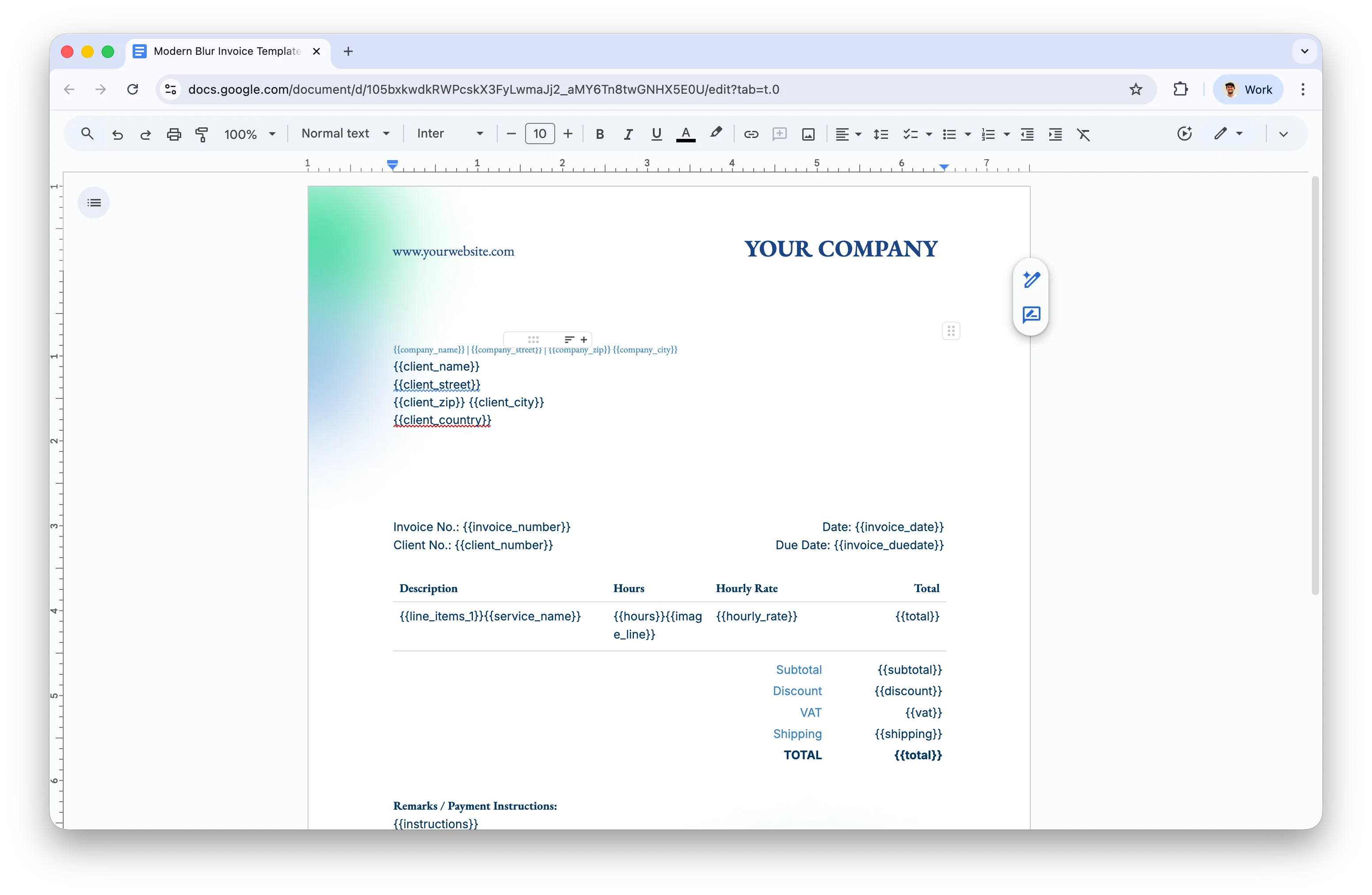
DocsAutomator uses three types of variables declared with double curly brackets `{{...}}`:
### Text Variables/Placeholders
Basic text placeholders replace content in your document with data from your source.
```
{{variableName}}
```
```text Examples theme={null}
{{name}}
{{email}}
{{company}}
{{invoiceNumber}}
{{someUniquePlaceholderText}}
```
Variable names must be unique within a document. However, the same placeholder can appear multiple times—you only need to map the data once.
### Image Variables/Placeholders
Dynamic image insertion uses the `image_` prefix:
```
{{image_variableName}}
```
```text Examples theme={null}
{{image_headshot}}
{{image_product}}
{{image_companyLogo}}
{{image_signature}}
```
When declared, the system expects single or multiple images to be passed for replacement. See [Dynamic Images](/features/dynamic-images) for more details.
### Line Item Variables/Placeholders
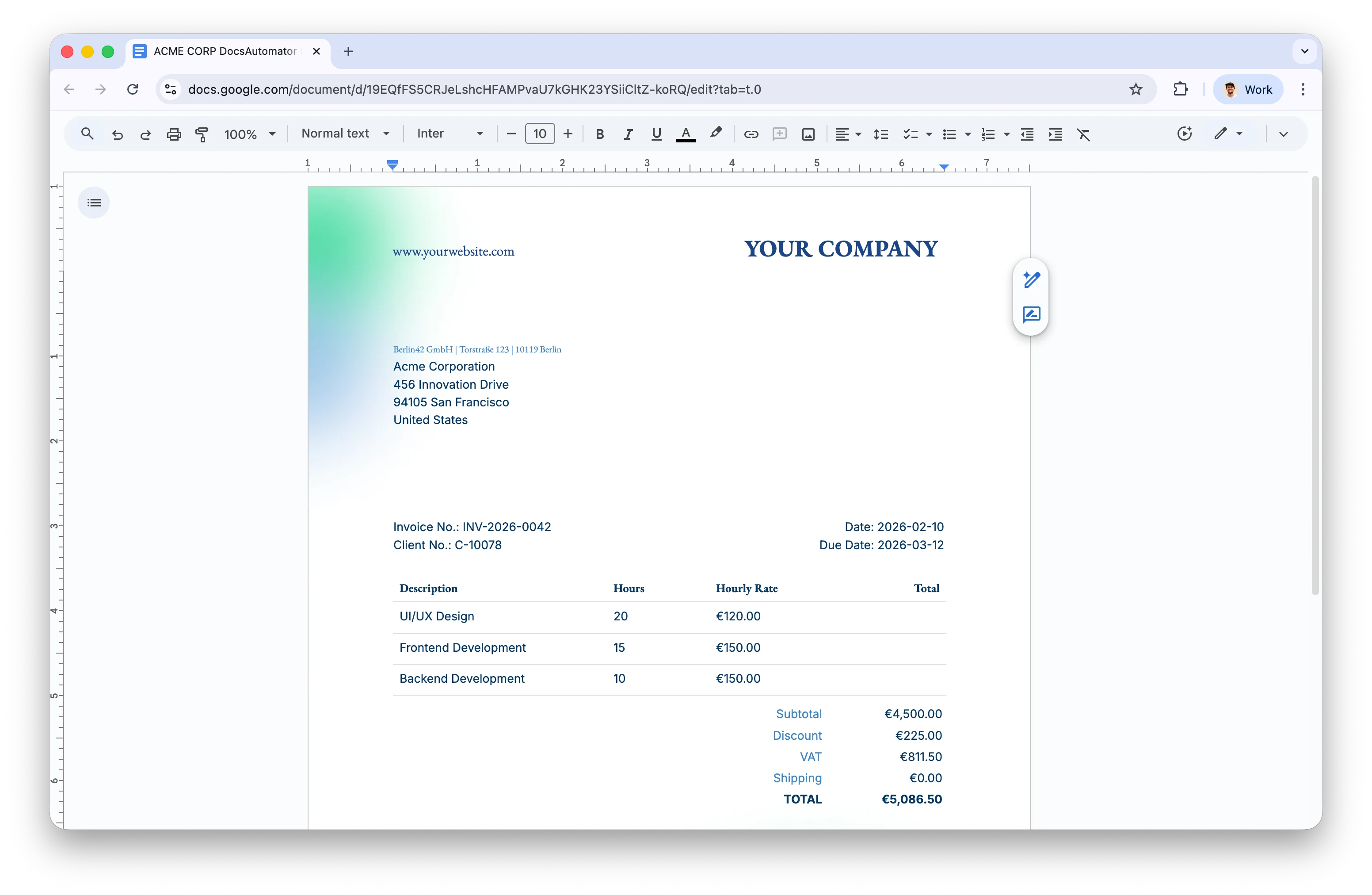
Line items enable adding lists of data such as invoice positions, timesheet entries, or product lists. They're declared as table rows in your template:
```
{{line_items_1}}{{description}} {{quantity}} {{price}}
```
Line items support:
* Static text alongside variables
* Multiple variables per table cell
* Nested line items (up to 3 levels deep)
* Calculations and grouping
See [Line Items](/features/line-items) for comprehensive documentation.
## Template Syntax
DocsAutomator uses three types of variables declared with double curly brackets `{{...}}`:
### Text Variables/Placeholders
Basic text placeholders replace content in your document with data from your source.
```
{{variableName}}
```
```text Examples theme={null}
{{name}}
{{email}}
{{company}}
{{invoiceNumber}}
{{someUniquePlaceholderText}}
```
Variable names must be unique within a document. However, the same placeholder can appear multiple times—you only need to map the data once.
### Image Variables/Placeholders
Dynamic image insertion uses the `image_` prefix:
```
{{image_variableName}}
```
```text Examples theme={null}
{{image_headshot}}
{{image_product}}
{{image_companyLogo}}
{{image_signature}}
```
When declared, the system expects single or multiple images to be passed for replacement. See [Dynamic Images](/features/dynamic-images) for more details.
### Line Item Variables/Placeholders
Line items enable adding lists of data such as invoice positions, timesheet entries, or product lists. They're declared as table rows in your template:
```
{{line_items_1}}{{description}} {{quantity}} {{price}}
```
Line items support:
* Static text alongside variables
* Multiple variables per table cell
* Nested line items (up to 3 levels deep)
* Calculations and grouping
See [Line Items](/features/line-items) for comprehensive documentation.
 ***
## E-Signature Placeholders
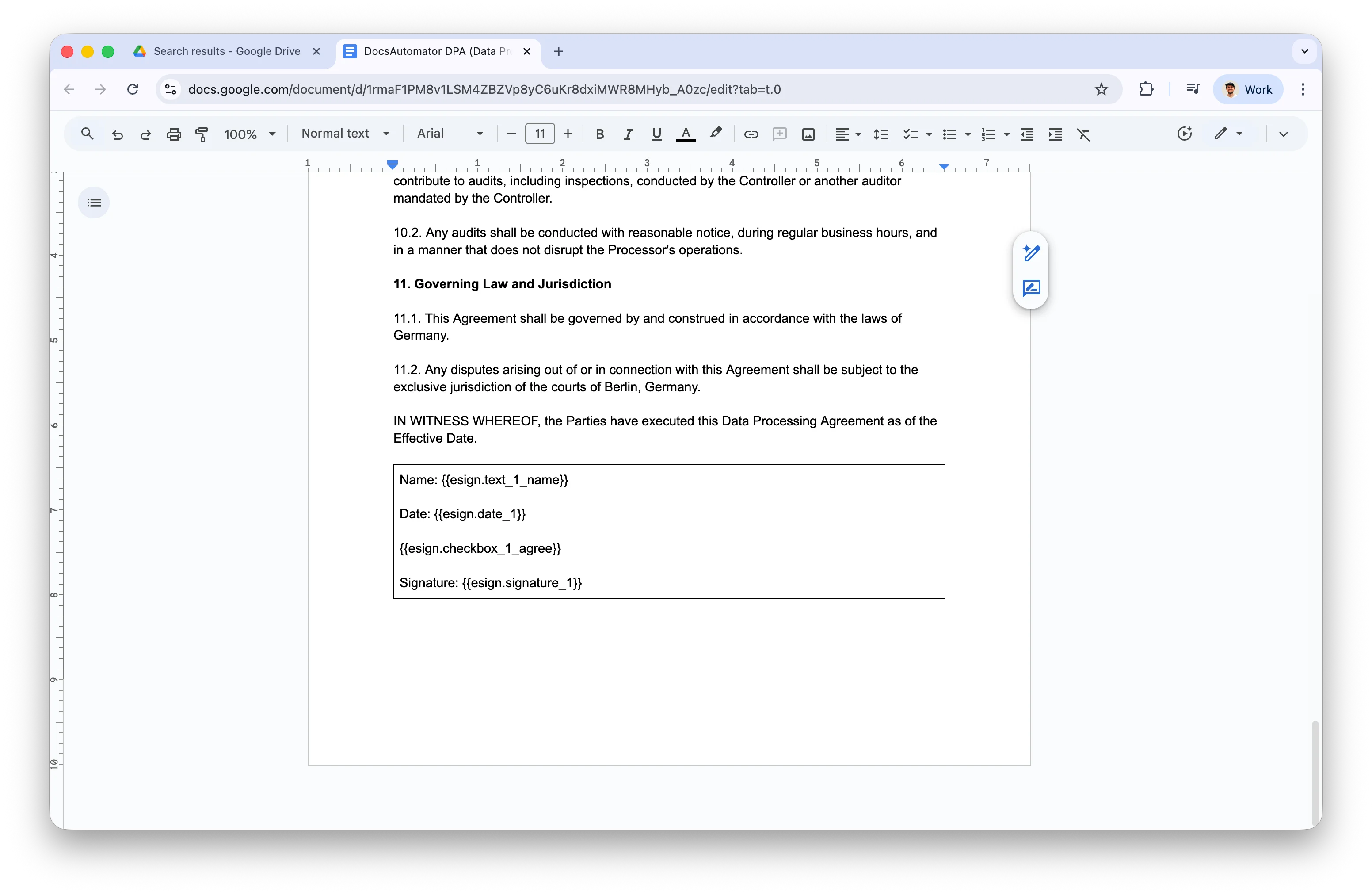
Add e-signature fields to your Google Doc template to collect legally binding signatures through [DocsAutomator eSign](/features/docsautomator-esign). E-signature placeholders use the `esign.` prefix followed by the field type and signer number.
### Field Types
| Syntax | Purpose |
| ----------------------- | ---------------------------------------------- |
| `{{esign.signature_N}}` | Signature capture (draw or touch) for signer N |
| `{{esign.date_N}}` | Auto-filled date when signer N signs |
| `{{esign.text_N}}` | Text input field for signer N |
| `{{esign.checkbox_N}}` | Agreement checkbox for signer N |
Where `N` is the signer number (1, 2, 3, etc.). Use different numbers to assign fields to different signers in a multi-party signing workflow.
### Example: Two-Party Signature Block
```
SELLER:
Signature: {{esign.signature_1}}
Printed Name: {{esign.text_1_printedname}}
Date: {{esign.date_1}}
I agree to the terms and conditions: {{esign.checkbox_1_agreeterms}}
BUYER:
Signature: {{esign.signature_2}}
Printed Name: {{esign.text_2_printedname}}
Date: {{esign.date_2}}
I agree to the terms and conditions: {{esign.checkbox_2_agreeterms}}
```
***
## E-Signature Placeholders
Add e-signature fields to your Google Doc template to collect legally binding signatures through [DocsAutomator eSign](/features/docsautomator-esign). E-signature placeholders use the `esign.` prefix followed by the field type and signer number.
### Field Types
| Syntax | Purpose |
| ----------------------- | ---------------------------------------------- |
| `{{esign.signature_N}}` | Signature capture (draw or touch) for signer N |
| `{{esign.date_N}}` | Auto-filled date when signer N signs |
| `{{esign.text_N}}` | Text input field for signer N |
| `{{esign.checkbox_N}}` | Agreement checkbox for signer N |
Where `N` is the signer number (1, 2, 3, etc.). Use different numbers to assign fields to different signers in a multi-party signing workflow.
### Example: Two-Party Signature Block
```
SELLER:
Signature: {{esign.signature_1}}
Printed Name: {{esign.text_1_printedname}}
Date: {{esign.date_1}}
I agree to the terms and conditions: {{esign.checkbox_1_agreeterms}}
BUYER:
Signature: {{esign.signature_2}}
Printed Name: {{esign.text_2_printedname}}
Date: {{esign.date_2}}
I agree to the terms and conditions: {{esign.checkbox_2_agreeterms}}
```
 E-signature signer details (name, email, signing order) are configured in the automation's output settings, not in the template itself. See [DocsAutomator eSign](/features/docsautomator-esign) for setup instructions.
***
## Generate with AI (Beta)
Instead of building a Google Doc template from scratch, you can describe what you need and let AI generate one for you. See the [AI Template Generator](/features/ai-template-generator) guide for details.
***
## Tips & Best Practices
Browse the [Template Gallery](https://docsautomator.co/templates/best-free-google-docs-templates/) for pre-built solutions rather than creating from scratch. It's faster and helps you understand the syntax.
Use tables with hidden borders to position elements precisely during design. Set border width to 0pt when finished for a clean look.
Apply fixed positioning to images in headers, footers, or at the top of pages to prevent text flow interference.
Generated Google Docs inherit sharing permissions from either the selected Google Drive folder or the template folder.
Always use preview mode when setting up a new automation to verify your template renders correctly before going live.
## Common Placeholder Patterns
| Pattern | Description | Example |
| --------------------------- | ----------------------- | ------------------ |
| `{{field}}` | Simple text replacement | `{{name}}` |
| `{{image_field}}` | Image insertion | `{{image_logo}}` |
| `{{line_items_1}}{{field}}` | Line item row | Invoice rows |
| `{{field\|format}}` | Formatted output | `{{date\|date}}` |
| `{{#if condition}}` | Conditional content | Show/hide sections |
## Next Steps
Upload existing PDFs and overlay data fields
Learn how to insert images dynamically
Master tables and repeating rows
Show or hide content based on conditions
Collect legally binding e-signatures
Browse pre-built templates
E-signature signer details (name, email, signing order) are configured in the automation's output settings, not in the template itself. See [DocsAutomator eSign](/features/docsautomator-esign) for setup instructions.
***
## Generate with AI (Beta)
Instead of building a Google Doc template from scratch, you can describe what you need and let AI generate one for you. See the [AI Template Generator](/features/ai-template-generator) guide for details.
***
## Tips & Best Practices
Browse the [Template Gallery](https://docsautomator.co/templates/best-free-google-docs-templates/) for pre-built solutions rather than creating from scratch. It's faster and helps you understand the syntax.
Use tables with hidden borders to position elements precisely during design. Set border width to 0pt when finished for a clean look.
Apply fixed positioning to images in headers, footers, or at the top of pages to prevent text flow interference.
Generated Google Docs inherit sharing permissions from either the selected Google Drive folder or the template folder.
Always use preview mode when setting up a new automation to verify your template renders correctly before going live.
## Common Placeholder Patterns
| Pattern | Description | Example |
| --------------------------- | ----------------------- | ------------------ |
| `{{field}}` | Simple text replacement | `{{name}}` |
| `{{image_field}}` | Image insertion | `{{image_logo}}` |
| `{{line_items_1}}{{field}}` | Line item row | Invoice rows |
| `{{field\|format}}` | Formatted output | `{{date\|date}}` |
| `{{#if condition}}` | Conditional content | Show/hide sections |
## Next Steps
Upload existing PDFs and overlay data fields
Learn how to insert images dynamically
Master tables and repeating rows
Show or hide content based on conditions
Collect legally binding e-signatures
Browse pre-built templates